Section 2 Copy Mode - Monochrome 2-19
2.6.3 Enabling Cutsheet
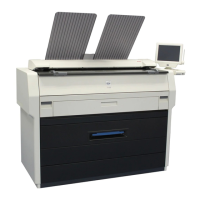
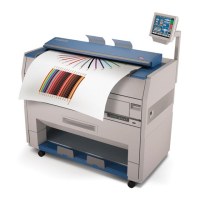
Some KIP printers are equipped with a cut sheet feeder that can be enabled in the
configuration menu of the UI.
This can be accomplished by following these steps
1. Select the (?) button in the bottom left corner of the user
interface.
2. Select the Configuration button from the Info/Help screen.
3. Using the Left/Right arrows located at the bottom of the
page
scroll to page four (4).
4. Change the Enable Cut Sheet button to “Yes”.
2.6.4 Cut Sheet
To copy onto a cut sheet of media:
a) Select the CUT SHEET button on the main screen.
b) Select the Output Size of the actual cut sheet paper that will be inserted into
the Cut Sheet feeder.


 To Next Page