Section 10 KIP Request 10-34
2) Click on KIP Mailbox and listed are all the KIP 3000 Mail boxes on the KIP
3000 IPS.
Note: FTP locations are not shown here, only IPS mailboxes!
3) Click on the mailbox (folder) that contains the scanned images that are
required.
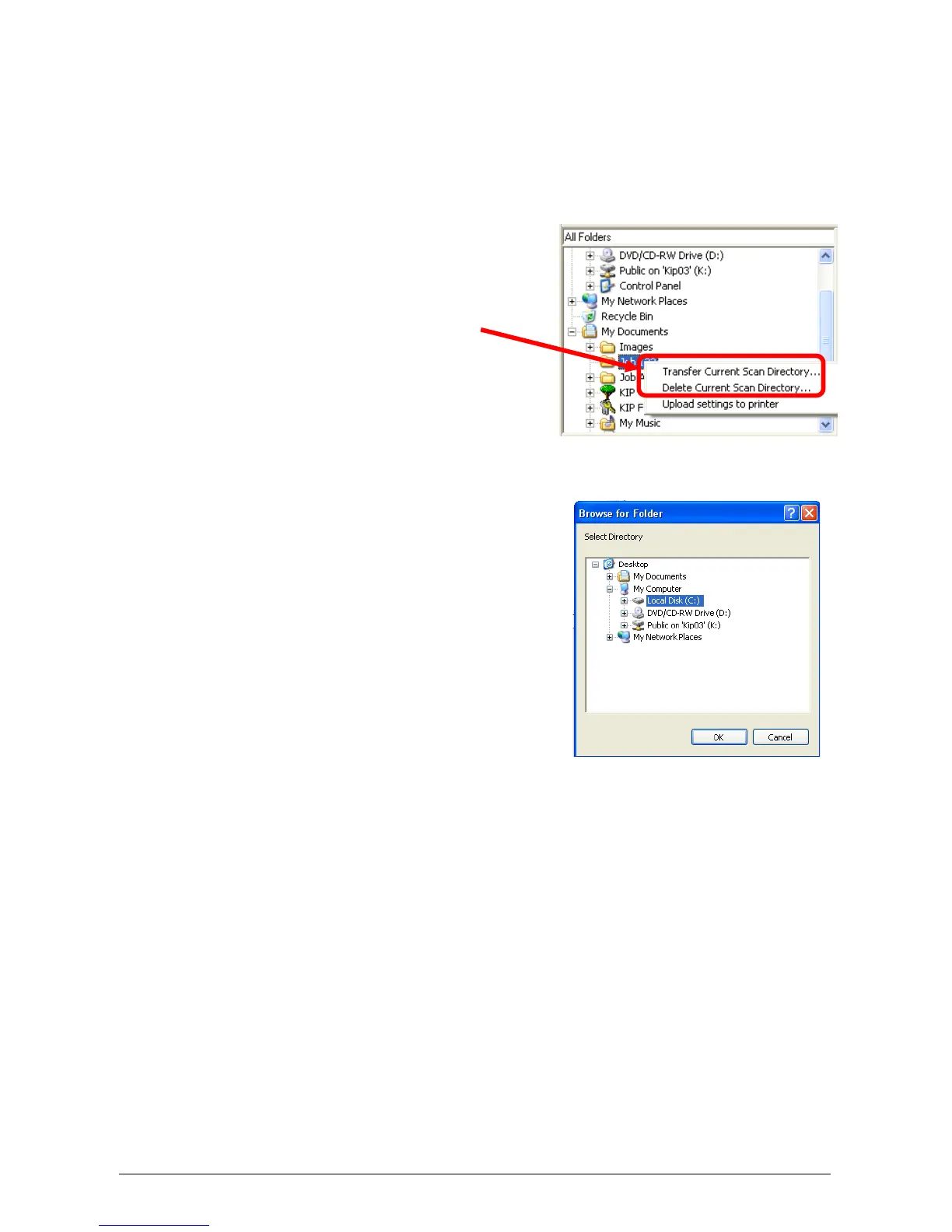
4) Right Click with the mouse to
“Transfer Current Scan Directory”
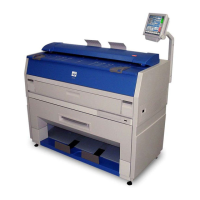
5) A screen will appear to allow the
Mailbox directory to copy scanned files
to local drives or networked storage
locations.
6) After you have copied the files it will ask if you wish to delete the folder on
the IPS. This can be performed at this time if so desired.
7) After the folder with the scanned images has been copied other tasks can
be performed with KIP applications and other third party applications:
a) Database the images
b) Image editing
c) KIP Request
d) Any other image tools applications


 To Next Page