Installing in Windows NT 4.0 Networks
Print Server Installation Manual 3-29
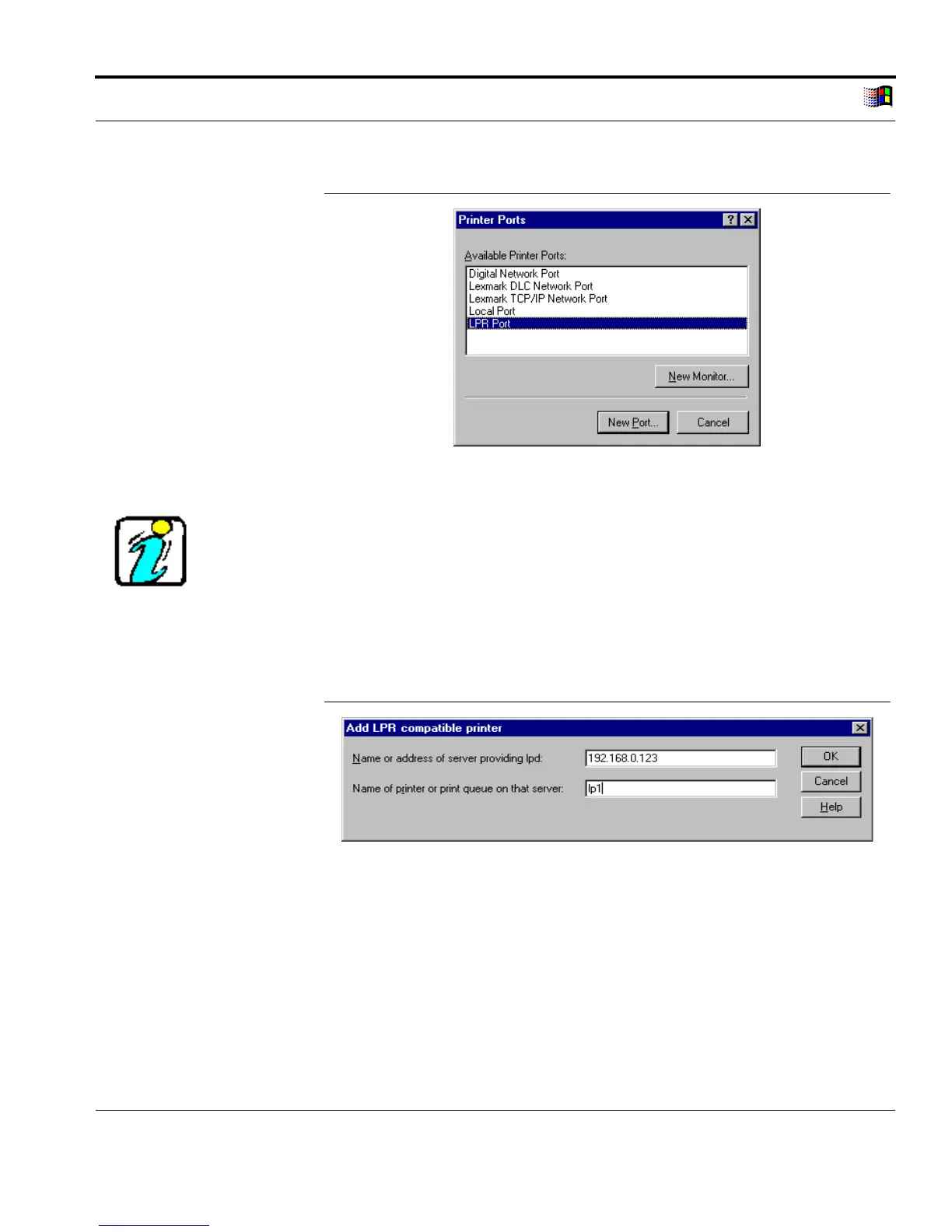
Select LPR Port
Fig. 3-17: 'Printer Ports' window
If the 'LPR Port' entry is invisible, install the TCP/IP print services
first. Read the "Installing the Microsoft TCP/IP Print Services"
section on page 3-24 if necessary.
5. Select 'LPR Port.'
6. Click 'New Port...'
The following window appears:
Enter IP Address
Fig. 3-18: 'Add LPR Compatible Printer' window
7. Enter the IP address or host name of the print server into the
'Name or address of server providing lpd' box.
8. Enter the name of the logical printer (lp1 - lp8) into the 'Name
of printer or print queue on that Server' box. If no name or an
incorrect name has been entered, the print data is automatically
routed to the printer through logical printer no. 1.



 To Next Page