Installing in Novell NetWare 3.x Networks in Print Server Mode
Print Server Installation Manual 2-39
3. Select 'Print Server Information.'
The 'Print Servers' window appears.
4. Press INS.
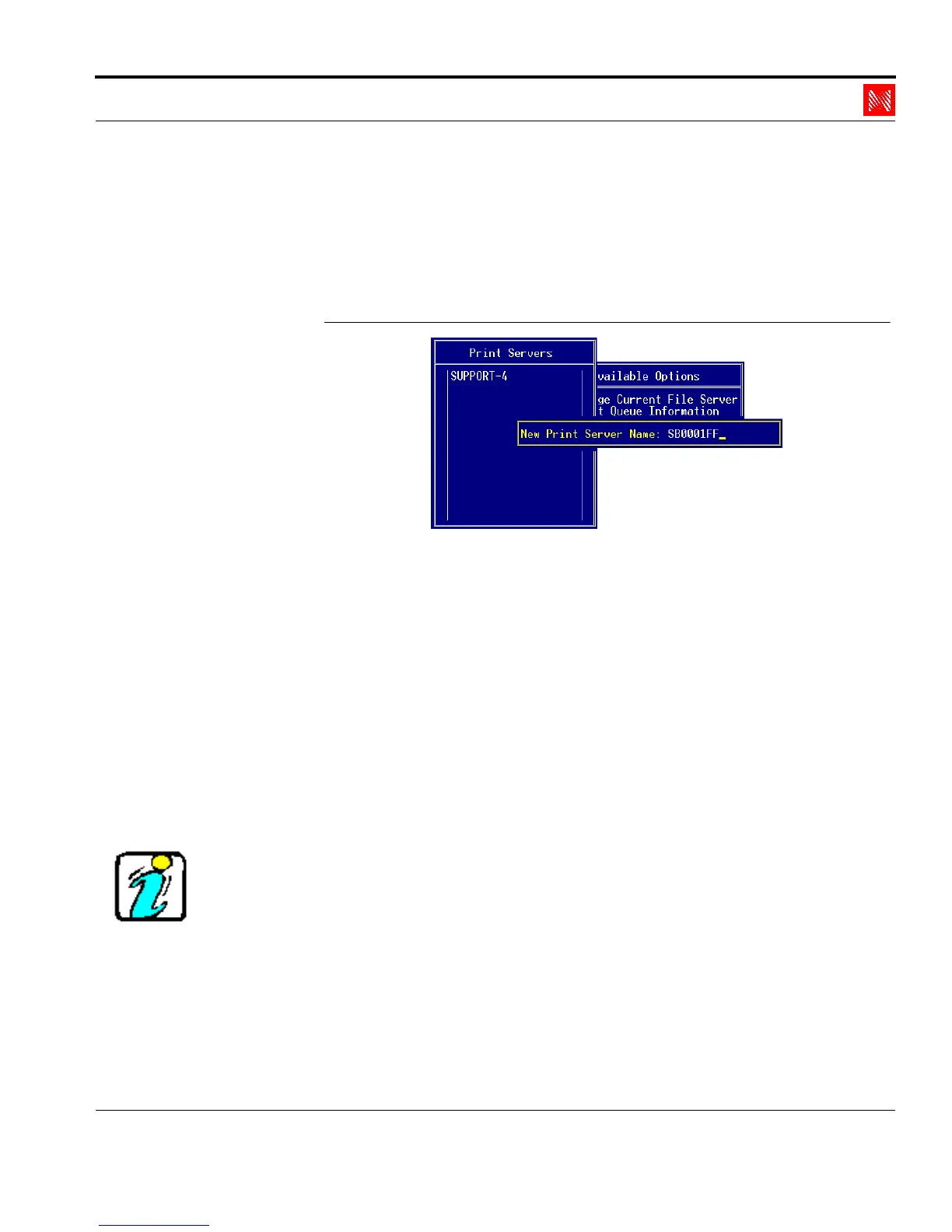
The following window appears:
Enter Print Server
Fig. 2-29: 'New Print Server Name' window
5. Enter the print server name into the 'New Print Server Name'
window.
Syntax: <print server name>
Example: SB0001F
Here, you may also use the Novell name of the print server if
you assign this name using the print server homepage, the
KyoNetCon, or FTP parameter transfer.
6. Press ENTER to save the changes.
7. Press ESC to return to the main menu.
If you wish to use logical printers, you must install one or more
additional print servers by repeating the steps above. Use the print
server name and add extensions #1 to #8 to allocate it as a logical
printer.
Syntax: <print server name> + #1 - #8
Example: SB0001FF#1



 To Next Page