Installing in Windows NT 3.51 Networks
Print Server Installation Manual 3-37
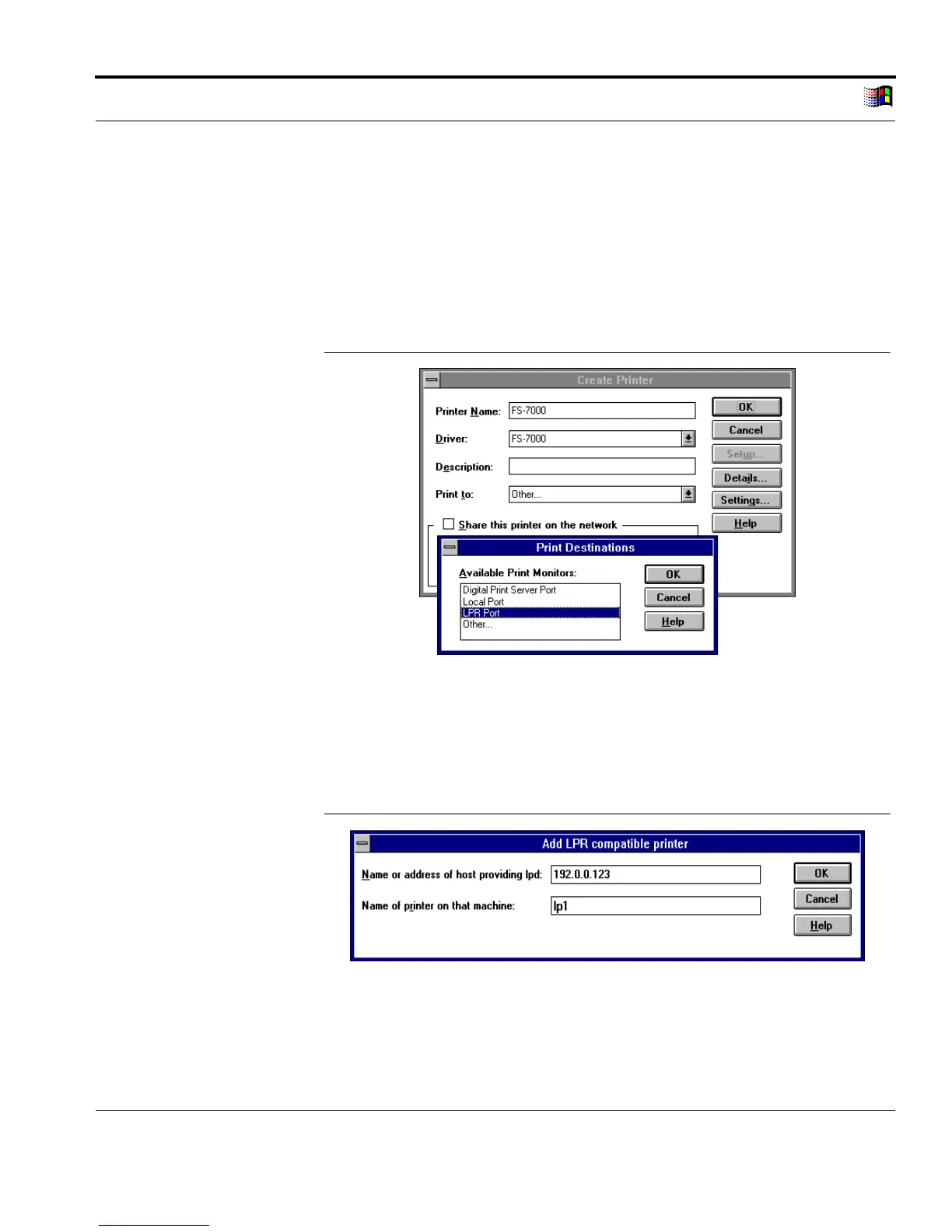
2. Select 'Setup New Printer' on the 'Printer' menu.
The 'Setup New Printer' window appears.
3. Enter a printer name, a driver, and a description.
4. Select 'Other...' in the 'Print to' box.
The following window appears:
Select Print
Destination
Fig. 3-24: 'Print Destinations' window
5. Select 'LPR Port.'
6. Click 'OK' to confirm.
The following window appears:
Enter IP Address
Fig. 3-25: 'Add LPR Compatible Printer' window
7. Enter the IP address or host name of the print server in the
'Name or address of host providing lpd' box.



 To Next Page