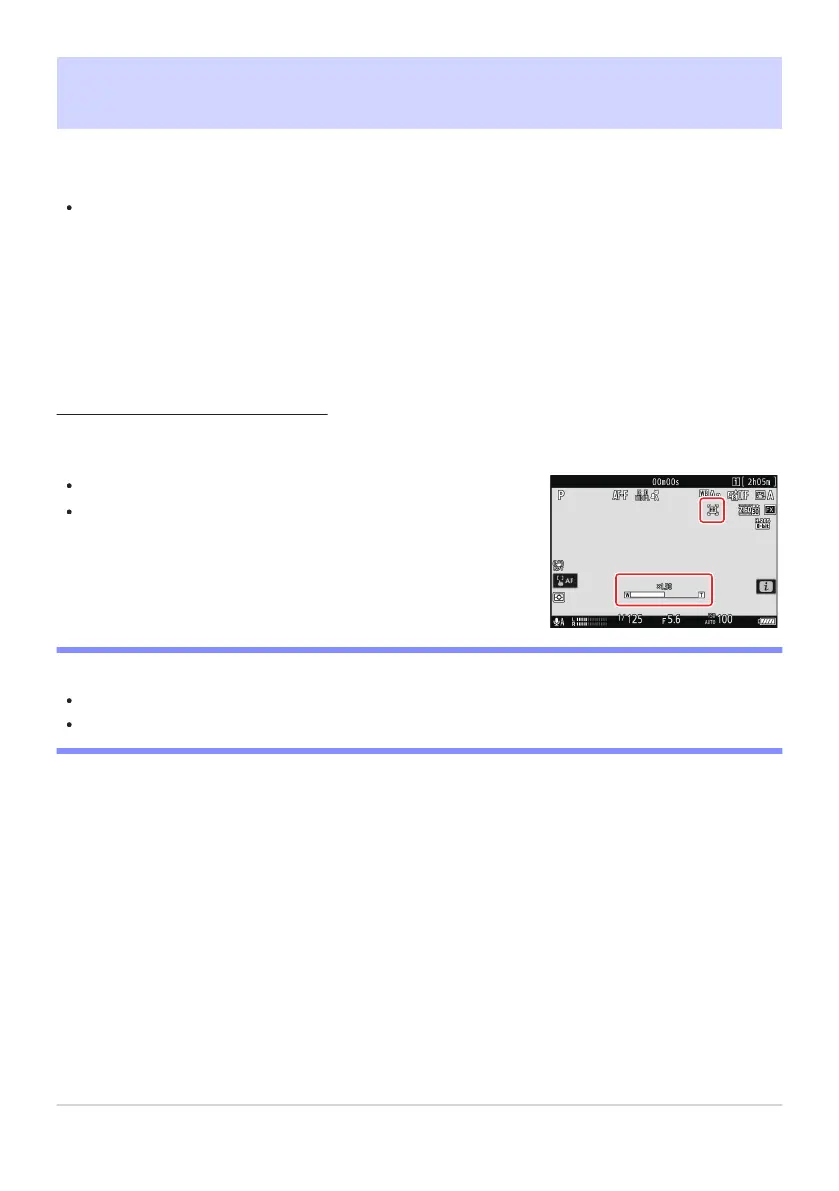
A H icon appear
s in the display when Hi-R
es Zoom is enabled.
The zoom position is shown by a bar as you zoom in or out. You
can zoom in to a maximum of 2.0×.
Hi-Res Zoom
Selecting [ON] for [Hi-Res Zoom] in the video r
ecording menu lets you zoom in on your subject with
no loss in resolution, even without a zoom lens.
Hi-Res Zoom is available when all the following conditions are met:
[FX] is selected for [Image area] > [Choose image area] in the video recording menu,
[ProRes 422 HQ 10-bit (MOV)], [H.265 10-bit (MOV)], [H.265 8-bit (MOV)], or [H.264 8-bit
(MP4)] is selected for [Video file type] in the video recording menu, and
a frame size and rate of from [3840×2160; 30p] to [3840×2160; 24p] or from [1920×1080;
120p] to [1920×1080; 24p] is selected for [Frame size/frame rate] in the video recording menu.
Using Hi-Res Zoom
Select [ON] for [Hi-Res Zoom] in the video r
ecording menu and press 4 or 2 to zoom in or out.
D Cautions: Hi-Res Zoom
AF-area mode is fixed at [Wide-area AF (L)]. The focus point is not displayed.
[Electronic VR] in the video recording menu is fixed at [OFF].
209
Hi-Res Zoom
-
-
-



 To Next Page