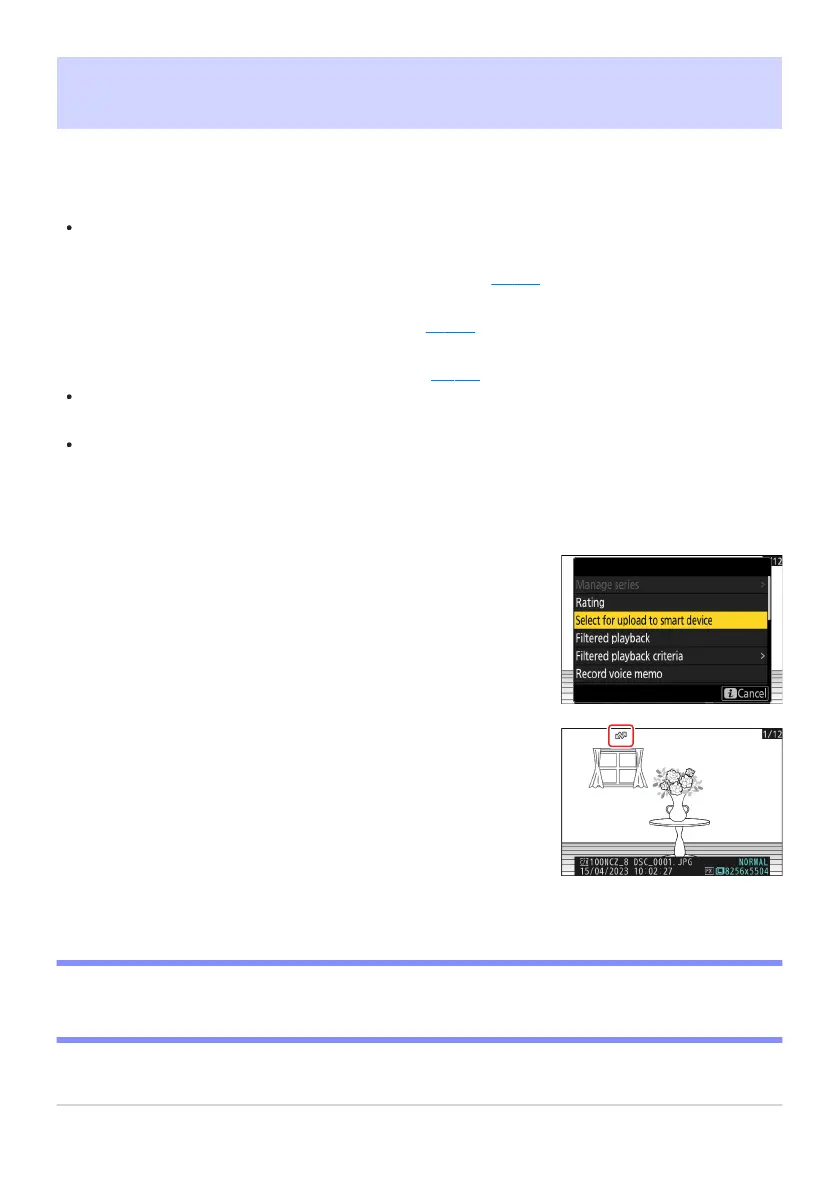
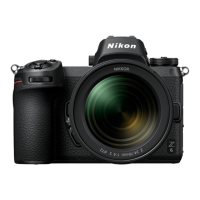
Highlight [Select for upload to smart device], [Select for
upload t
o computer], or [Select for upload (FTP)] and press
J.
Pictures destined for a smart device are marked with a W
icon, while those destined for a comput
er or f
tp server are
marked with s.
Selecting Pictures for Upload
Follow the steps below t
o select the current picture for upload to a smart device, computer, or FTP
server.
The i menu items used to select pictures for upload vary with the type of device connected:
[Select for upload to smart device]: Displayed when the camera is connected to a smart device
using [Connect to smart device] in the network menu (
0 767).
[Select for upload t
o computer]: Displayed when the camera is connected to a computer using
[Connect to computer] in the network menu (
0 770).
[Select for upload (F
TP)]: Displayed when the camera is connected to an FTP server using
[Connect to FTP server] in the network menu (
0 775).
Videos cannot be selected for uplo
ad when the camera is connected to a smart device via the
SnapBridge app.
The maximum file size for videos uploaded by other means is 4GB.
Select the desired picture and press the i button.
D Removing Upload Marking
Repeat Steps1–2 to remove upload marking from selected pictures.
238
Selecting Pictures for Upload
-
-
-
1
2



 To Next Page