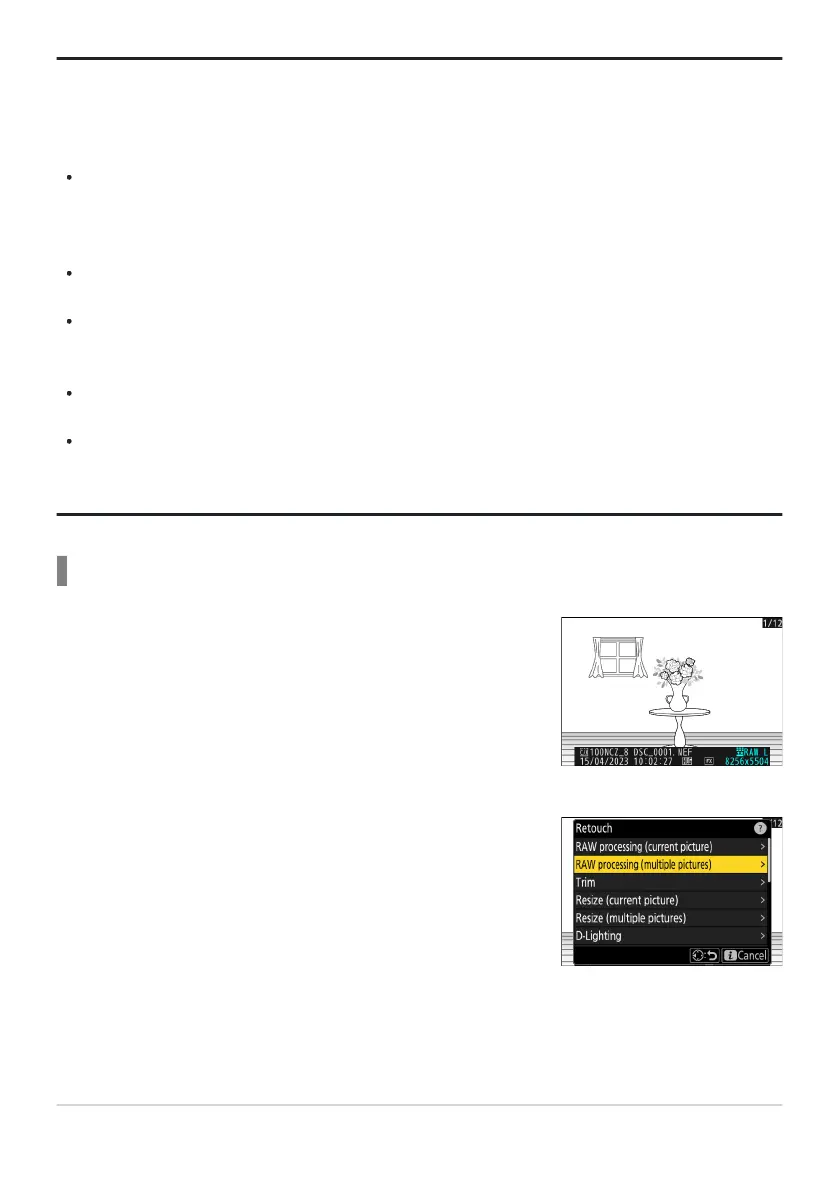
Display an NEF (RAW) picture shot with [HLG] selected for
tone mode and then pr
ess the i button.
Choose a picture marked with the HLG icon.
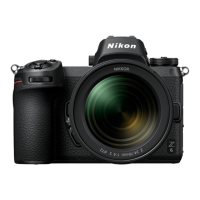
Select [Retouch] in the i menu, then highlight [RA
W
processing (multiple pictures)] and press 2.
Tip: Creating JPEG Copies from RAW Photos Shot Using the HLG Tone Mode
Selecting [To RA
W processing (JPEG)] in Step4 displays the [RAW processing (JPEG)] dialog, where
you can adjust settings for saving the copy in JPEG format. To save the JPEG copy, highlight [EXE (save
in JPEG format)] and press J.
Exposure for JPEG copies created by applying [RAW processing (JPEG)] to RAW photos shot in
HLG will be around 2 EV lower than that of JPEG copies created from RAW photos shot with [SDR]
selected for tone mode. Exposure can be corrected as desired using the [Exposure compensation]
option in the [RAW processing (JPEG)] dialog.
[Set Picture Control] appears in the [RAW processing (JPEG)] display in place of [Set Picture
Control (HLG)]. [Original] cannot be selected.
You will be able to choose options for [Color space] and [Active D-Lighting]. Note, however, that
choosing an option for [Active D-Lighting] may result in “noise” in the form of randomly-spaced
bright pixels, fog, or lines.
To return to the [RAW processing (HEIF)] display, select [To RAW processing (HEIF)] in the [RAW
processing (JPEG)] dialog.
The values selected in the [RAW processing (HEIF)] and [RAW processing (JPEG)] displays are
stored separately and are not reset after processing or when you switch from one display to another
using [To RAW processing (JPEG)] or [To RAW processing (HEIF)].
Processing Multiple Pictures
258
RAW Processing
1
2



 To Next Page