Chapter 15 Troubleshooting 167
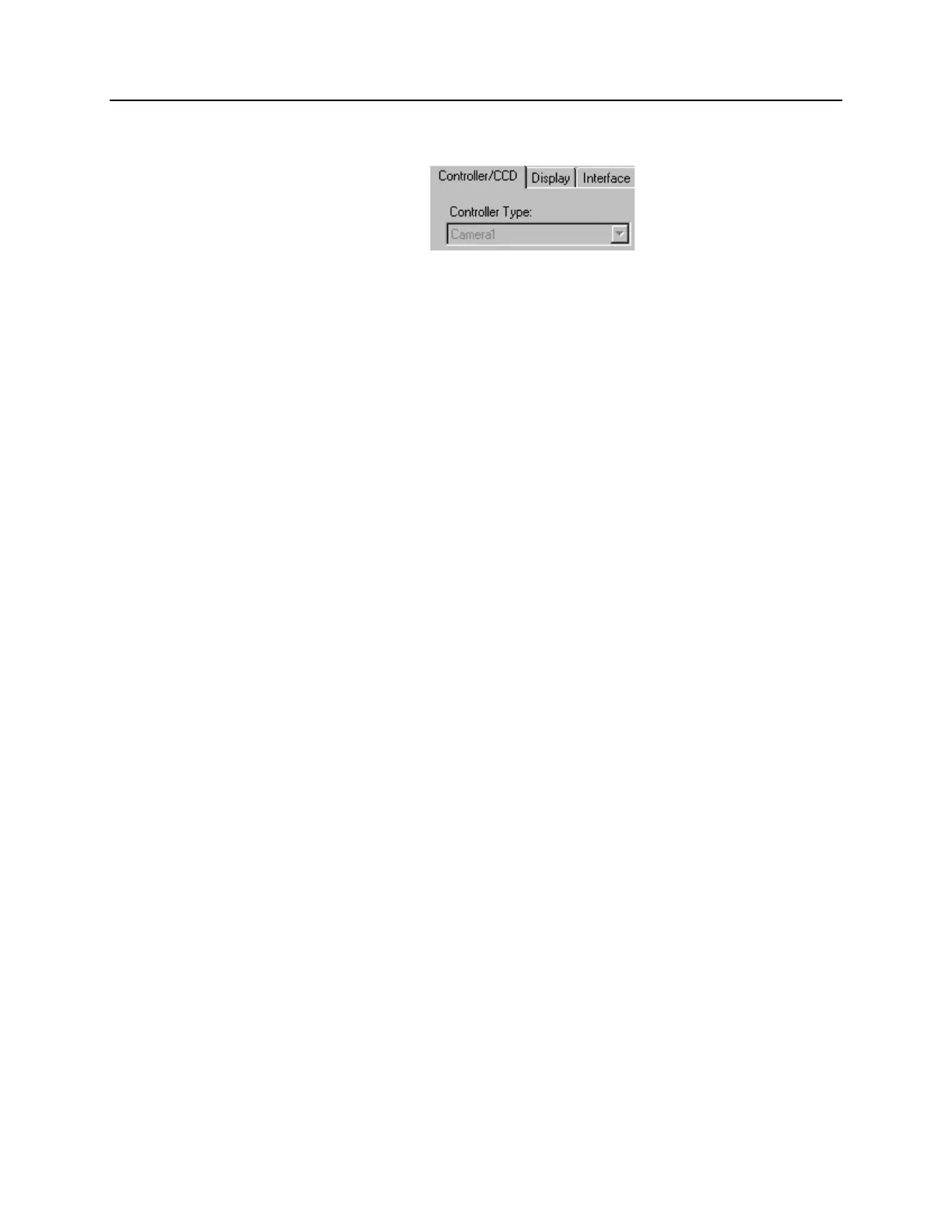
Camera1 (or similar name) on Hardware Setup dialog box
Figure 93. Camera1 in Controller Type (Camera Name) Field
If you see a default name such as Camera1 on the Setup|Hardware|Controller/CCD tab
page, you may want to change it since this name is not particularly descriptive. Such a
change is made by editing the PVCAM.INI file that is generated by Camera Detection
wizard (or by the RSConfig.exe if you have software version 2.5.19.0 or earlier).
To change the default Camera Name:
1. Using Notepad or a similar text editor, open PVCAM.INI, which is located in
the Windows directory (C:\WINNT, for example). You should see entries like
the ones below.
[Camera_1]
Type=1
Name=Camera1
Driver=apausb.sys
Port=0
ID=523459
2. Change the "Name=" entry to something more meaningful for you (for example,
ST133USB - to indicate that this is a PVCAM-based system using an ST-133
with a USB 2.0 interface) and save the edited file.
[Camera_1]
Type=1
Name=ST133USB
Driver=apausb.sys
Port=0
ID=523459
3. The new camera name will now appear in the Controller Type (Camera
Name) field.



 To Next Page