Chapter 15 Troubleshooting 169
Controller Is Not Responding
If this message pops up when you click on OK after selecting the Interface Type during
Hardware Setup (under the WinX Setup menu), the system has not been able to
communicate with the camera. Check to see if the Controller has been turned ON and if
the interface card, its driver, and the interface cable have been installed.
If the Controller is ON, the problem may be with the interface card, its
driver, interrupt or address conflicts, or the cable connections.
If the interface card is not installed, close the application software and turn
the Controller OFF. Follow the interface card installation instructions in
Chapter 3 and cable the interface card to the "High Speed Serial" port on the
rear of the camera. Then do a "Custom" installation of WinSpec/32 or
WinView/32 with the appropriate interface component selected: "PCI
Interface" or "ISA Interface", depending on the interface card type. Be sure
to deselect the interface component that does not apply to your system.
If the interface card is installed in the computer and is cabled to the "High
Speed Serial" port on the rear of the camera, close the application program
and turn the Controller OFF. Check the cable connections and secure the
slide latches if the connections are loose.
If the interface card was installed after the WinX application software has
been installed, close the application program and do a "Custom" installation
of WinSpec/32 or WinView/32 with the appropriate interface component
selected: "PCI Interface" or "ISA Interface", depending on the interface card
type. Be sure to deselect the interface component that does not apply to your
system.
Data Loss or Serial Violation
You may experience either or both of these conditions if the host computer has been set
up with Power Saving features enabled. This is particularly true for power saving with
regard to the hard drive. Make sure that Power Saving features are disabled while you are
running WinView/32 or WinSpec/32.
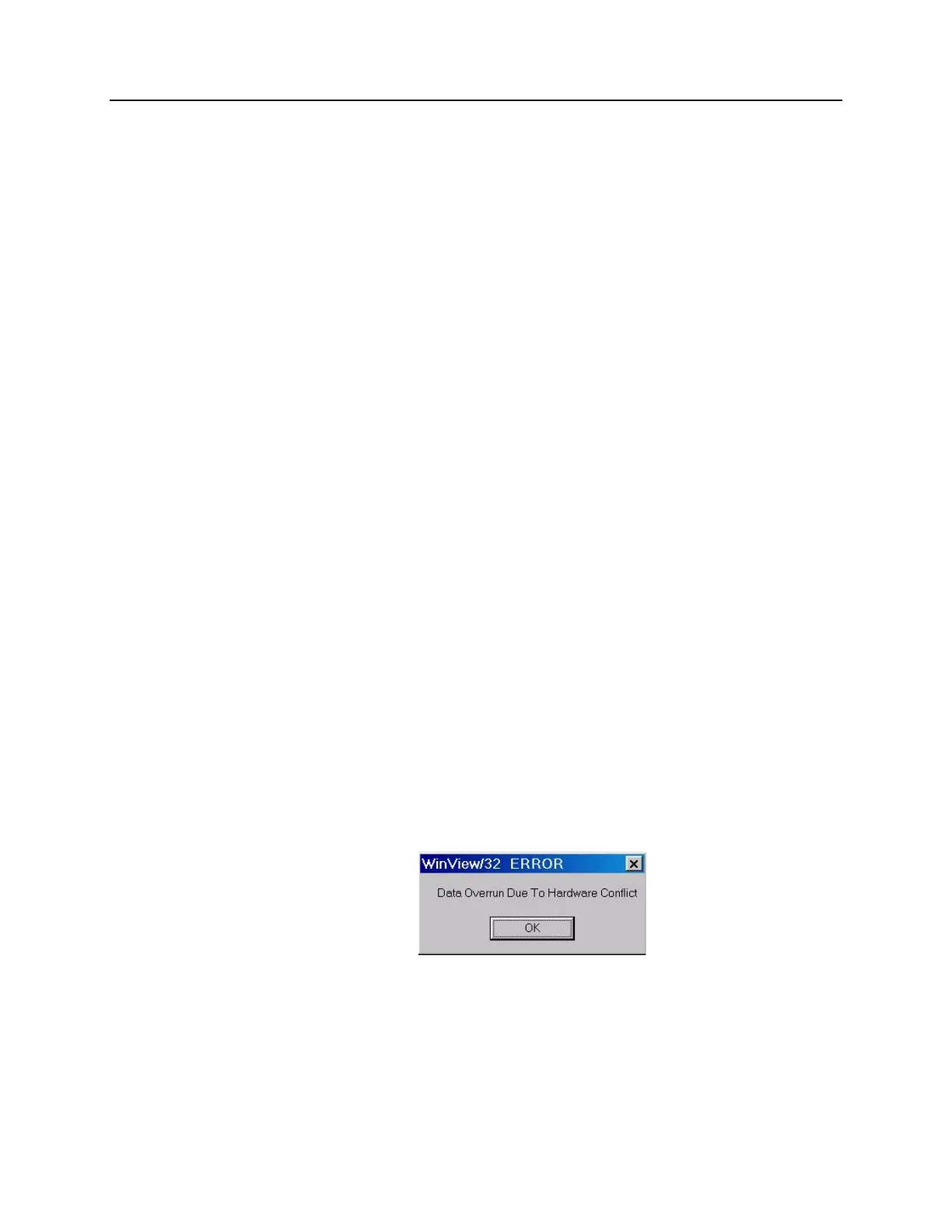
Data Overrun Due to Hardware Conflict message
Figure 96. Data Overrun Due to Hardware Conflict dialog box
If this dialog box appears when you try to acquire a test image, acquire data, or run in
focus mode, check the CCD array size and then check the DMA buffer size. A large array
(for example, a 2048x2048 array), requires a larger DMA buffer larger setting than that
for a smaller array (for example, a 512x512 array).



 To Next Page