174 PI-MAX/PI-MAX2 System Manual Version 5.F
Detector Temperature, Acquire, and Focus are Grayed Out
(Versions 2.5.19.0 and earlier)
These functions and others will be deactivated if you have installed a camera being run
under USB 2.0 and have opened the WinX application software (WinView/32 or
WinSpec/32) without having first turned on the ST-133. They will also be deactivated if
you have installed a camera being run under USB 2.0 and a Princeton Instruments high
speed PCI card was also detected when RSConfig.exe was run.
1. Check to see if the ST-133 is connected to the host computer and is turned on. If
it is not connected or is connected but not turned on, go to Step 2. If it is
connected and on, go to Step 3.
2. Close the WinX application, verify that the ST-133 is connected to the host
computer, turn on the ST-133, and reopen the WinX application. The formerly
grayed out functions should now be available.
3. If the ST-133 is connected and on, the USB 2.0 camera may not be listed as
Camera 1 in the PVCAM.INI file.
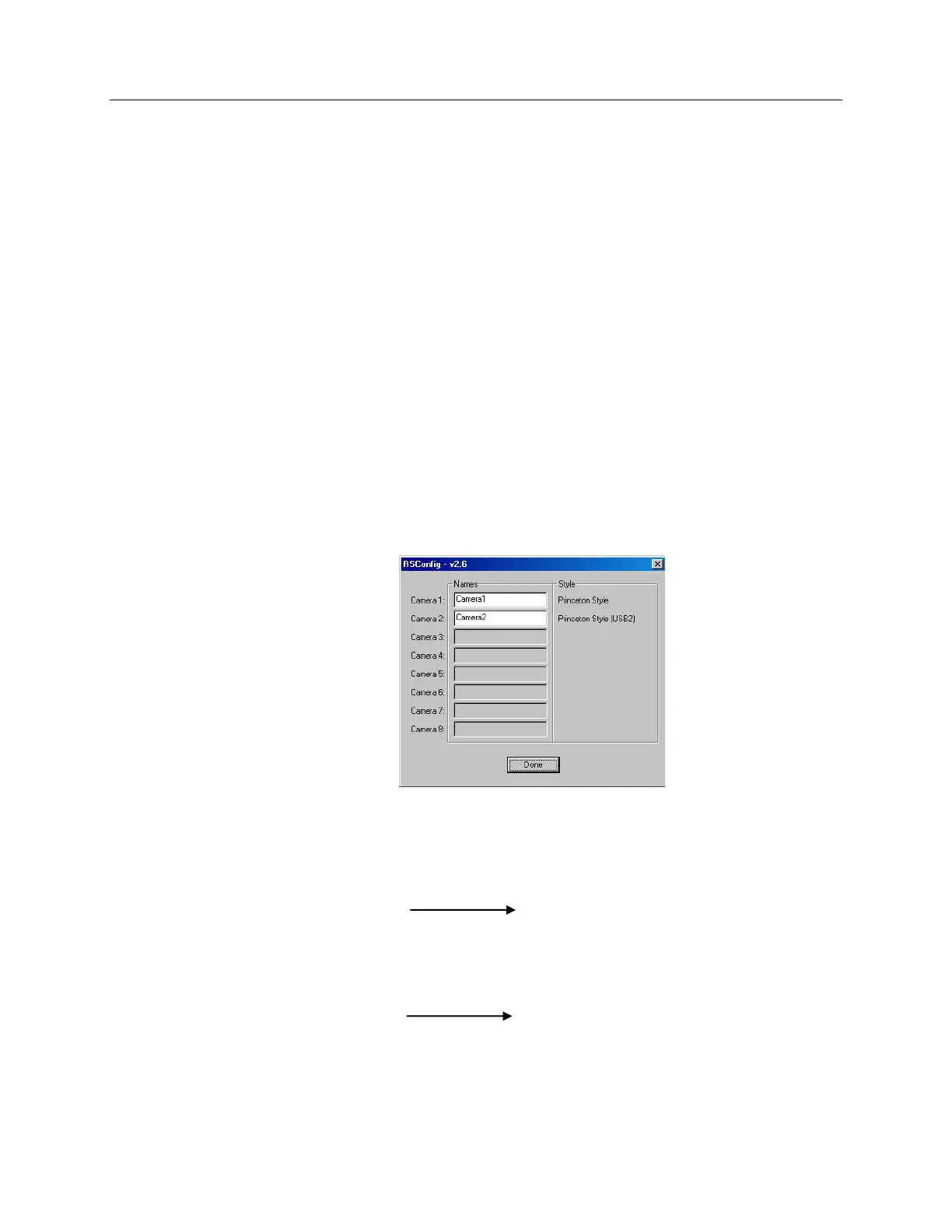
4. Run RSConfig.exe (accessible from the Windows|Start|Programs|PI Acton
menu). If the USB 2.0 camera is listed as Camera 2 (Princeton Style (USB2) in
Figure 103), you will have to edit the PVCAM.INI file.
Figure 103. RSConfig dialog box: Two Camera Styles
5. Using Notepad or a similar text editor, open PVCAM.INI, which is located in
the Windows directory (C:\WINNT, for example).
If the contents of the file look like:
Change the headings so the contents now look like:
[Camera_1]
Type=1
Name=Camera1
Driver=rspipci.sys
Port=0
[Camera_2]
Type=1
Name=Camera2
Driver=apausb.sys
Port=0
[Camera_2]
Type=1
Name=Camera1
Driver=rspipci.sys
Port=0
[Camera_1]
Type=1
Name=Camera2
Driver=apausb.sys
Port=0



 To Next Page