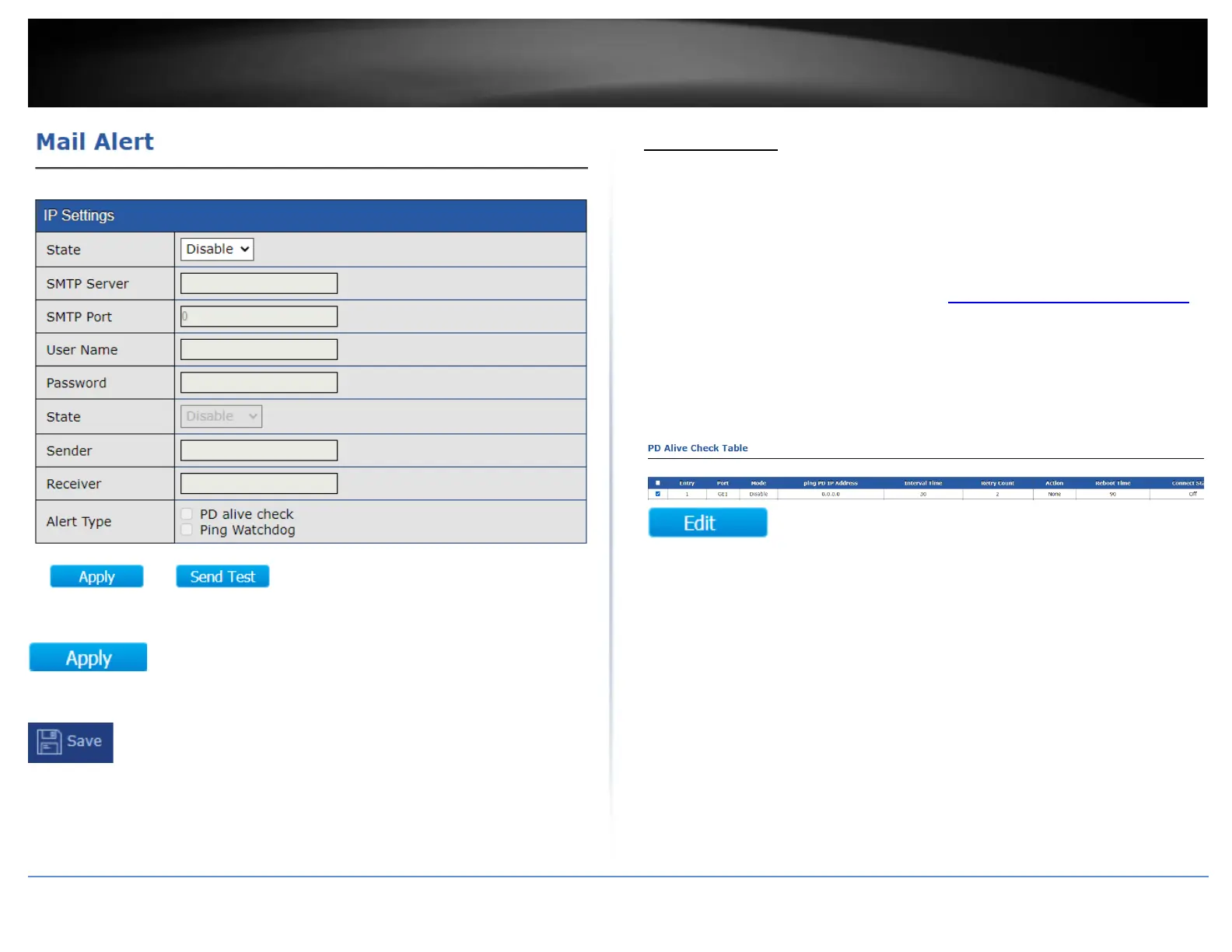
4. After completing your configuration changes, click Apply.
5. Click Save in the top left menu to save configuration to NV-RAM.
PD Alive Check
PD Alive Check
This section will allow users configure PD alive check which as feature that allows the
switch to run a connectivity check on PoE device by pinging the IP address and
automatically turn PoE on and off if connectivity fails to the PoE device in attempt to
restore the PoE device to normal operation.
1. Log into your switch management page (see “Access your switch management page”
on page 11).
2. Click on PD Alive Check.
3. Check the PoE port with the PoE device connected to you would like to configure for
PD alive check and click Edit.
4. Check the Enable option for Status to enable PD alive check on the selected port.
Enter the IP Address for the PoE device under the ping PD IP Address (ex:
192.168.10.107)
Review the additional settings below.
• Interval Time – Enter the time in seconds each time the switch will check for a
ping response from the PoE device. (Range: 10 – 300)
• Retry Count – In the case that a ping response fails, enter the number of times
the switch will retry for a ping response before disabling and re-enabling the
PoE port. (Range: 1-5)
• Action – An option must be selected for PD alive check to function.
o None – If the ping response fails according to the time parameters set,
no action will be taken.





 To Next Page