Set the switch date and time
Network > System Time
1. Log into your switch management page (see “Access your switch management page”
on page 11).
2. Click on Network and click on System Time.
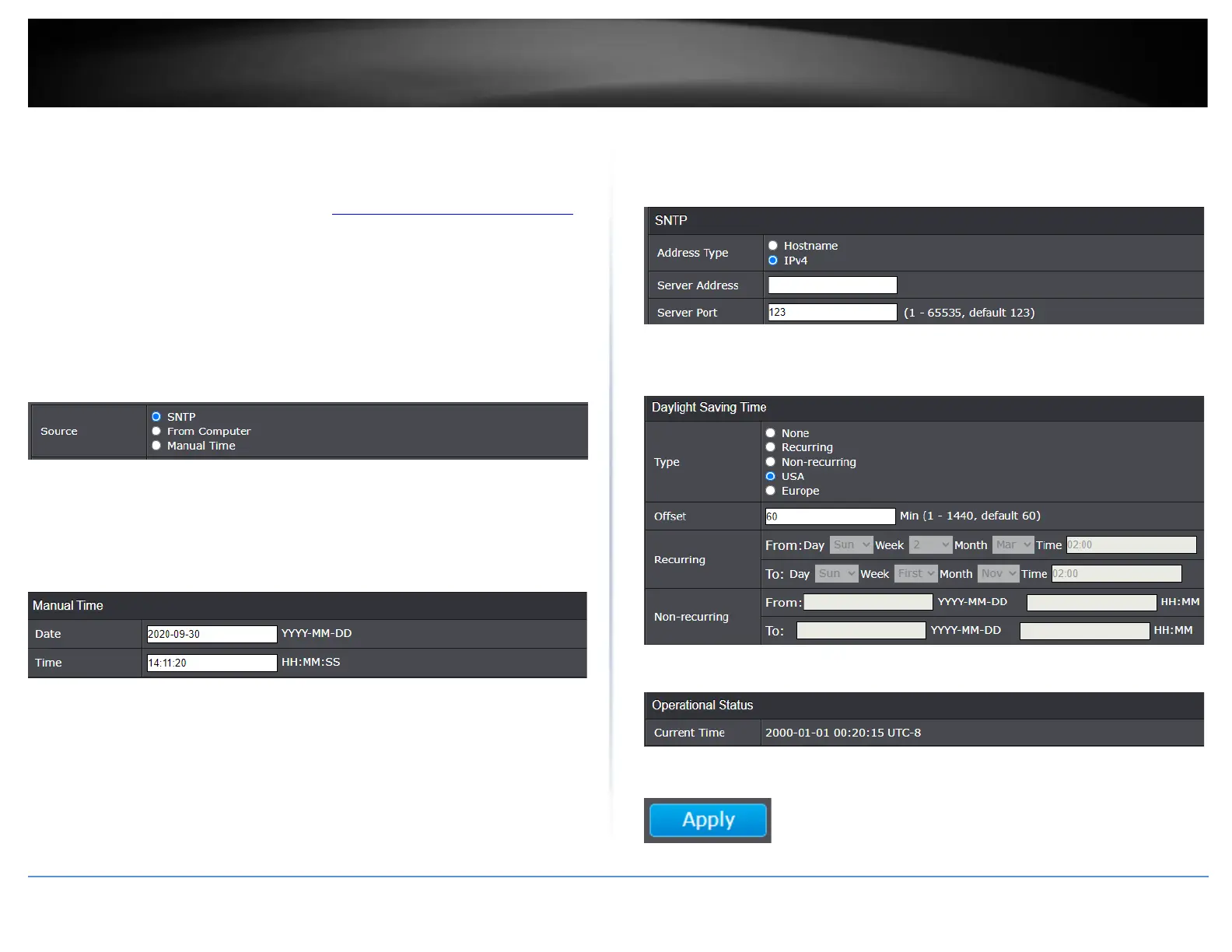
3. Review the settings. Click Apply to save changes.
• Time Zone – Click the drop-down list to select your time zone.
• Source – Select the source where you would like the switch to obtain the date
time settings.
o From Computer: This option will copy the time and date settings from
your computer.
o Manual Time: This option will allow you to manually set the date and
time settings of the switch. If selecting this option, under the Manual
Time section, enter the date and time settings in the fields provided.
Note: The time settings is specified in 24-hour format.
o SNTP (Simple Network Time Protocol): Select this option to configure
the switch to obtain date and time settings from an external SNTP
server.
▪ If SNTP is selected, enter the Server Address and Server Port
of the external SNTP server to obtain the date and time
settings. Click Apply to save the settings.
Note: If the SNTP server is located on the Internet, please
make sure to configure your IP address settings, IP address
default gateway accordingly to ensure your switch can access
the Internet. If configuring a hostname/domain address,
please make sure to configure your DNS server address
settings accordingly to ensure your switch can resolve
host/domain names to IP addresses.
• Daylight Saving Time – Configure the specific daylight savings time settings
according to your region.
• Operational Status – Displays the current date and time settings configured on
the device.
4. Click Apply.





 To Next Page