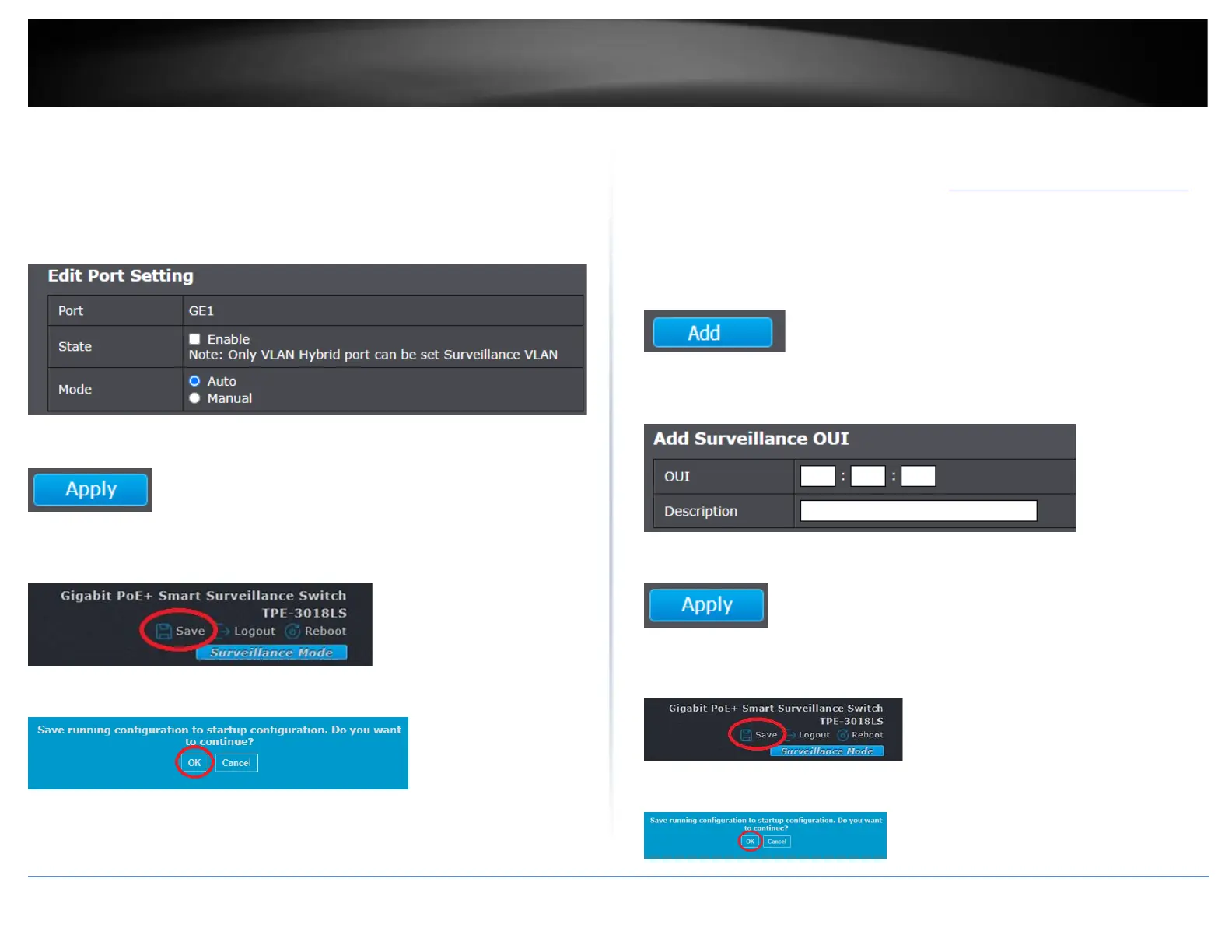
• Mode
o Auto – This option will allow a connected device to be automatically
detected by OUI and automatically configure the port or ports as an
untagged member of the surveillance VLAN.
o Manual – This option will require not automatically configure any
ports and the port must be configured in the Surveillance VLAN
manually under VLAN > VLAN Configuration.
6. Click Apply.
7. In the top right, click Save to save the configuration settings to NV-RAM/startup
configuration.
8. Click OK.
Configure Surveillance VLAN OUI settings
VLAN > Surveillance VLAN > Surveillance OUI
1. Log into your switch management page (see “Access your switch management page”
on page 11).
2. Click on VLAN, click on Surveillance VLAN, and click on Surveillance OUI.
3. To add a new OUI to the list, click Add.
5. Enter the device OUI in the fields provided and enter a description that helps you
identify the manufacturer’s OUI. Then click Apply to add the new OUI.
6. Click Apply.
7. In the top right, click Save to save the configuration settings to NV-RAM/startup
configuration.
8. Click OK.





 To Next Page