MAC Address Table
This section allows you to view the switch MAC address table, add static MAC address
entries to the table, and also add MAC addresses used for filtering.
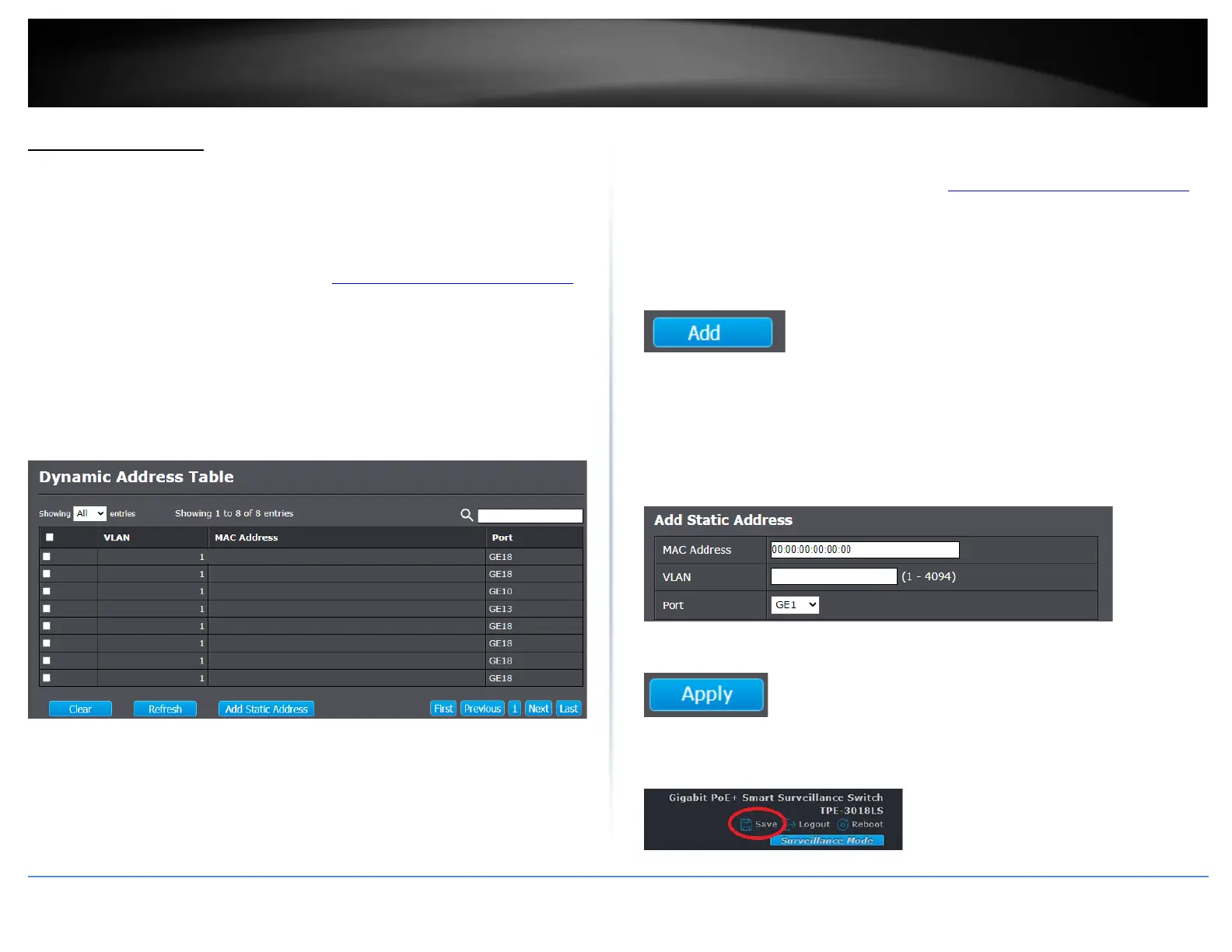
View the switch MAC address table
MAC Address Table > Dynamic Address
1. Log into your switch management page (see “Access your switch management page”
on page 11).
2. Click on MAC Address Table and click on Dynamic Address.
3. The table will display a list of the dynamically learned MAC addresses. You can clear
the MAC address table by clicking Clear or you can add one of the learned MAC
address to the Static MAC address table by checking the entry and click Add Static
Address.
Add static MAC address entries
MAC Address Table > Static Address
1. Log into your switch management page (see “Access your switch management page”
on page 11).
2. Click on MAC Address Table and click on Static Address.
3. To add a static MAC address to the list, click Add.
4. Review the settings below.
• MAC Address – Enter the MAC address. (ex: aa:bb:cc:dd:ee:ff)
• VLAN – Enter the VLAN ID that the static MAC address entry should be
assigned.
• Port – Click the drop-down to select the port that the MAC address should be
assigned.
5. Click Apply.
6. In the top right, click Save to save the configuration settings to NV-RAM/startup
configuration.





 To Next Page