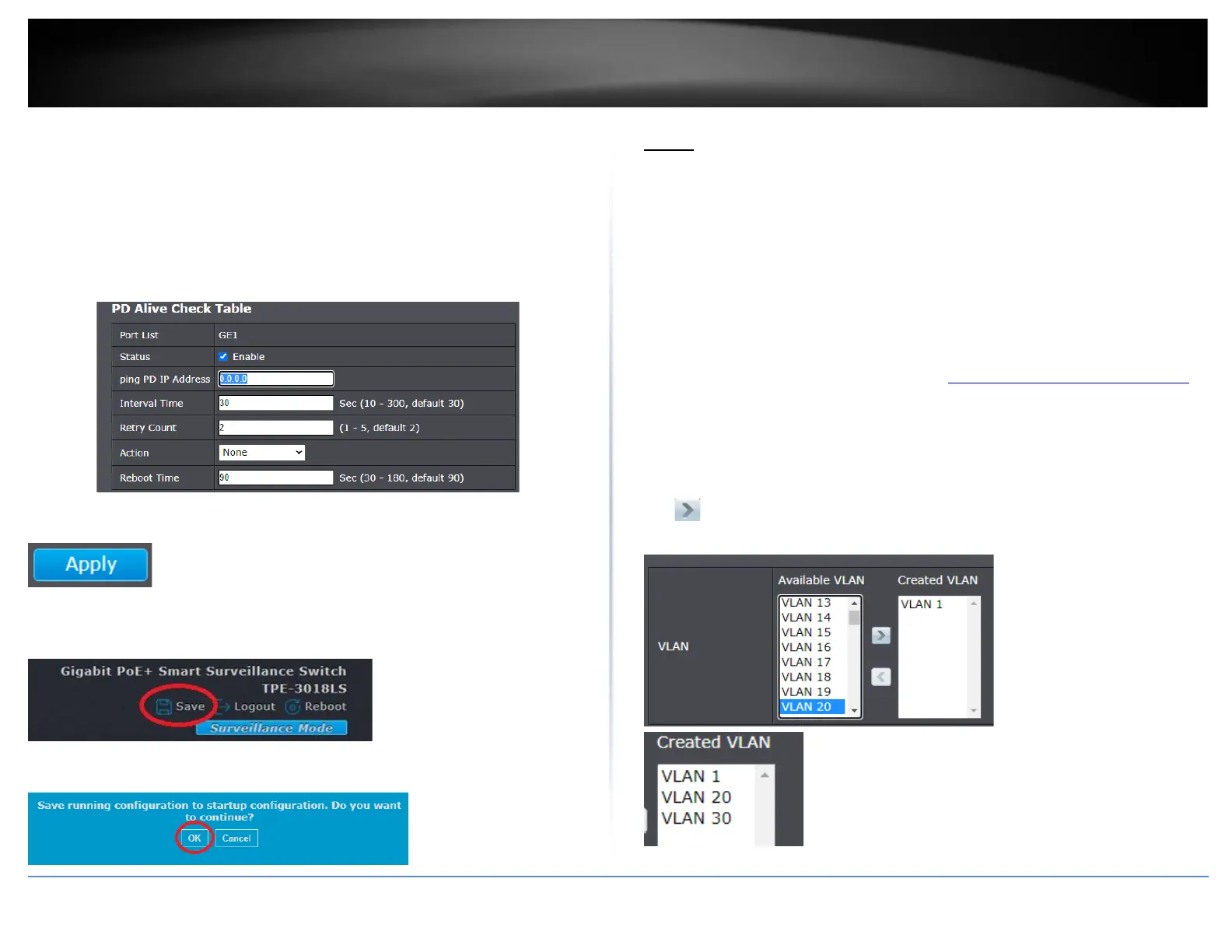
o Reboot&Alarm - If the ping response fails according to the time
parameters set, the switch will disable and re-enable the PoE port
attempting to automatically recover the connected PoE device and
also send out an email notification is configured.
o Alarm - If the ping response fails according to the time parameters set,
the switch will only send out an email notification if configured.
o Reboot Time - If the ping response fails according to the time
parameters set, enter the time in seconds from the time the PoE port
is disabled to the time the PoE port is re-enabled. (Range: 30-180)
4. Click Apply.
5. In the top right, click Save to save the configuration settings to NV-RAM/startup
configuration.
6. Click OK.
VLAN
Add, modify, and remove VLANs
VLAN
A VLAN is a group of ports that can be anywhere in the network but communicate as
though they were in the same area.
VLANs can be easily organized to reflect department groups (such as R&D, Marketing),
usage groups (such as e-mail), or multicast groups (multimedia applications such as
video conferencing), and therefore help to simplify network management by allowing
users to move devices to a new VLAN without having to change any physical
connections.
1. Log into your switch management page (see “Access your switch management page”
on page 11).
2. Click on VLAN, click on VLAN, and click on Create VLAN.
3. To create a new VLAN, under the Available VLAN list, select the VLAN with VID and
click to add the Created VLAN list to create the new VLAN, then click Apply.
Note: You can select multiple VLANs by holding shift or ctrl.





 To Next Page