Program edit mode | Programming introduction
5
Soft key Function
Press the Exit soft key to return to the
Program Function screen
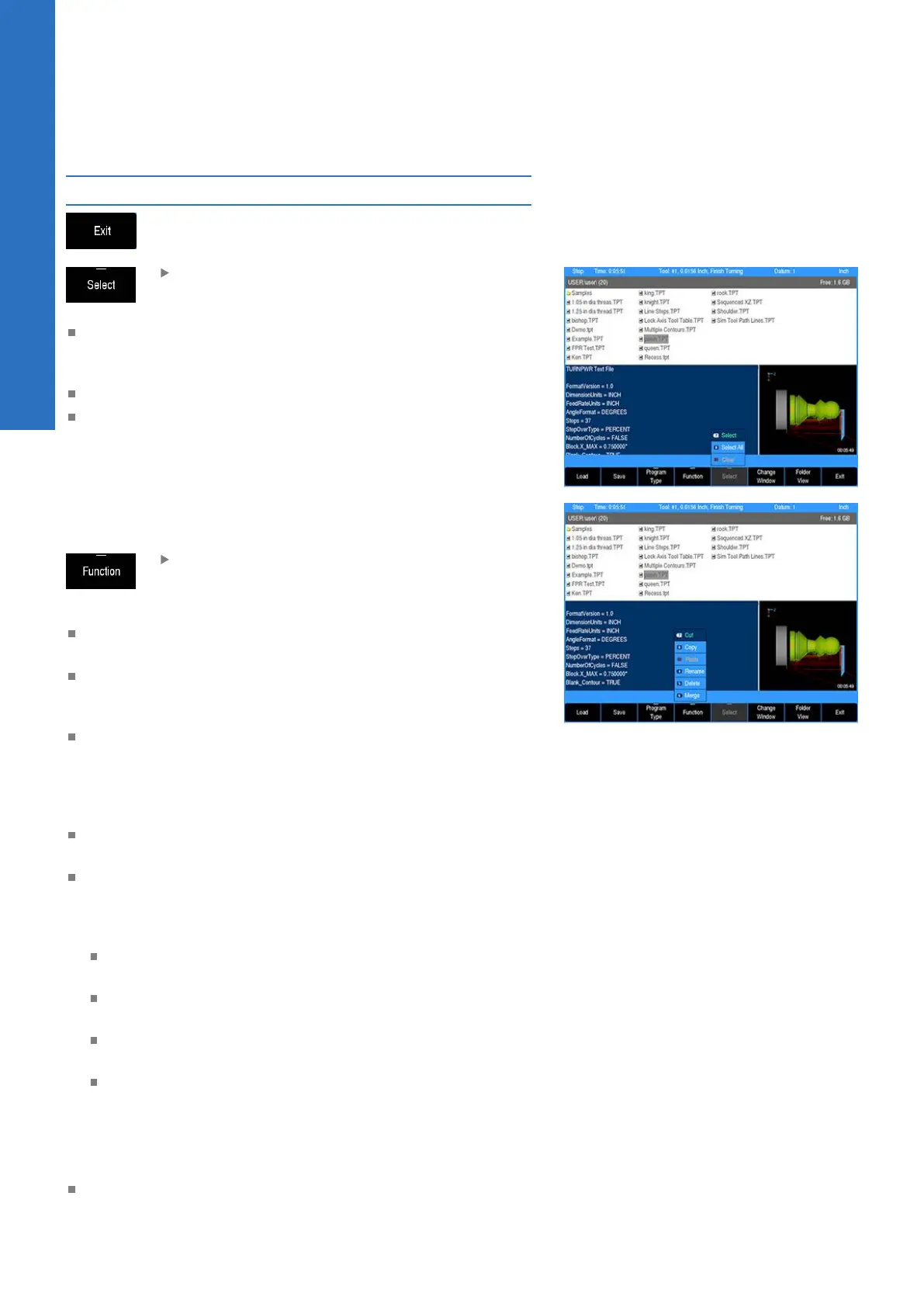
Pressing the Select soft key feature opens a
popup menu that provides these three choices:
The Select feature will select one or more programs. Highlight
each program to be selected, and choose Select for each
program highlighted.
The Select All feature will select all programs in the folder.
The Clear feature will un-select one or more programs that have
been highlighted. Clear does not delete a program, it will only
un-select it.
Having a program, or programs selected, use the Function soft key
to continue on taking the appropriate action required.
The Function soft key provides several choices
that can be executed for the action taken after
using the Select soft key feature:
The selected program(s) can be Cut from the current folder,
then moved to another folder using the Paste feature.
In the same fashion, using the Copy feature, the selected
program(s) can be copied to the same folder, or to a different
folder using the Paste feature.
Use the Merge feature to paste the contents from the selected
program to the currently loaded program at the current cursor
location. This feature is only available for TURNPWR (.TPT)
programs. Once this function is executed, it will exit the
program functions, and return to program view.
Use the Rename feature to rename the selected program. Only
one program at a time can be selected to use this feature.
Choosing the Delete feature will delete one or more programs
selected. The message bar will be displayed showing the first
selected program asking for confirmation to delete it. Four soft
keys are displayed for deleting options.
Yes will delete the current program displayed in the message
bar.
Cancel will cancel out of the current operation. Cancel will
not restore any prior deletions that had been made.
All will delete all the selected programs by automatically
answering yes to confirm deletion of each program.
No will cancel the deletion of the current program in the
message bar.
The Plus and Minus keys on the console keypad are used to
facilitate navigation among folders in the console, network and
USB memory devices.
Pressing the Minus key always takes you back to the previous
folder location. Pressing the Plus key takes you to the next
folder in the history. Plus is only available if Minus has been
used.
66
ACU-RITE | TURNPWR | User's Manual | 08/2020


 To Next Page