6.2 The basics of 3D tuning tables and load types 6 TUNING THE MS3PRO
These tables are called 3D tables because they can be drawn as a shape in 3 dimensional space. The first
dimension, the X axis, is pretty much always RPM for the 3D tables in MS3Pro. The Y axis is a load variable,
usually expressed as a percent. It is possible to use different load methods for different tables; you don’t have to
use the same load type across the board.
• In speed density mode, the fuel load corresponds directly to the MAP sensor reading, and 100 kPa is taken
to be 100% fuel load. Numbers over 100% are possible and indicate boost.
• In Percent Baro mode, the number is the MAP sensor reading divided by barometric pressure, so 100% is
when the MAP sensor and barometric pressure readings are equal.
• In alpha-N mode, the load is the percent throttle opening.
• In ITB mode, this number is a blend between the MAP sensor and throttle position opening. We’ll cover this
in more detail in section 7.
• In MAF mode, the MAF load is a synthetic MAP load number that is a percentage of the air flow that the
engine would draw in at 100% volumetric efficiency at its current RPM. For example, if you have a 5.0 liter
Ford V8, it would theoretically draw in 2.5 liters of air every crank revolution (since only half the intake valves
are open in a given rotation) at 100% volumetric efficiency. If this engine is turning 2000 RPM, it would
theoretically pull in 5000 liters of air in a minute. If it’s only pulling in 2500 liters a minute, you get a MAF load
reading of 50% load. MAF load numbers over 100 would indicate either a race engine with a very efficient
intake design or positive manifold pressure. The MAF load numbers do not directly match actual MAP sensor
readings, but in the absence of a MAP sensor, they’re a bit easier to get a simple 0 to 100% value for your
load.
• Some 3D tables have numbers that are a direct sensor reading; for example, you can set the generic PWM
outputs to work as a function of RPM and coolant or air temperature.
The third dimension is the number entered into the table.
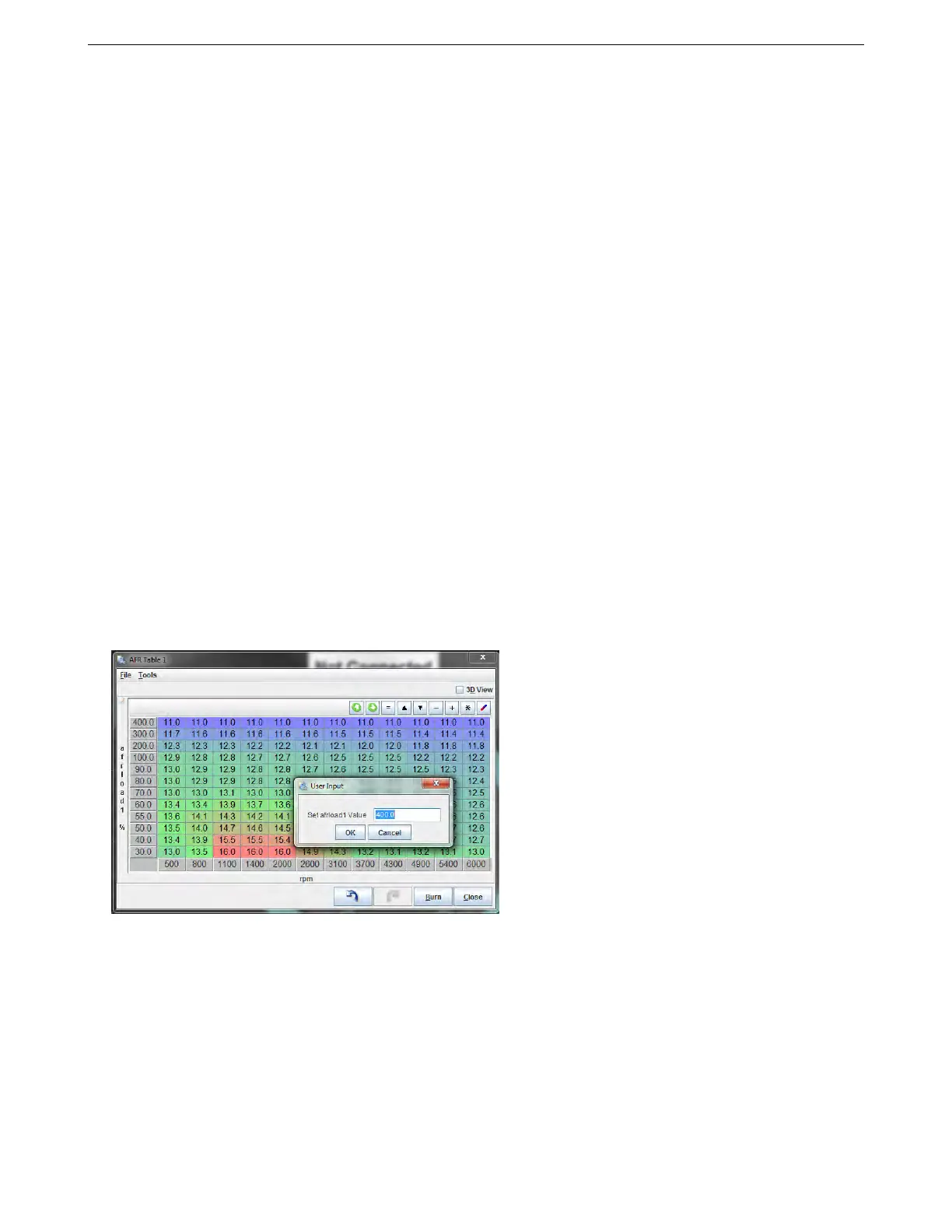
TunerStudio lets you adjust the numbers on the load axis. Clicking on the gray boxes to the side will bring up
a prompt to change the values, shown below. Note that the values start at their lowest point at the lower left hand
corner and go up - if you have the values go backwards, this can cause an error.
The two green arrow buttons in the upper right hand corner allow you to save (up arrow) or load (down arrow)
the table as its own separate file. An exported table will not include the rest of the tune, and can be useful if you’re
sending tune values from one MS3Pro variant to another.
The buttons to the right of the green arrows allow you to adjust several cells in the table at once. Simply drag
the mouse to select several cells, and then click the button to adjust them. The buttons work as follows:
• The equal sign sets all selected cells equal to the value you enter.
• The up triangle increases all selected cells by one increment.
• The down triangle decreases all selected cells by one increment.
• The minus, plus, and multiplication signs use the math operation you requested and the number you enter
on the selected cells.
AMP EFI MS3Pro manual version 1.202, firmware 1.5.0, 4/21/2017 Page 107



 To Next Page