IA Spectrum Analyzer (Option 24) 4-6 Saving and Recalling Measurements
Spectrum Analyzer MG PN: 10580-00447 Rev. H 4-13
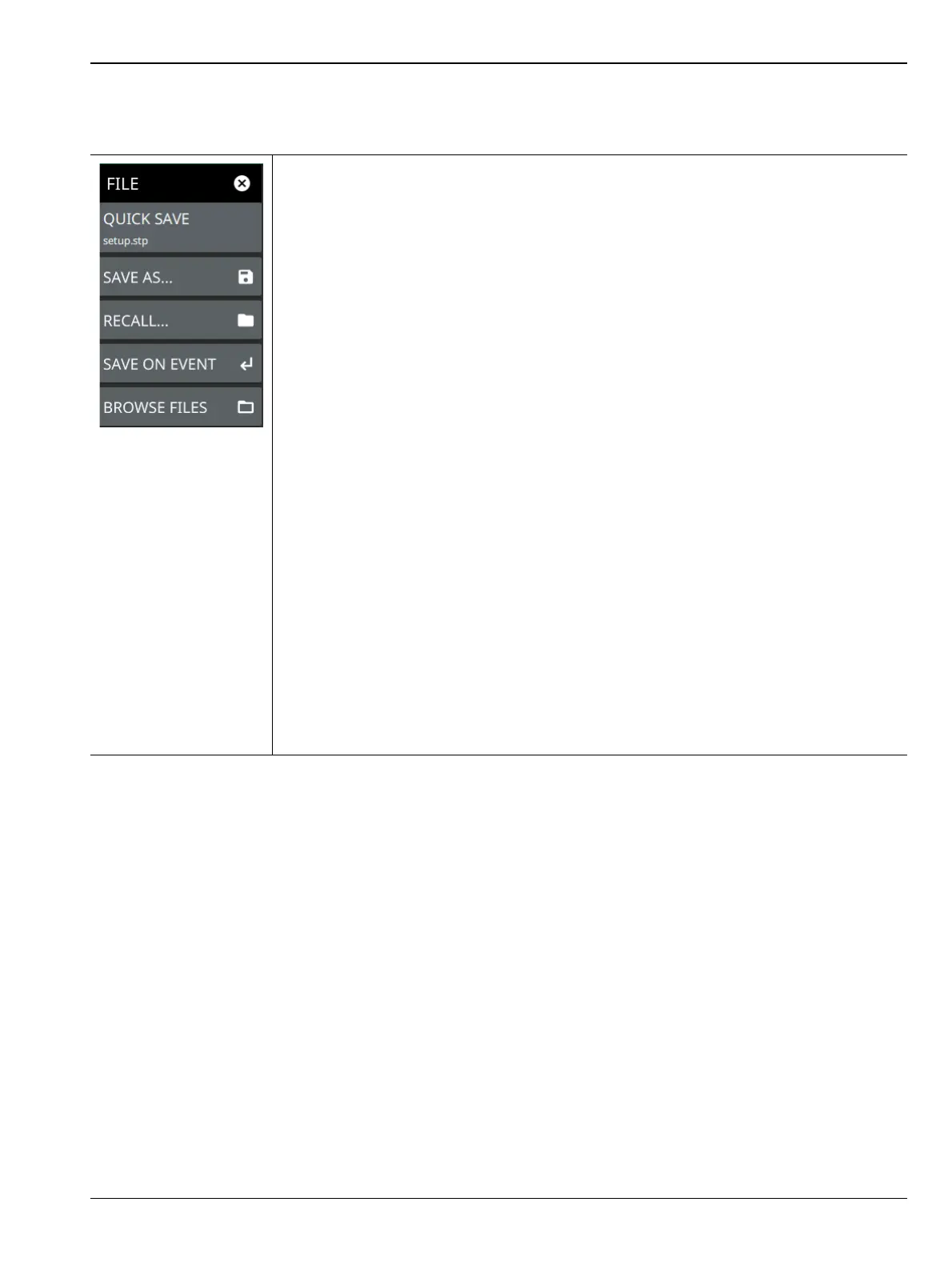
FILE Menu
QUICK SAVE: saves a setup file immediately with the name shown in the button. The
number in the name is incremented automatically so that the new name is ready for the
next setup file to be saved.
SAVE AS: Opens the Save dialog to manually enter a file location, enter a file name, and
to set the file type to be saved. Depending on the selected measurement, you can save
the following:
• Setup File: Saves the current instrument setup file (stp file type).
• Trace File: Saves the measurement (trace or point data) and the current instrument
setup (fmiasp file type).
• Trace CSV File: Saves the visible trace point or map point measurement data in
comma separated value format (csv file type). This format is useful for further
analysis using other software tools. Note that the saved map point data is
cumulative of all data points on the map or measurement data since the map points
were last cleared.
• Limit File: Saves the current limit line point data (lim file type).
• Screenshot: Saves a screenshot of the current measurement (png file type).
• Trace + Screenshot: Saves both the current measurement and screenshot files
(both fmiasp, and png file types).
RECALL: Opens the Recall File dialog to retrieve a file from a desired location. Only
supported files will be displayed depending on the currently set measurement. When
trace data is recalled, the instrument will change the settings to match the settings of the
saved trace. The data will be recalled to the appropriate trace. That trace will be in a Hold
mode. To exit the recalled data, simply change the trace mode back to Active.
SAVE ON EVENT: Opens the “SAVE ON EVENT Menu” on page 4-14. This feature is not
available in the 5GNR/LTE analyzer.
BROWSE FILES: Opens the file management screen. Refer to the product’s user guide
for more information.
Figure 4-11. FILE Menu













 To Next Page