3-3 Setting Frequency Parameters Spectrum Analyzer Measurements
3-6 PN: 10580-00447 Rev. H Spectrum Analyzer MG
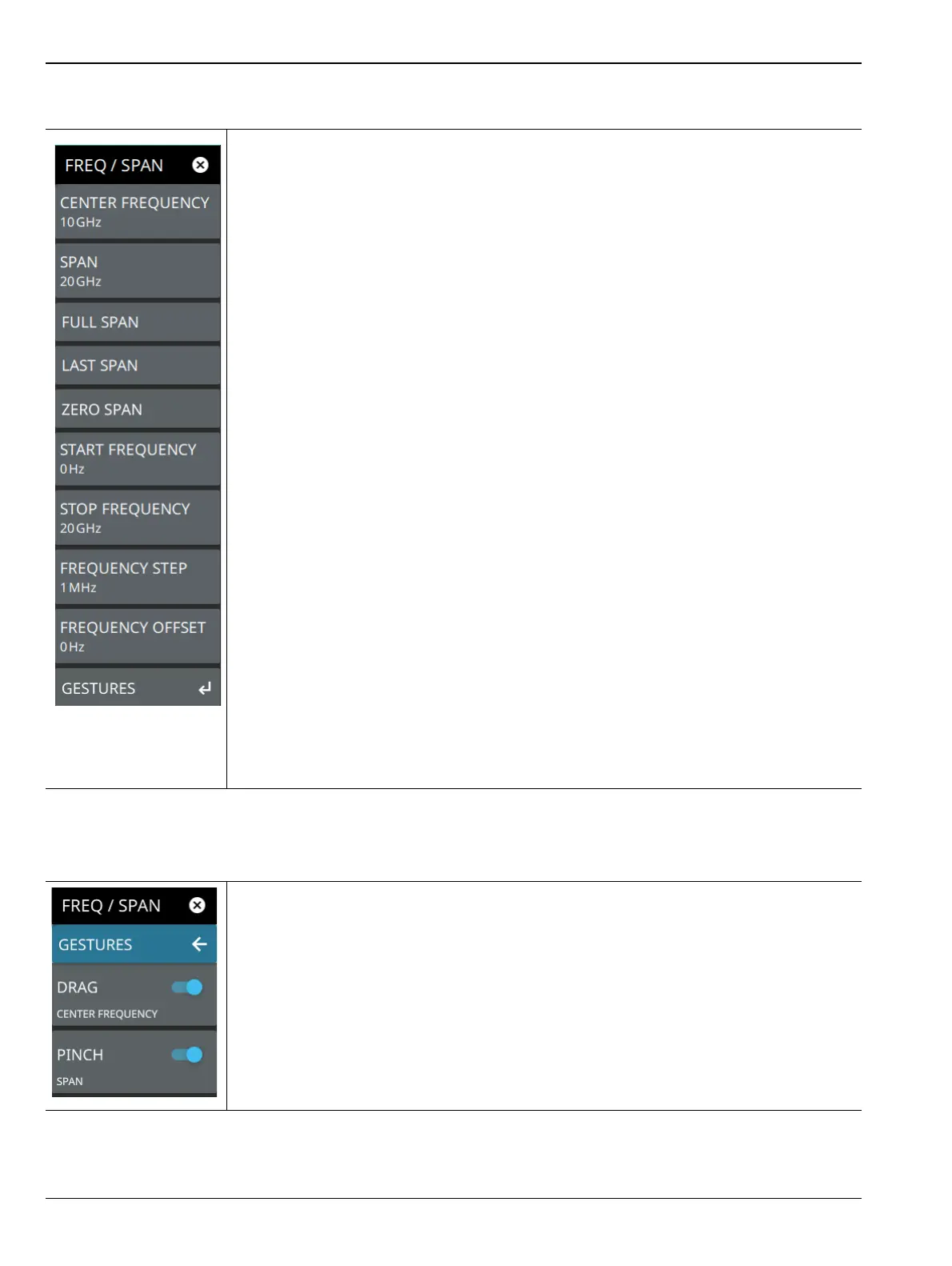
FREQ / SPAN Menu
GESTURES Menu
-
CENTER FREQUENCY: Sets the center frequency of the sweep range. The current
span setting will remain constant or will be adjusted to accommodate the start and stop
frequency range of the instrument. The center frequency can also be dragged on the
display when gestures are not toggled off.
SPAN: Sets the sweep frequency range. The current center frequency will remain
constant and the start and stop frequencies will be adjusted to accommodate the new
range. Selecting the plus (+) or minus (–) control increments the span value in a 1:2:5
sequence. The span can also be changed by pinching the trace in or out when gestures
are not toggled off.
FULL SPAN: Selecting this button sets the span to cover the entire tunable spectrum of
the instrument.
LAST SPAN: Selecting this button returns the span to the previously set span value.
ZERO SPAN: Sets the analyzer to zero span and enables the “FREQ / SPAN Zero Span
Menu” on page 3-7.
START FREQUENCY: Sets the start frequency of the sweep range. The center
frequency and span will be adjusted to accommodate the new start and current stop
frequencies. Selecting the plus (+) or minus (–) control moves the start frequency in steps
defined by the FREQUENCY STEP value.
STOP FREQUENCY: Sets the stop frequency of the sweep range. The center frequency
and span will be adjusted to accommodate the current start and new stop frequencies.
Selecting the plus (+) or minus (–) control moves the start frequency in steps defined by
the FREQUENCY STEP value (set lower in this menu).
FREQUENCY STEP: Sets the frequency step value used for the plus (+) or minus (–)
control.
FREQUENCY OFFSET: The frequency offset value accounts for frequency conversions
outside of the analyzer. The offset frequency value is added to the start, stop, center,
fixed marker, and normal marker frequencies. Selecting the plus (+) or minus (–) control
moves the offset frequency in steps defined by the FREQUENCY STEP value.
GESTURES: Opens the “GESTURES Menu” on page 3-6.
Figure 3-1. FREQ / SPAN Menu
-
DRAG: Toggles the touchscreen drag feature on or off. When toggled off, the center
frequency will not change when dragging the spectrum display. This can be useful when
dragging markers.
PINCH: Toggles the touchscreen pinch feature on or off. When toggled off, the span
frequency will not change when pinching the spectrum display. This can be useful when
dragging markers.
Note that the Drag and Pinch features can also be toggled on/off by touching the locks
under the display.
Figure 3-2. GESTURES Menu













 To Next Page