Spectrum Analyzer Measurements 3-7 Setting Trace Parameters
Spectrum Analyzer MG PN: 10580-00447 Rev. H 3-37
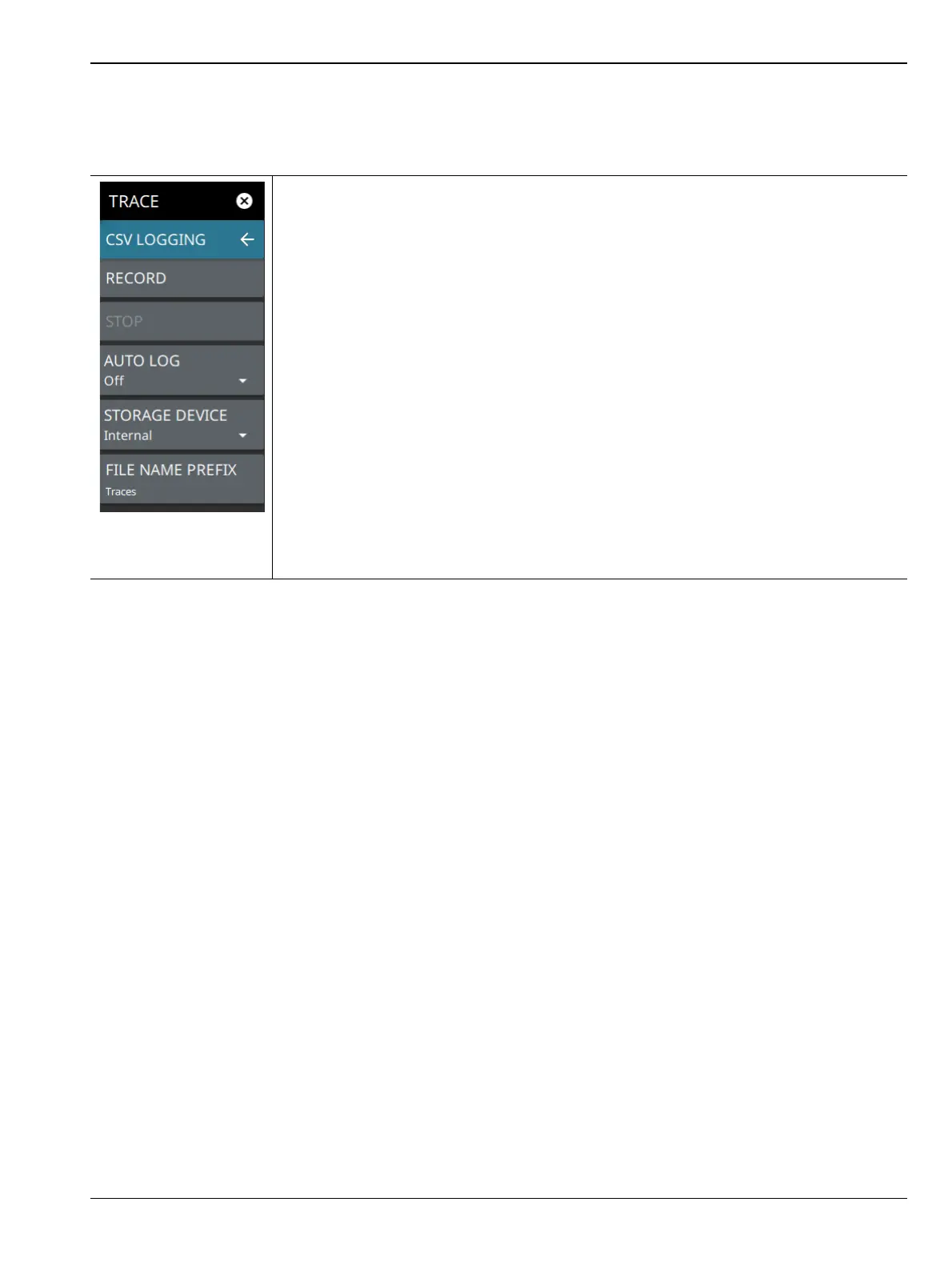
TRACE CSV LOGGING Menu
The trace CSV capture feature is accessed via the TRACE > CSV CAPTURE menus. This feature allows you to
capture trace data in comma separated value (.csv) format.
RECORD: Starts a recording session and saves trace and setup data to a CSV file
(.csv). Files will be saved to the “PlaybackCsv” folder on the selected storage device
(below). When recording is initiated, this button changes to PAUSE so you can
temporarily stop the recording while leaving the recording session open.
STOP: Stops the active trace recording session. When pressed, a dialog will ask to either
keep or discard the recording data.
AUTO LOG: Select one of the following automatic recording options (CSV recording will
start automatically with Record or Playback selected – no need to press RECORD in the
CSV menu. Manual CSV logging can be done independent of this setting.):
• Record: Simultaneously saves csv log data during a trace recording.
• Playback: Simultaneously saves csv log data during a recorded trace playback.
• Off: No auto logging selected.
STORAGE DEVICE: Selects the target location for the trace logging. This will be to
internal storage or to a connected external USB storage device.
FILE NAME PREFIX: Adds a custom file name prefix. The default prefix is “Traces” and
will be appended with a date and time stamp, such as:
“Traces_20201216T062419.135.csv.”
Figure 3-27. TRACE CSV LOGGING Menu













 To Next Page