Chapter 19 Creating Books 361
III
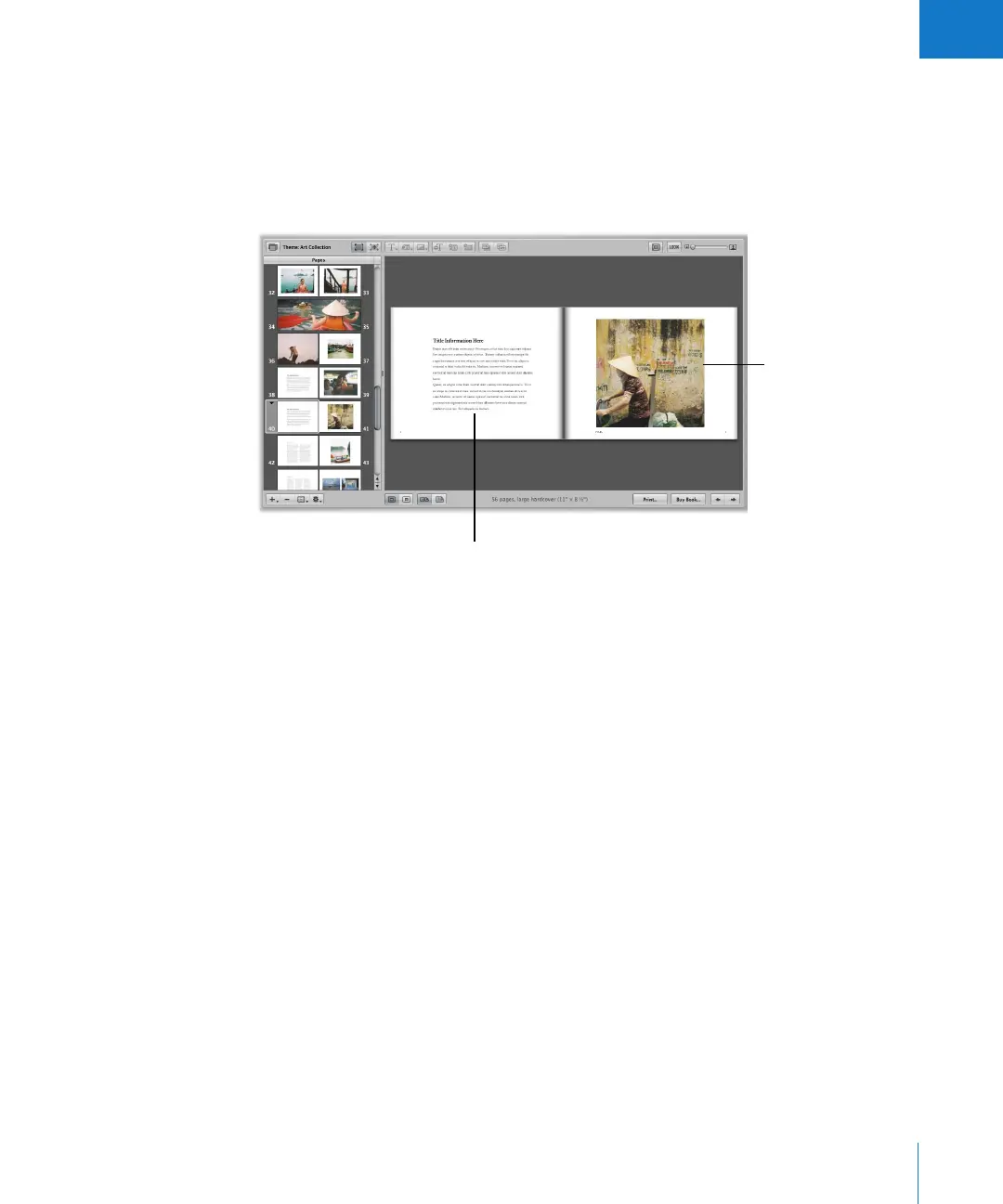
You can apply a master page design to any selected page to define where your text
and images appear. Pages appear with gray photo boxes to hold images and text boxes
to hold text. To add images, you drag them into the photo boxes from the Browser. To
add text, you select a text box and type or paste text into it. If you wish, you can also
place metadata boxes next to images to display an image’s version name, caption,
keywords, and other metadata.
If you prefer, you can build a book page by page. You can add a new page to your
book, choose a master page design, fill in images and text, and then create the next
page, repeating the procedure for each page you add.
You can also select a group of images in the Browser and have Aperture automatically
place them into pages in your book. Aperture creates as many pages as you need and
fills them with your images. You can change the page design of individual pages later
by applying different master page designs.
As you work on a book, you may need to adjust the layout of individual pages. For
example, you may discover that one image in a group should appear slightly larger. You
can move and resize the boxes that hold images on individual pages, making minor
layout adjustments when a master page design doesn’t quite suffice.
Text box
holding text
Photo box
holding an image





 To Next Page