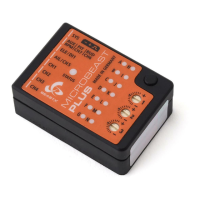
129 BEASTX flybarless system
129.1 Connecting to device
If not already done start StudioX now. When the USB2SYS is connected to the computer,
make sure the corresponding port is selected in the selection box in the middle of the
screen. If you have connected it after starting the software, click the RESCAN button
above to refresh the port list, usually the correct port will be selected automatically then.
If you don't know which port is the right one, also you can disconnect the USB2SYS once
again, click RESCAN to clear the port list, connect the USB2SYS, wait a few seconds and
click RESCAN once more. Now the port should be selected.
With the BLE2SYS in combination with a smartphone/tablet the BLE2SYS device
should appear automatically when starting the app after powering up your flybarless device
with BLE2SYS. If this is not the case, click the selection box and choose ”BLE2SYS”. If
nothing's there, click the RESCAN button above to search for new devices. This can take
from a few seconds up to a few minutes. If the scan process finishes immediately and the
box stays empty it is very likely the bluetooth function is switched off on your phone or
the app has no rights to access the bluetooth connection! So check your phone settings in
this case.
Then connect the USB2SYS interface to the [SYS] port of your BEASTX device and
power everything up. Click CONNECT to load the data from your device and to enter
configuration menus. In case you are asked for the BLE2SYS pin code, this is 1111 by
default.
When connection fails, on the computer once again check driver installation and
port configuration as shown in the beginning
1
. When your BLE2SYS is not found by
the smartphone/tablet, check if the BLE2SYS it is operating properly: The blue
LED must flash in short intervals. Note that by default the interface will switch off
automatically after 30 seconds. So if you need too long time to initiate connection it
may have been disabled. Disconnect it or cylce power and try again. Sometimes it
1
https://wiki.beastx.com/./index.php/StudioXm/en
309


 To Next Page