Operating Procedures: Stage Control
C O N F I D E N T I A L – FEI Limited Rights Data5-42
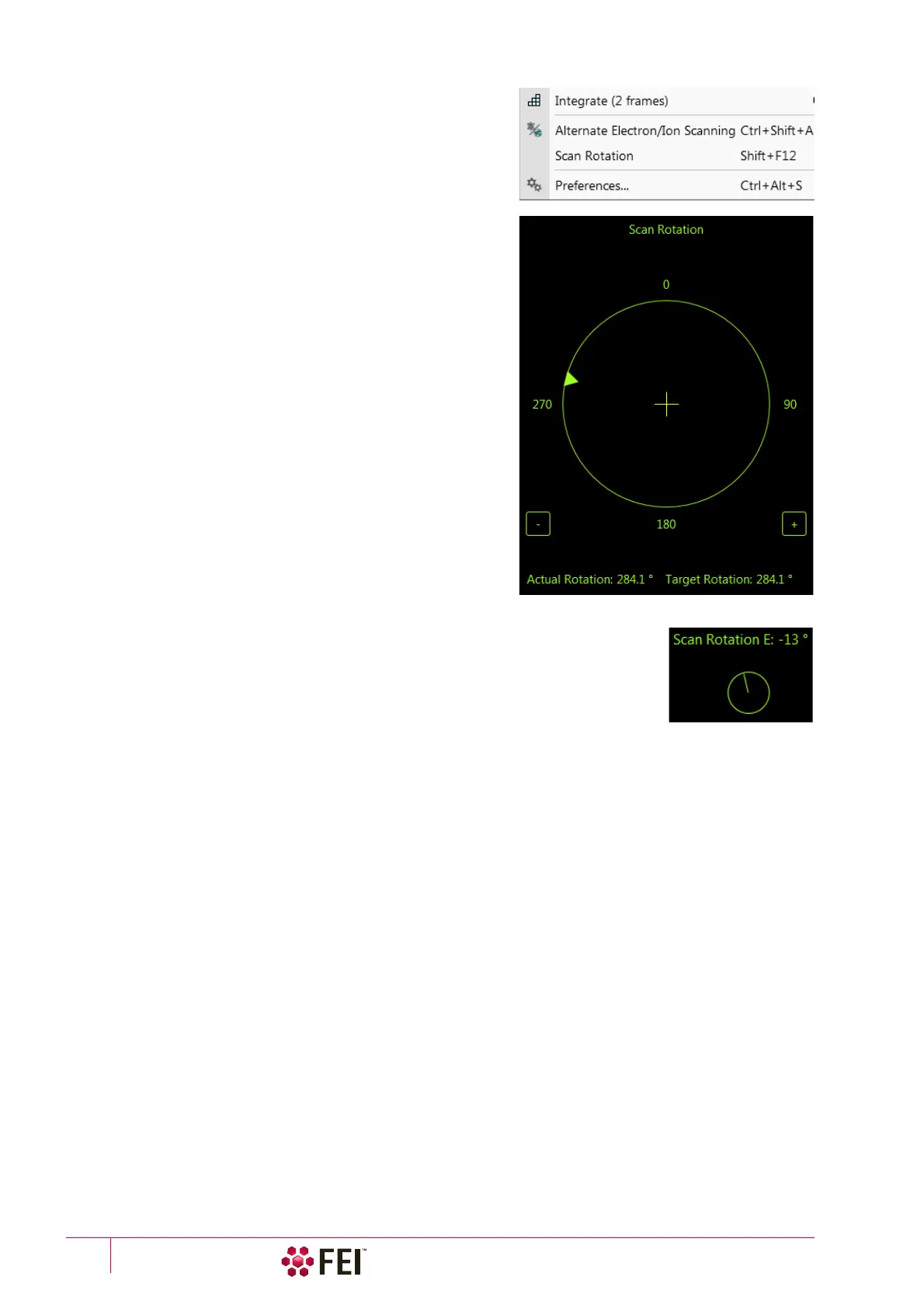
Scan Rotation (Shift + F12)
The
Scan
menu /
Scan Rotation
function activates the onscreen tool
to rotate the scan and align the image. Because it is solely
functionality of the electronic optics, it has no effect on the stage
movements. It is used to orient the image relative to mechanical
rotation and detector direction.
Clicking on the Scan menu / Scan Rotation places a green circle in
the image window. The green triangle on its perimeter denotes,
by its position, the sample rotation relative to its original position
when mounted on the stage. Initially, this is in the 12 o’clock
position. Click on & drag it around the circle perimeter to choose
a new sample rotation.
The readouts shown at the image window bottom provide
information about the Actual Rotation (original position) and the
Target Rotation (the selected position).
Clicking on the written angles around the circle perimeter (0° /
90° / 180° / 270°) or the perimeter anywhere drives the stage to
that rotation position and the green triangle updates onscreen.
Clicking on the framed + / – sign increases / decreases the
rotation angel by an incremental value.
The smaller circle in the top right of an optical imaging display remains onscreen when
the Scan Rotation angle is different from 0°. This can be set in the Preferences dialog /
General section / Display scan rotation in CCD displays item.



 To Next Page