3-99
Chapter 3 Settings and Measurement
Contents General Description
Checks and Preparation
Settings and Measurement
Example of Use Specification
9. File dialog
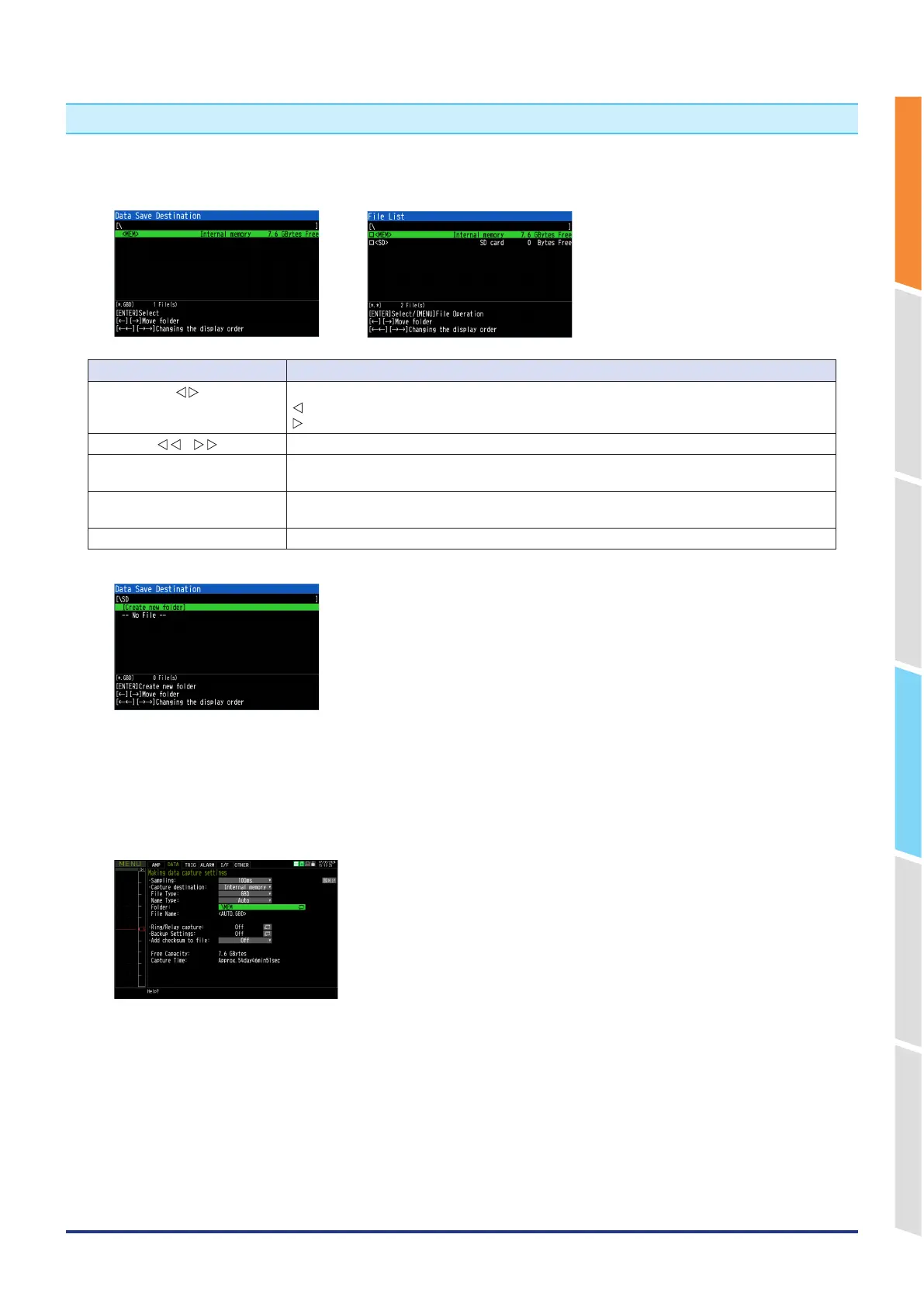
This section describes how to specify the data save destination in the DATA menu, how to specify the data save
destination in the FILE menu, and how to operate the file list.
<Data save destination specification file dialog> <File list dialog>
Key Description
Moves between folders.
: Move up one folder.
: Move down one folder.
The display order can be changed.
ENTER When setting the save destination, etc., select and confirm the file/folder.
In addition, when making file operations, check the check box.
MENU When you operate a file, the File operation dialog opens.
For details, refer to "8. File menu".
QUIT Close the file dialog.
<Create new folder>
When making the settings such as the save destination, you can create a new folder and file.
Select "Create new folder" or "Create new file" from the destination list and press the [ENTER] key.
<Example of operation procedure>
The following shows an operation example where a folder named "TEST" is created for captured data and automatically
saved.
<Data capture setting menu>
1. Select the DATA menu.
2. In the Capturing setting menu, set the file format to GBD and the naming method to Automatic.
3. Then, open the data saving destination menu by pressing the [ENTER] key on the "FOLDER" to specify a data
saving destination and create a folder.
4. Create a "New folder" in the file dialog.
* For the creation of a new folder, refer to "10. Text input" described below.
5. Select the folder you created and press the [ENTER] key.







 To Next Page