3-100
Chapter 3 Settings and Measurement
Contents General Description
Checks and Preparation
Settings and Measurement
Example of Use Specification
10. Text input
Related to text input operations such as annotation, EU (scaling) unit and captured data file name input.
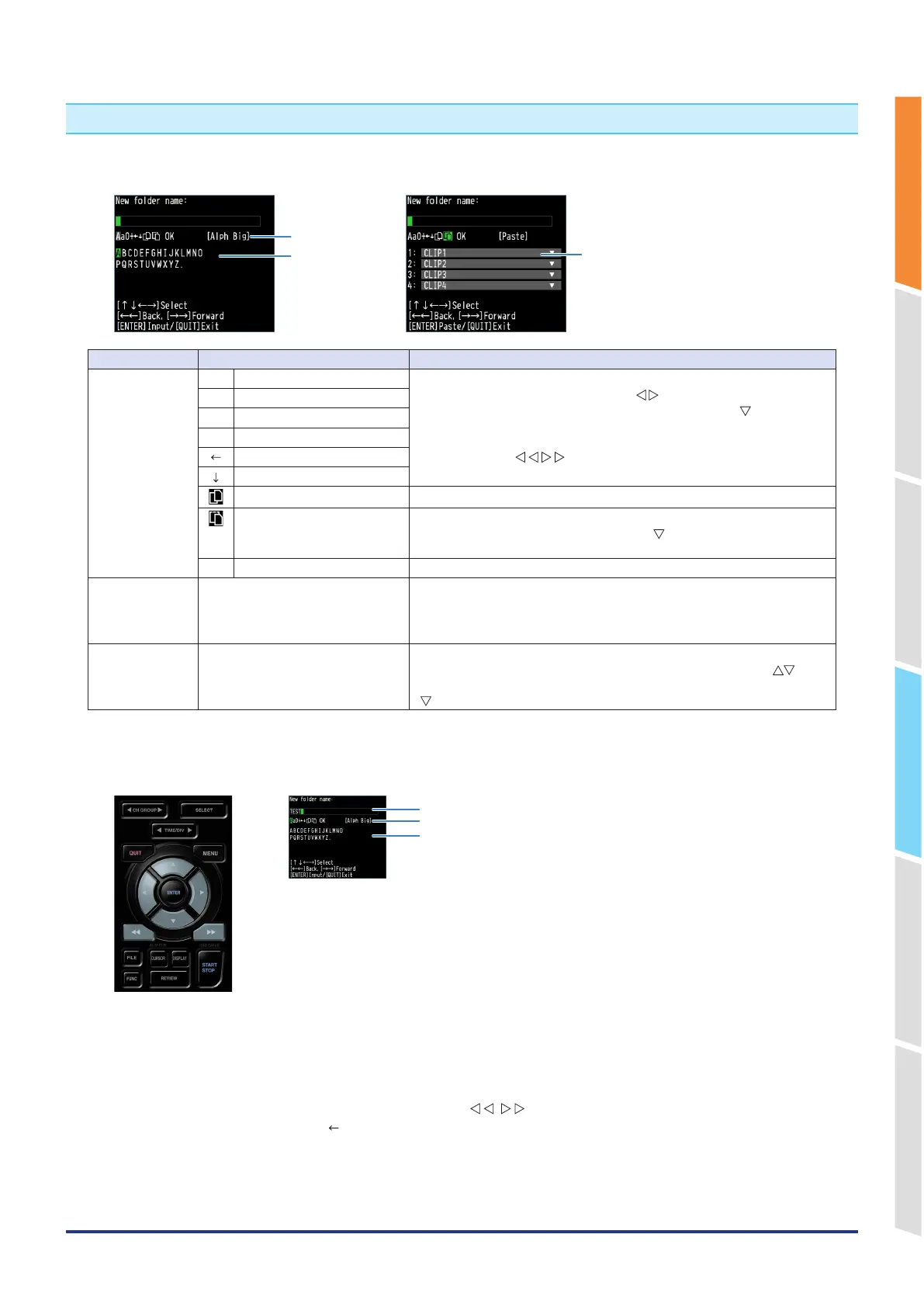
<Character entering mode>
Operation selection
Character entering
<Clipboard mode>
Clipboard
Operation mode Description Operation method
Text input A Upper case alphabet mode When the cursor key is moved to the uppermost part, the input character
type can be selected with the left/right " " keys.
After selecting the entering character type, use the down " " key to move
the cursor to each character.
In addition, to move the cursor within the entering characters, use the fast-
forward left/right " " keys.
a Lower case alphabet mode
0 Numeric mode
+ Symbol mode
Delete mode
Insert mode
Copy mode Press the [ENTER] key to copy to the clipboard.
Paste mode Paste the contents of the clipboard.
Confirm the content to be pasted with the " " key and paste it with the
[ENTER] key.
OK Finalize mode Confirm the entered character string with the [ENTER] key.
Character
entering
Each input character type is
displayed.
Move the cursor to a character and press the [ENTER] key to enter the
character.
After entering all the characters, move to the OK icon and press the
[ENTER] key.
Clipboard The contents of the clipboard are
displayed.
In copy mode, the contents of the clipboard are displayed.
In paste mode, you can select and paste the clipboard with the " " key.
In either mode, you can edit the contents of the clipboard by pressing the
" " key.
<Setting example>
Example of operation procedure to enter the "TEST01" to create the new file name is described
<Keys to be used >
Character input field (using the [ENTER] key)
Character type selection, deletion, insertion, confirmation
Character selection
1. Set "Character type selection" to "A" (Uppercase alphabet mode).
2. Select "T", "E", "S" and "T" in order in "Character selection".
3. Set "Character type selection" to "0" (Number mode).
4. Select the numbers "0" and "1" in order in "Character selection".
If you make a mistake when entering a character, use the " " keys to move the cursor to the character you
want to delete, and then select the " " (delete mode) in "Character type selection" and press the [ENTER] key.
One character will be deleted.
5. After confirming the entered characters, set "Character type selection" to "OK" (confirmation mode) and press the
[ENTER] key to confirm the entered character.








 To Next Page