3-103
Chapter 3 Settings and Measurement
Contents General Description
Checks and Preparation
Settings and Measurement
Example of Use Specification
11. Data replay menu
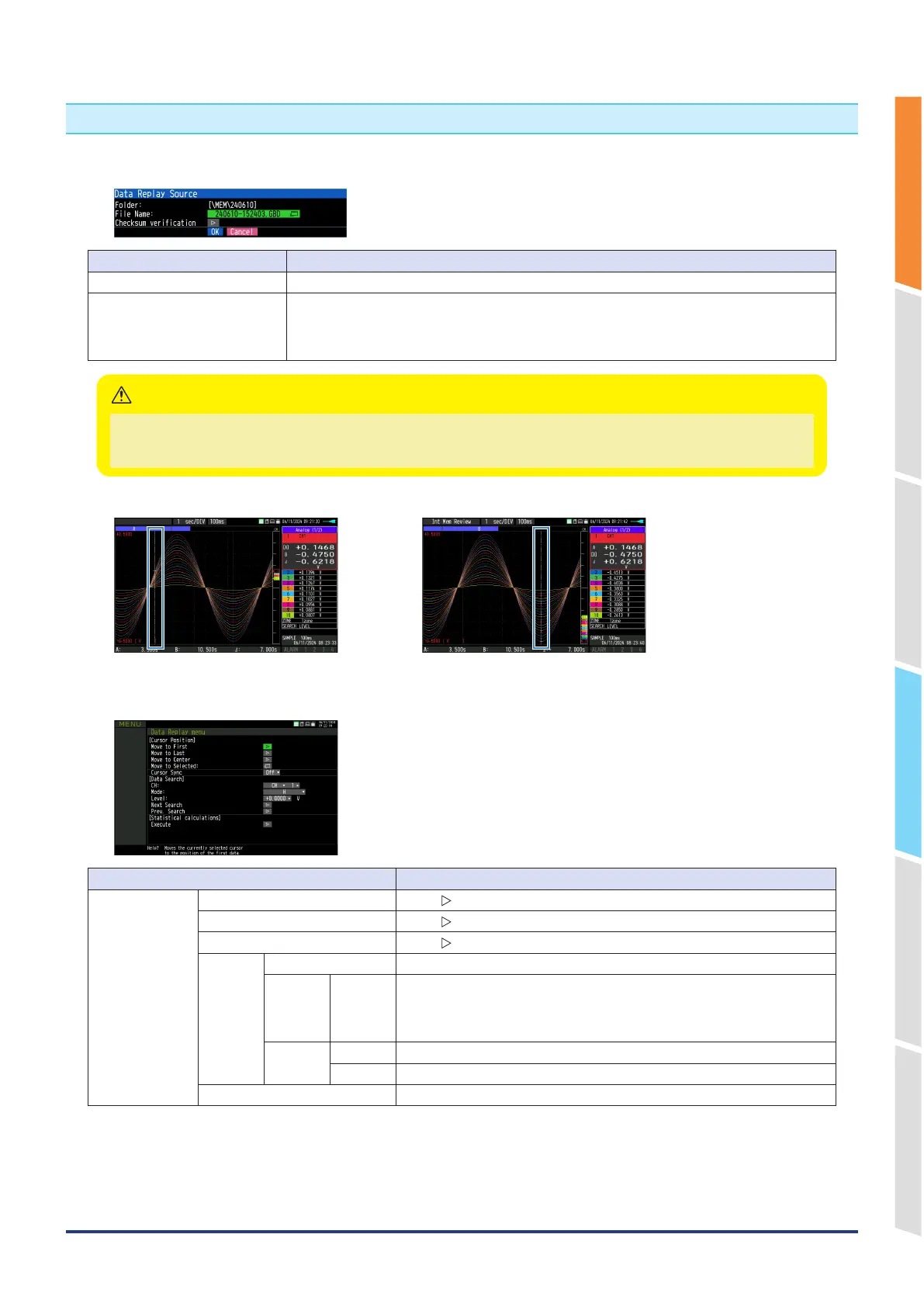
Select the data you want to replay from the "Data replay source" by pressing the [REVIEW] key and replay the captured data.
<Select replay data source>
Select items Description
File Specify the file in the capture destination (save destination).
Check data corruption Check if the captured file is damaged.
The data corruption results are displayed in a dialog.
When the data is not corrupted: "Data is not corrupted" is displayed.
When the data is corrupted: "Data is corrupted" is displayed.
For CSV-formatted data, only the data captured by this GL860 can be replayed.
“Checksum verification” is displayed only when selecting a GBD file to which a checksum is attached.
For how to add checksums, refer to “2-7. Data corruption check function” in “2. DATA settings”.
CAUTION
<When using the replay data and cursor A> <When using the replay data and cursor B>
Cursor A Cursor B
Pressing the [MENU] key during capturing/replaying displays the Replaying menu.
Setting Selections available
Cursor Position Move to First Select and press the ENTER key to execute.
Move to Last Select and press the ENTER key to execute.
Move to Center Select and press the ENTER key to execute.
Move to
Selected
Method: Position, Time
Position Position 0 to end of data
For example, if the sampling interval is 100 ms, the capture destination is the built-
in RAM, and the number of capture points is 10000, settings up to 999.9ms are
available.
Time Date Date from the start to the end of the data
Time Time from the start to the end of the data
Cursor Synch Off, On







 To Next Page