3-93
Chapter 3 Settings and Measurement
Contents General Description
Checks and Preparation
Settings and Measurement
Example of Use Specification
8. FILE menu
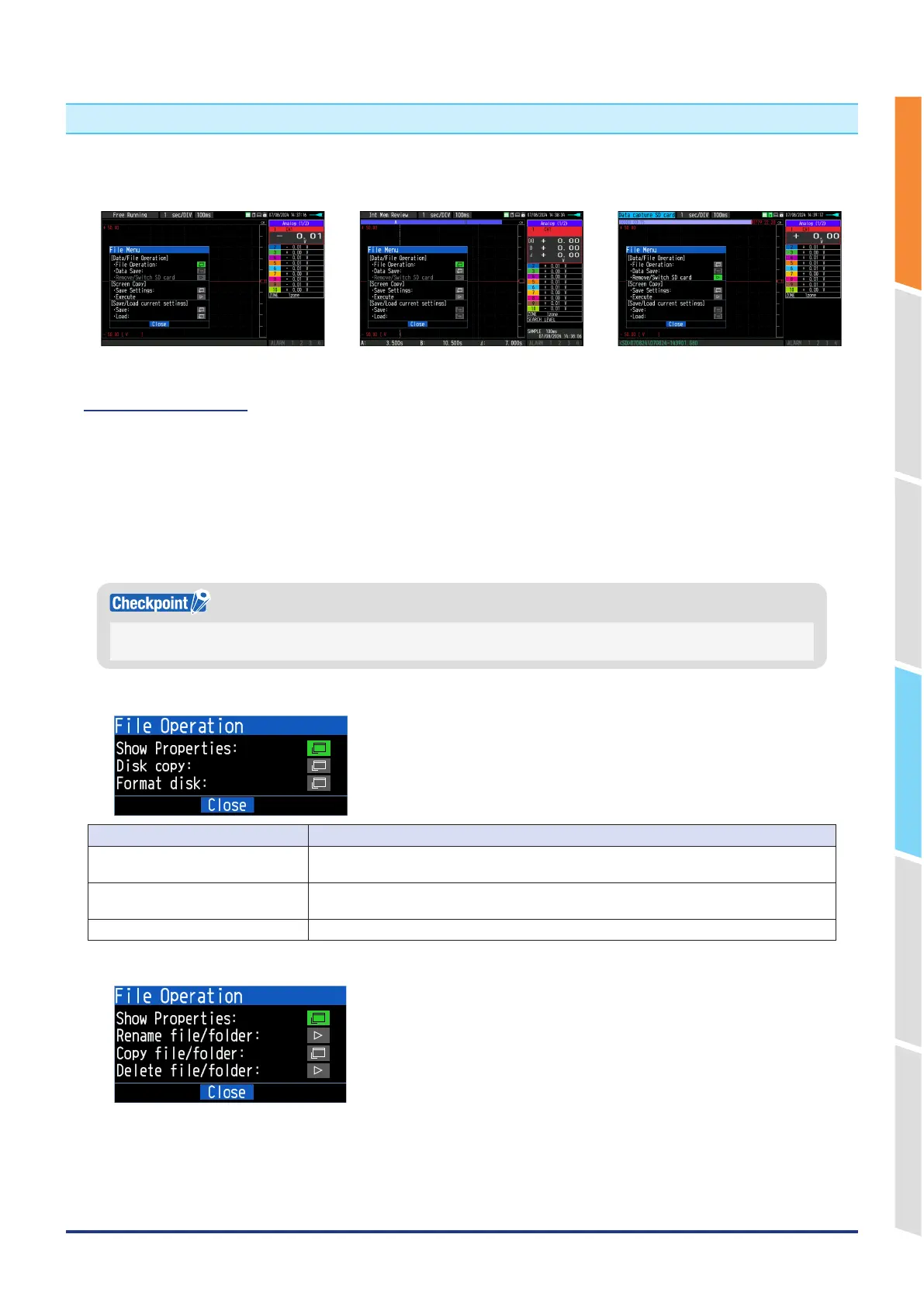
The file operations can be performed by pressing the [FILE] key.
The display items vary depending on the operation mode of free-running, replaying, and capturing.
<Free-running status > <During replay or dual-screen replay status> <Capturing status>
8.1 File Operation
In Free Running and operation modes during replaying, the files in the internal memory or SD memory card can be
manipulated.
Select the File operation and press the [ENTER] key to open the file dialog (file list).
You can select a file by moving the cursor on a folder or file and pressing the [ENTER] key.
(An "x" mark appears to the left of the file name. Press the [ENTER] key again to cancel the selection.)
This operation is mainly used for selecting multiple files.
You can also select continuously by pressing the Up or Down keys while holding down the [ENTER] key.
If you select the file or the folder and press the [MENU] key, you can select the following operations.
When operating a single folder or file, you can select the following operations simply by moving the cursor and pressing the
[MENU] key. In this case, there is no need to use the [ENTER] key to select a file.
<Route display>
Operation mode Description
Show Properties The detailed disk information (drive name, file system, free space, total capacity, volume
name) is displayed.
Disk copy Copy the disk.
Select a destination (another disk), and execute the disk copy.
Format disk Initialize the internal memory or SD CARD.
<Display other than root>







 To Next Page