4
Network printing
4-26 IC-206
Connecting the IPP printing NetWare server and this machine
Connecting the NetWare server and this machine
Specifying the NetWare 4.x/5.x/6 print server mode settings
1 Log on with Administrator privileges.
2 Start up NWadmin.
3 Select the print server system or category container, and then select
"Print service quick setup" from the tool menu.
4 Type in the print server name, printer name, print queue name and
volume name, select "Other/Unknown" as the printer type, and then
save the specified settings.
– For queue user privileges, the printer notification option,
assignment of multiple queues, and passwords, refer to the
NetWare documentation, and specify settings as necessary.
5 Start up PageScope Web Connection, click the Network tab in
Administrator mode, select "NetWare Configuration", and then specify
the following settings for this machine.
– For details on using PageScope Web Connection, refer to "Using
PageScope Web Connection" on page 12-3.
6 From the NetWare Server console, load MONITOR.NLM.
7 Select the connection settings, and check that the PServer you created
is listed in the active connections section.
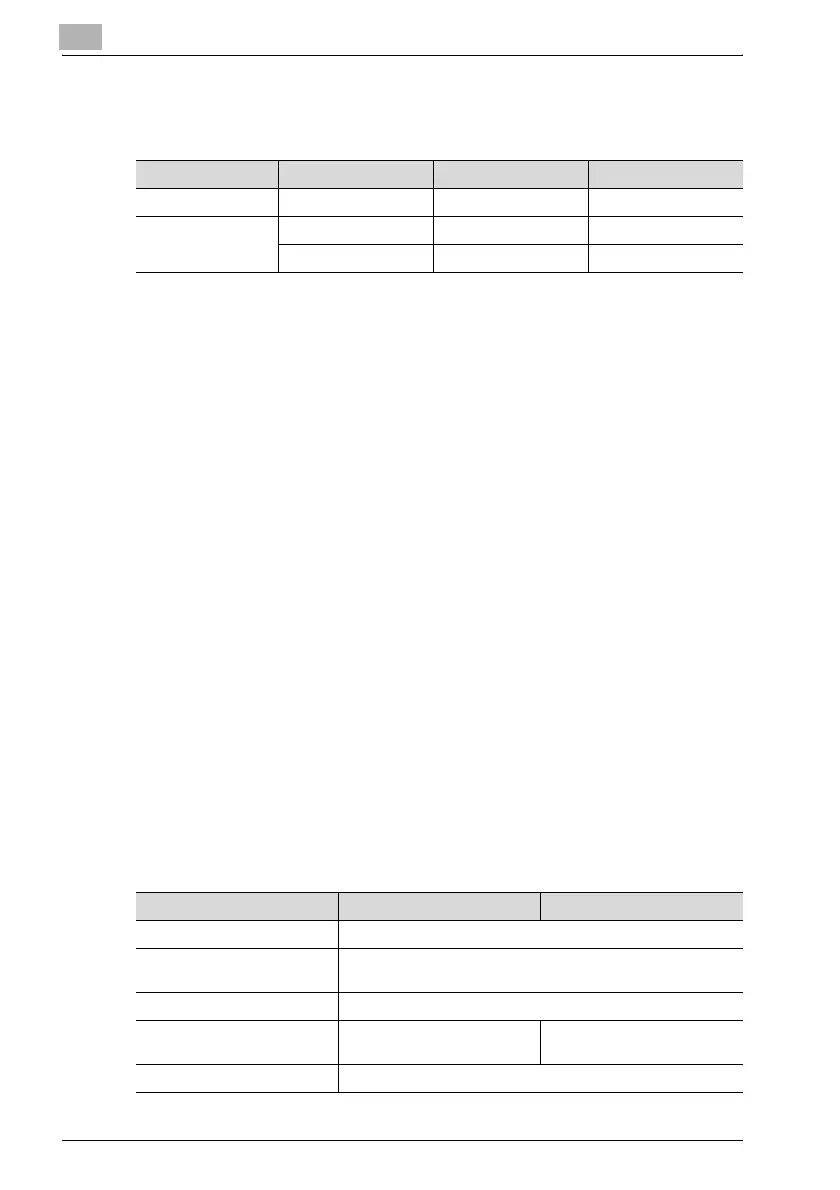
NetWare version Protocol Emulation Service mode
NetWare 4.x IPX NDS / Bindery Pserver / Nprinter
NetWare 5.x / 6 IPX NDS / Bindery Pserver / Nprinter
TCP/IP NDPS(lpr)
Parameter NDS Bindery
NetWare Configuration
*
Enable NetWare (Select the check box to enable it.)
Frame Type
*
AutoDetect (Select the frame type according to the network en-
vironment.)
Print Server Name Print server name created in step 4
NDS Context Name Name of the context that con-
nects to PServer
Not necessary to specify
Print Server Password Specify only when setting from the NetWare Server.






 To Next Page