EasyManua.ls Logo

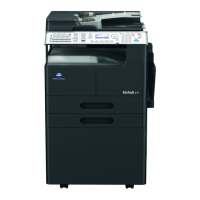
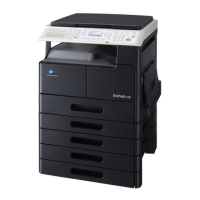
Konica Minolta IC-206 - User Manual

Konica Minolta IC-206
424 pages
Print Icon
To Next Page IconTo Next Page
Loading...
IC-206
User Manual

Table of Contents

Questions and Answers

  • R
    Robin SchwartzSep 9, 2025
    What does memory file full mean on Konica Minolta All in One Printer?
    • M
      Michael ThompsonSep 9, 2025
      If your Konica Minolta All in One Printer displays 'MEMORY FILE FULL' while sending an e-mail, it means the maximum number of stored files was used. Retrieve the transmission data stored in the memory.
  • M
    Michaela ThompsonSep 12, 2025
    Why is Secure Print not available on my Konica Minolta IC-206 All in One Printer?
    • S
      stacey36Sep 12, 2025
      If your Konica Minolta All in One Printer shows 'SECUREPRINT IS NOT AVAILABLE', it means that since the expanded memory unit is not installed, the "Secure Print" setting cannot be selected. The job is cancelled.
  • P
    pennydeanSep 13, 2025
    What to do if URL setting in the Web browser is incorrect for Konica Minolta All in One Printer?
    • M
      Mrs. Cheryl Nichols PhDSep 13, 2025
      If your Konica Minolta All in One Printer displays 'The URL setting in the Web browser is incorrect.', it means that the URL setting in the Web browser is incorrect. In the 'Address' box, type the IP address of the specified device.
  • A
    abigail92Sep 15, 2025
    Why does my Konica Minolta All in One Printer say wrong password?
    • K
      Kelly AndersonSep 15, 2025
      If your Konica Minolta All in One Printer displays 'WRONG PASSWORD', it means the password is incorrect, so the machine could not log on to the server.
  • A
    Abigail HebertSep 17, 2025
    What does MEM. FULL/TX CANCEL mean on Konica Minolta IC-206 All in One Printer?
    • J
      James MilesSep 17, 2025
      If your Konica Minolta All in One Printer displays 'MEM. FULL/TX CANCEL', it means that while sending e-mail, the size of the image data has exceeded the capacity of the memory.

Summary

Installing the Printer Driver

System Requirements

Lists the necessary hardware and operating system environments required to use the printer driver.

Making Connections and Installing the Driver

Describes methods for connecting the machine to a computer and installing the printer driver via USB or network.

Installing the Printer Driver by Using Plug and Play

Provides step-by-step instructions for installing the printer driver using the Plug and Play feature on various Windows OS.

Installing the Printer Driver by Using the Add Printer Wizard

Details the procedure for installing the printer driver via the Add Printer Wizard for network-connected machines.

Uninstalling the Printer Driver

Explains how to remove the printer driver and related files from the system.

Network Printing

Selecting the Network Printing Method

Outlines various network printing methods like Peer-to-peer, LPR, PORT9100, IPP, and NetWare connections.

Specifying an IP Address

Details the procedure to assign an IP address to the machine from the control panel.

Connecting the Computer and This Machine Over a Network

Describes procedures for connecting computers to the machine over a network for various printing methods.

Control Panel Operations for Printing Functions

Printing Operations

Describes how to start, cancel, and manage print jobs from the machine's control panel.

Canceling a Print Job

Explains how to cancel a print job from the machine's control panel while in Printer mode.

Network Scanning

Scan to E-mail

Describes sending scan data as an e-mail attachment via a mail server.

Scan to Server (FTP)

Explains uploading scan data as TIFF or PDF files to a specified directory on an FTP server.

Network Settings

Network Settings

Details available network operations and how to specify settings according to the LAN environment.

Specifying Settings from the Control Panel

Describes how to specify network settings via the machine's control panel menu.

E-MAIL SETTING 1

Covers settings for e-mail transmission: sender name, addresses, SMTP server, and more.

E-MAIL SETTING 2

Covers settings for e-mail reception: POP3 server, account, password, and intervals.

Performing a Scan to E-mail Operation

Performing a Scan to Server (FTP) Operation

Troubleshooting

Main Error Messages and Their Remedies

Lists common error messages, their causes, and remedies for network and e-mail operations.

Troubleshooting Network Printing

Provides troubleshooting steps for network printing issues.

Troubleshooting PageScope Web Connection

Addresses issues related to accessing and using PageScope Web Connection.

Konica Minolta IC-206 Specifications

General IconGeneral
BrandKonica Minolta
ModelIC-206
CategoryAll in One Printer
LanguageEnglish

Related product manuals