X75HD/X75SD Installation and Operation Manual 157
Chapter 9: Audio Configuration
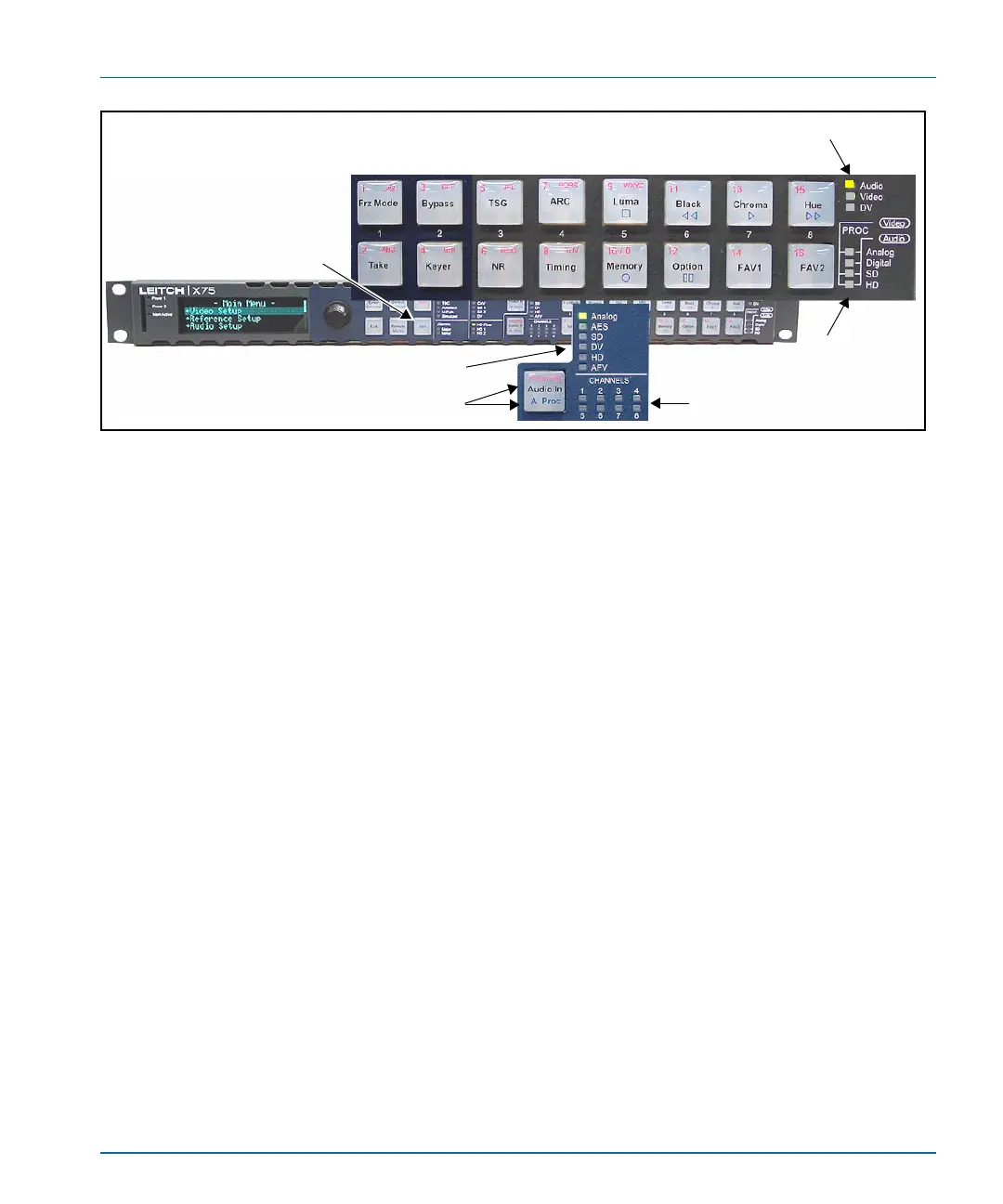
Figure 9-2. Location of Audio LEDs
Accessing Audio Level Controls
Press the Ctrl and A Proc buttons together to quickly access the audio
level controls of a selected audio input. Along with LEDs, the selected
audio input channel’s gain controls will be mapped to specific
numbered buttons on the right side of the front panel. These buttons will
light during audio processing and configuration.
See “Audio Proc Amp” on page 167 for information on LED and
channel mappings on a frame-mounted local control panel or X75-RCP
remote control panel.
Tracking and Delaying Audio
Each audio sample rate converter (SRC) can be configured to
automatically track the processing delay of one of the video outputs. To
apply the internal audio tracking feature, follow this path: Audio
Setup>Global Audio Config>I/O Delay Config. Select one of the four
or eight I/O Delay SRCs, and then select the accompanying video
signal to track with that audio SRC.
Audio mode LED
Audio proc
LEDs
Audio input LEDs
Audio Channel LEDs
Audio In/A Proc button
Ctrl
button



 To Next Page