92 X75HD/X75SD Installation and Operation Manual
Chapter 5: Initial Configuration
Changing the PC Network Settings
In unusual situations, such as correcting a failed software upgrade, you
may need to change your PC network settings. Follow these steps to
change the settings:
1. Change the IP Address of the PC to match that of the
X75HD/X75SD, by following theses steps:
a. Click Start>Settings and then click Control Panel.
This opens the Control Panel window.
b. Double-click Network and Dial-up Connections, and then
double-click Local Area Connection.
c. Click the General tab, and then click Properties.
This opens a new Local Area Connection Properties window.
d. On the General tab, select Internet Protocol (TCP/IP), and
then click Properties..., ensuring you are working on the
correct Ethernet adapter for the CCS network.
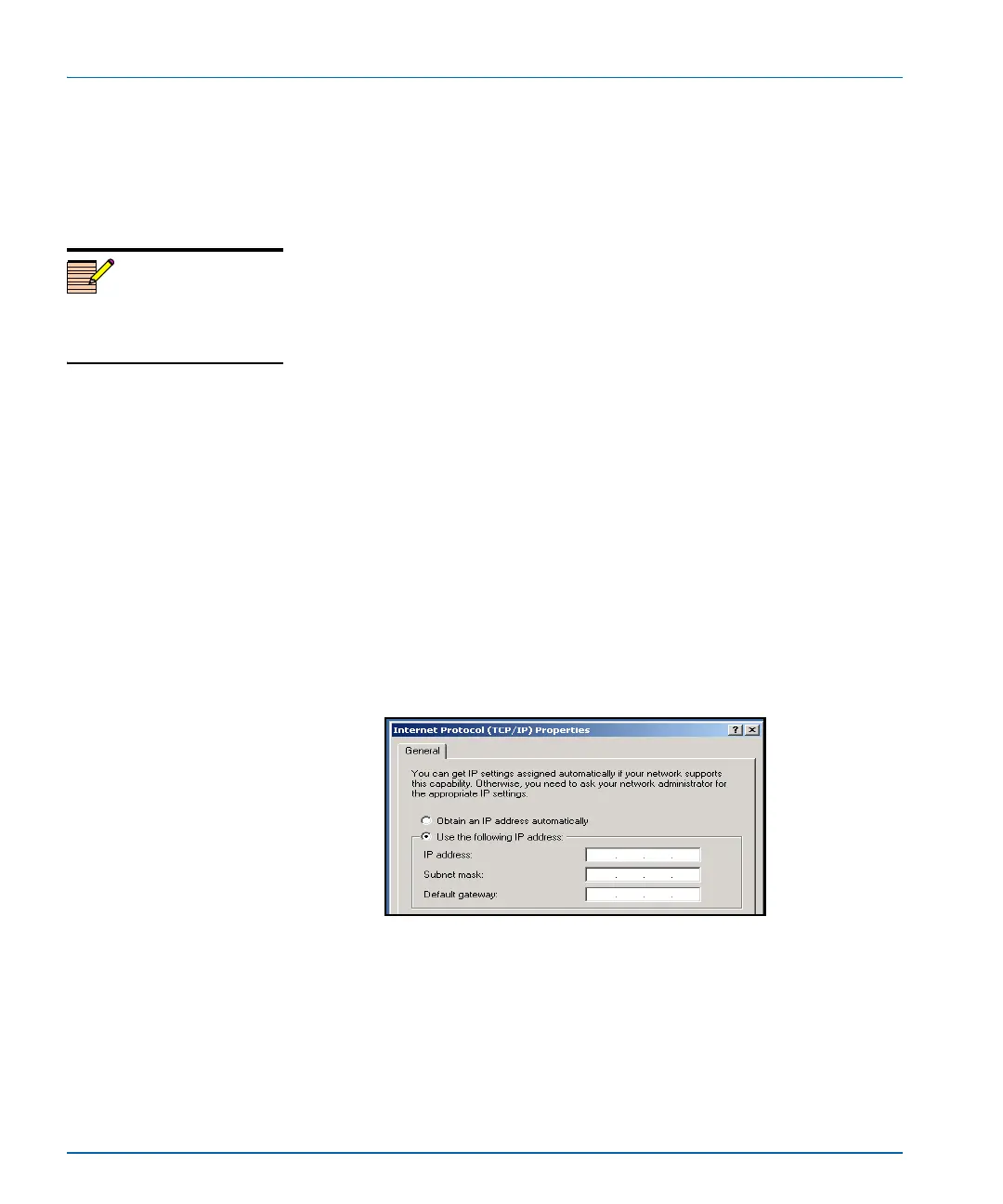
The IP Address of the Internet Protocol TCP/IP Properties
box appears.
Figure 5-1 shows the portion of the Internet Protocol TCP/IP
Properties box where you enter the IP Address, Subnet Mask,
and Default Gateway of your PC.
Figure 5-1. Portion of IP Address Box
e. Note whether Obtain an IP address automatically is selected.
You may need to re-select this option later when you revert
back to the original PC IP Address.
Note
You will probably require
administrator privileges on your
PC to change the IP Address



 To Next Page