Software Version 3.05
197
CHAPTER 19:
Advanced Cues
Cue Follow
A Follow assigned to a cue causes the "next" cue in the cue sequence to
automatically initiate without pressing the GO button for it. The Follow
attribute is actually a delay time assignment with an automatic execution for
the next cue. The amount of time that you specify for the Follow attribute
determines when the "next" cue automatically begins. The Follow time
assigned to a cue begins to count down when you press the GO button. At the
completion of the Follow time, the next cue executes.
?
BASIC RULE: You must assign a Follow to a cue before the cue
that you want to start automatically. A Follow is essentially a "count down" to
automatically initiate the next cue in the cue sequence.
A Follow time may be from 0 - 999.9 seconds in 0.1 second increments. A
Follow time of zero seconds allows two consecutive cues to execute
simultaneously. There is no limit to the number of consecutive cues to which
you may assign the Follow attribute.
? EXAMPLE: To assign a Follow to a cue:
[RECORD CUE] [#] [FOLLOW] [#] [TIME] [#] etc. [ENTER]
- or -
[CUE] [#] [FOLLOW] [#] [ENTER] (Assigns Follow
to an existing cue.)
? EXAMPLE: To assign a Follow to the current previous cue:
[FOLLOW] [#] [ENTER]
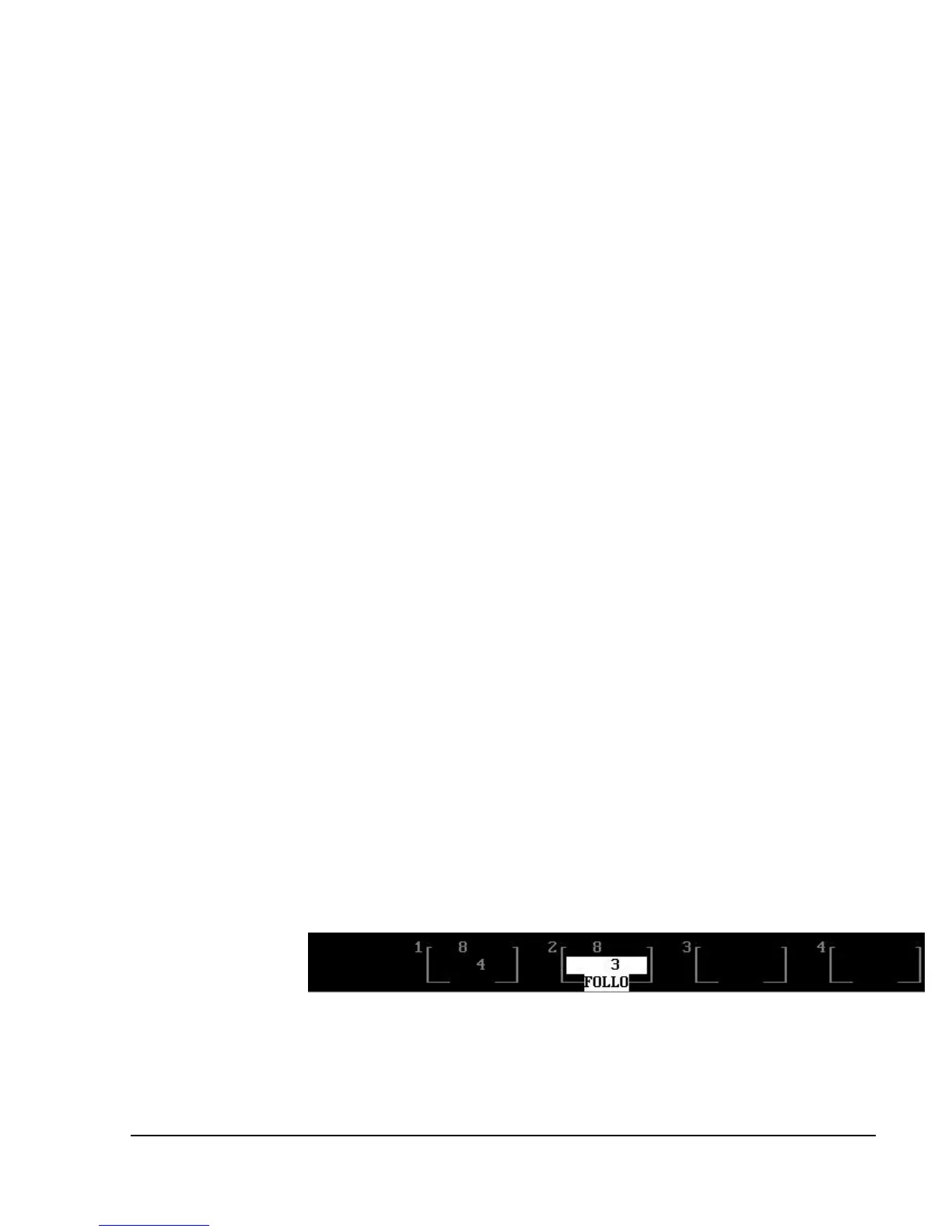
Figure 19.1, A Follow Cue in Playback Fader Box
The Follow time is shown on the second line of the Playback Fader Box. (See
Figure 19.1.) The Follow time occupies its own playback fader, separate from
the cue that initiated the Follow, and therefore you can use the [RATE] key to
manually adjust a currently running Follow time. If you press the Take Control



 To Next Page