Software Version 3.05
227
CHAPTER 22:
Controlling Fade
and Effect Rates
with the Wheel
Rate Key Wheel
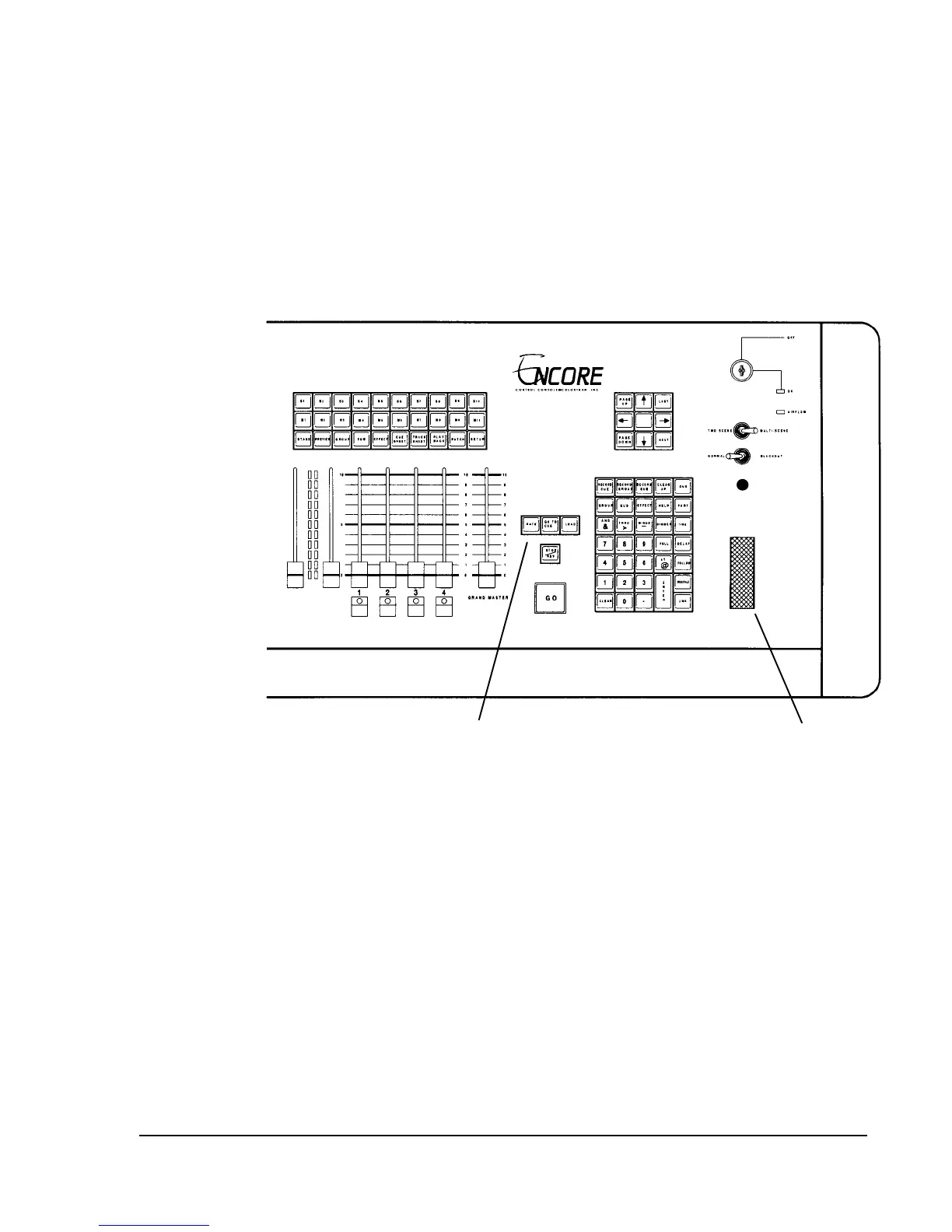
Figure 22.1 Wheel and Rate Key
When you are playing back cues on playback faders, you can use the [RATE] key to
assign control of the cue fade rate to the wheel. You can also use the wheel to control
the rate of effects running on submasters and playback faders. When you have rate
control on the wheel, moving the wheel up increases the time of the fade (slows down
the rate of the fade or effect). Moving the wheel down decreases the time of the fade
(speeds up the rate of the fade or effect).
Changing Cue Fade Rates
While a timed cue fade is occurring on a playback fader, you can adjust the fade
time by using the [RATE] key.



 To Next Page