Chapter 19: Advanced Cues
Software Version 3.05
199
Note that when you assign a Follow to a cue, the Follow time delays the next
cue’s execution, starting from the last cue’s initiation. Instead of using the
Follow time as the delay, you could assign a Follow time of zero and then
assign a Delay to the next cue. The difference between these two methods lies
in how the Playback faders run the cues. When a Follow finishes counting
down, the next cue loads to a different fader and begins to run. When a Delay
finishes counting down, the cue fade runs on the same Playback fader. This is
significant because when you use a Go, Go To Link, or Go To Clean Up
command, it will not clear a Delay time counting down, but it will clear a
Follow from the fader and prevent the next cue from running. Pressing the
Take Control button for the Playback fader with a Delay counting down will
take manual control of the cue on that fader.
?
BASIC RULE: A Follow belongs to the “first” cue, while a Delay
belongs to the “next” cue. Technically, the next cue has not begun during a
Follow countdown, but the next cue has already begun during a Delay
countdown.
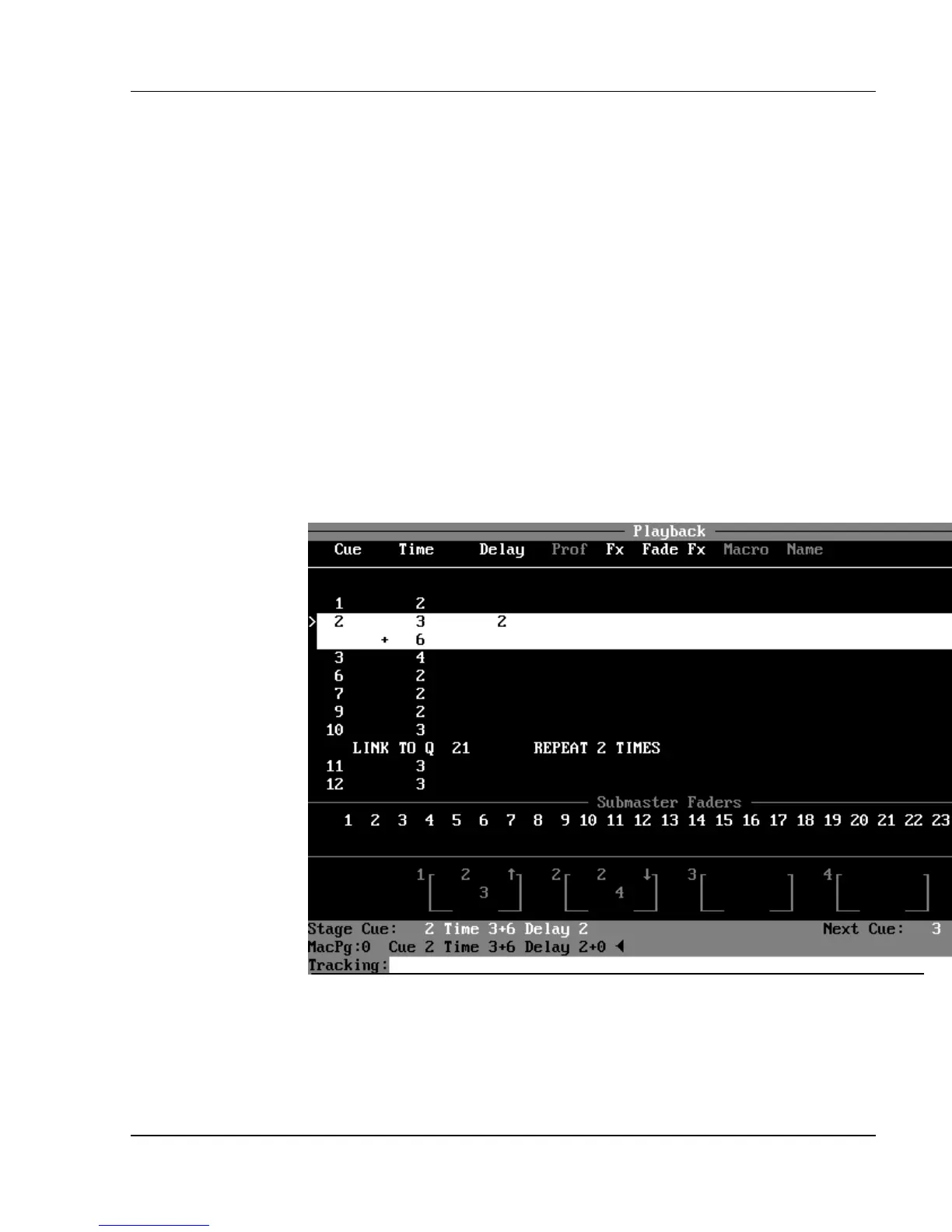
Figure 19.2, Split Fade
Split Fades
Split fades are fades that have separate "up" and "down" times. In the
Command Line, the up time and down time are separated by a "+". The up



 To Next Page