Procedures for Testing with the DX Host
96 Baker DX 71-030 User Guide EN V10 www.megger.com
WARNING: To avoid injury or death from severe electrical shock, take
precautions because subsequent tests will immediately apply the test voltage to
the coil. Voltage will not start at zero.
5. You can now test a group of “identical” coils by sequentially connecting the test leads
to each coil, pushing the Start (PTT) button and holding it for 10 pulses.
Exporting and Importing Reference Waveforms
The Baker DX allows you to export and import reference waveforms. The feature is useful for
retaining known good reference waveforms if the tester’s data storage must be reformatted.
NOTE: Due to slight variations in the capacitance of each Baker DX tester, you should not move or share
reference waveforms among multiple testers.
Exporting Reference Waveforms to an External USB Drive
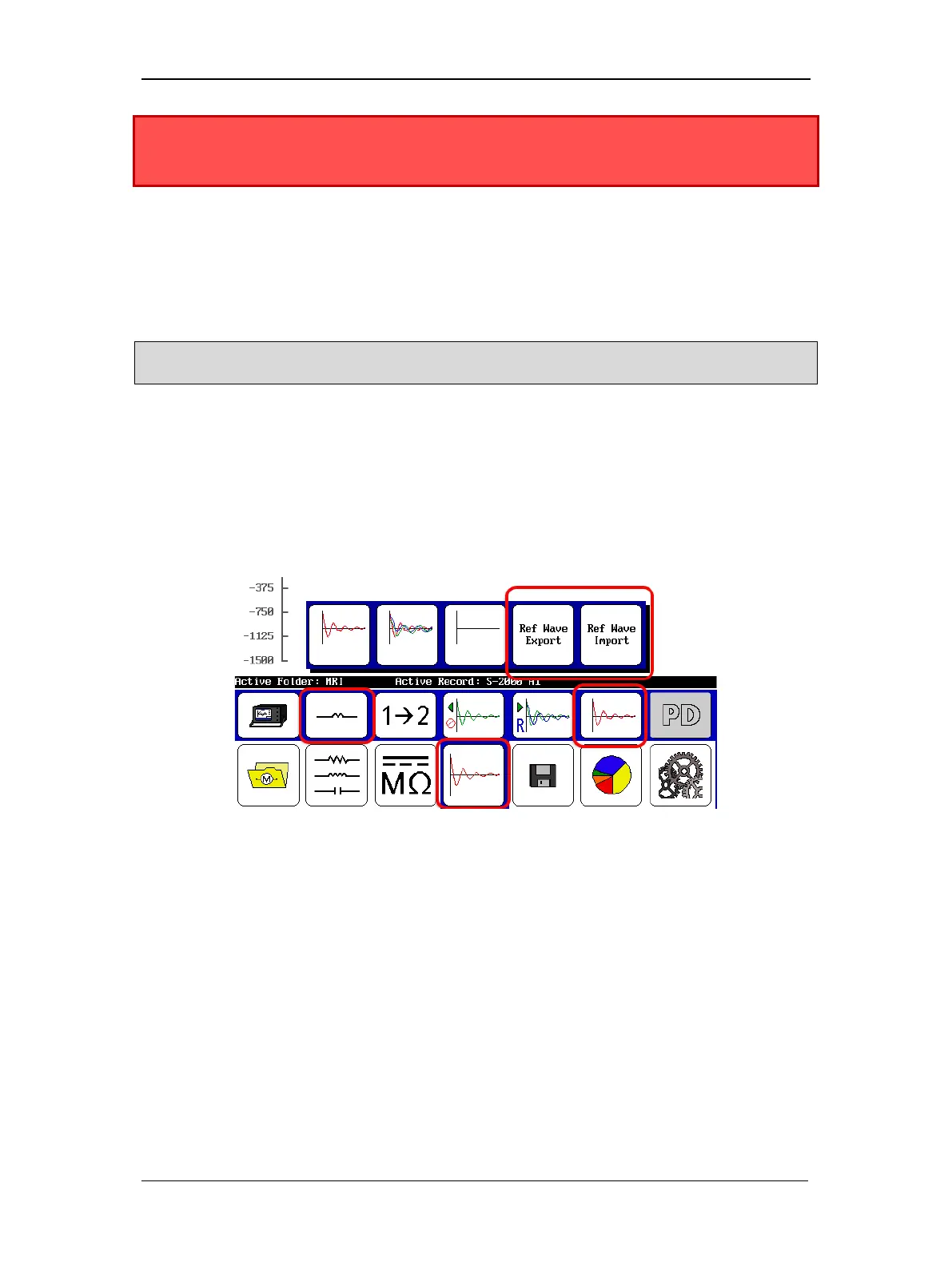
1. Touch the Surge test icon, then select single-coil test mode.
2. Touch the Waveform Selection icon (to the left of the PD icon, or right of the
Reference Waveform icon).
3. Two buttons appear on the submenu: Ref Wave Export and Ref Wave Import.
4. Touch the Ref Wave Export button.
Figure 107. Exporting and importing reference waveforms.
5. A dialog box appears in which you will enter the name of the file that will be used to
store the reference waveform on the USB drive (such as a flash drive or external hard
drive). You cannot specify a folder on the external drive; all reference waveforms will be
stored at the root directory. Enter the name then touch Done.
6. The dialog box changes so you can select the location of the reference waveform on the
Baker DX that you want to export.
7. Select the folder on the Baker DX containing the reference waveform.
8. The dialog box changes so you can select the record name on the Baker DX that
contains the reference waveform you want to export.
9. Select the record on the Baker DX containing the reference waveform.


 To Next Page