Using Baker DX Non-Test Functions
megger.com 39
Printing Reports
1. To print data, select the folder and record that you want to print (remember, selections
are highlighted).
2. After the data is loaded, touch the Report icon then the Display icon.
3. Connect a USB printer to the USB port (installation of a printer driver is not necessary).
When the printer is powered on and ready, touch the Print button.
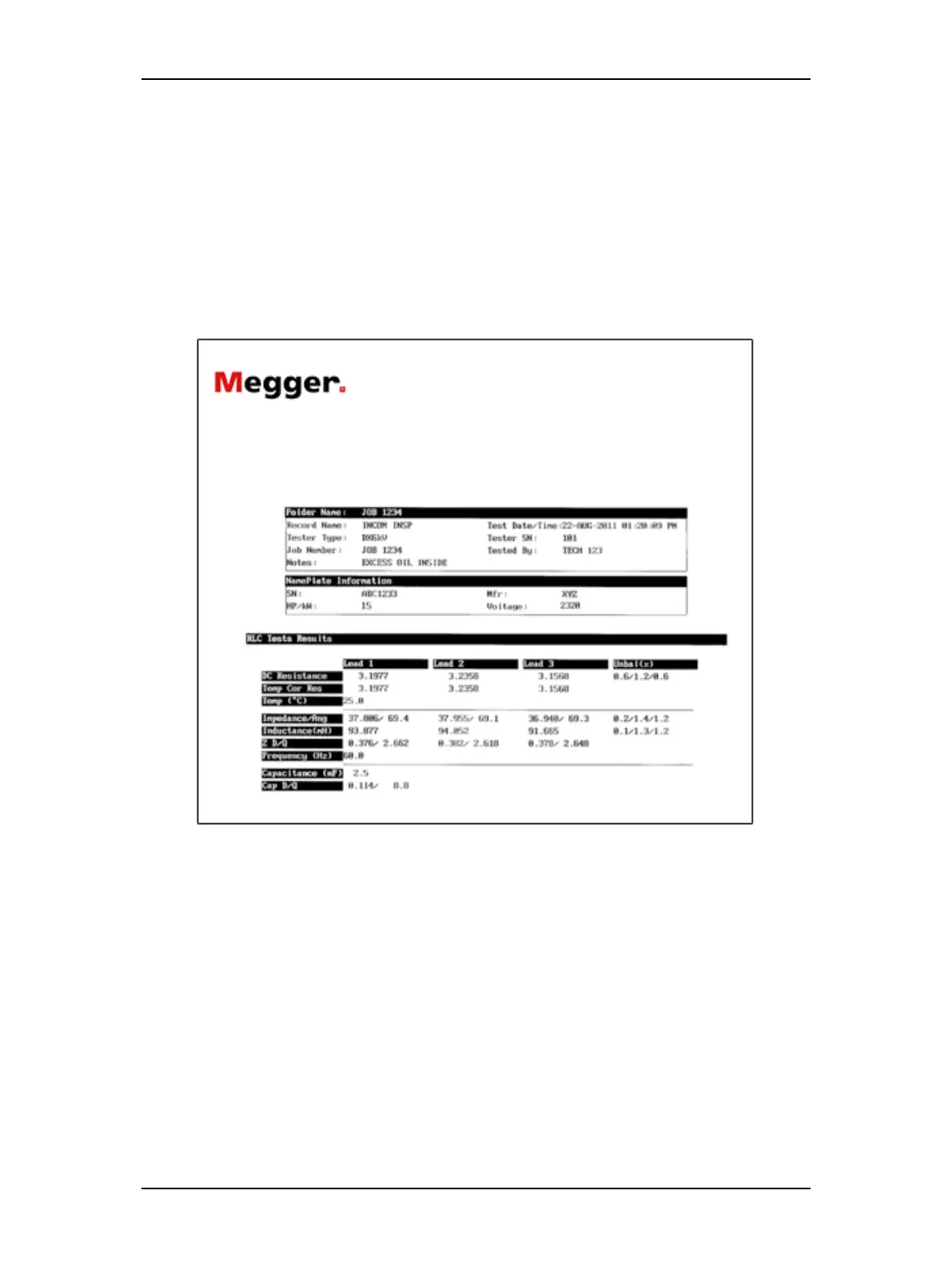
4. The report will print with a logo (if used; Megger in this example) just to the left of the
company name as illustrated below.
Figure 42. Report example.


 To Next Page