Using Baker DX Non-Test Functions
megger.com 43
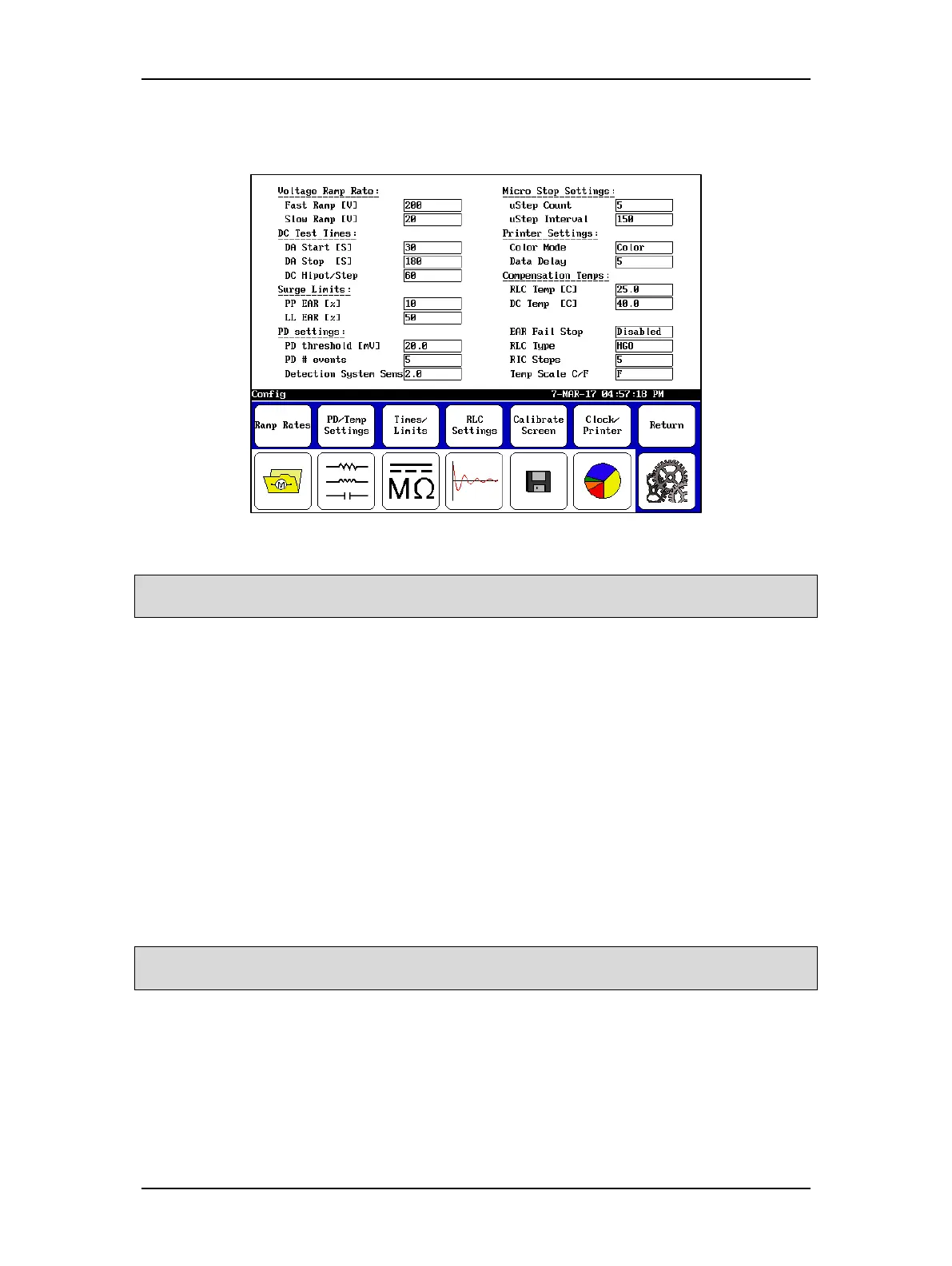
Touching the User Settings icon (with maintenance mode enabled) opens the screen shown
below. Using this screen, you can change several of the parameters used during testing.
Figure 46. User Settings screen.
NOTICE: To avoid creating problems with the tester, Micro Step Settings should not be changed without first
consulting Megger support. These fields are usually locked out.
Use this screen to adjust the Voltage Ramp Rate, Temperature Scale (Celsius vs. Fahrenheit),
DC Test Times (in seconds), and Surge Limits (Pulse-to-Pulse EAR and Line-to-Line EAR
maximum limits in percent).
The RIC Steps are the degree step increments used when plotting the RIC (rotor influence check)
tests. Increments are 2, 5, 10, and 15 degrees. Smaller step sizes equal higher resolution. Use a
value that gives you enough data points. Having too few data points can make it difficult to get
a good representation of the waveform.
The Compensation Temperatures (in Celsius) set here are the “compensate to” temperatures
(standards) used in testing. The “compensate from” temperatures are current winding
temperatures defined during the actual RLC or DC test procedures.
The EAR Fail Stop field is used to determine whether tests should stop if they exceed the EAR
limits defined under Surge Limits. When this is disabled, the test will not stop but a “warning”
appears in a red box within the test display area when a limit threshold is crossed. If this is
enabled, the test will stop when the threshold is crossed.
NOTICE: If you are concerned about potential damage to the unit under test—such as coil arcing—when EAR
limits are exceeded, you should consider enabling EAR Fail Stop.
The RLC Type field identifies the connection settings you will be using (HGG: Hot Ground
Ground, or HGO: Hot Ground Open).
Use the Printer Settings section to define your printer color mode and data delay settings. All
successfully tested printers had the following DX printer settings:
Color Mode: Color
Data Delay: 5


 To Next Page