Using Baker DX Non-Test Functions
megger.com 41
Using System Settings
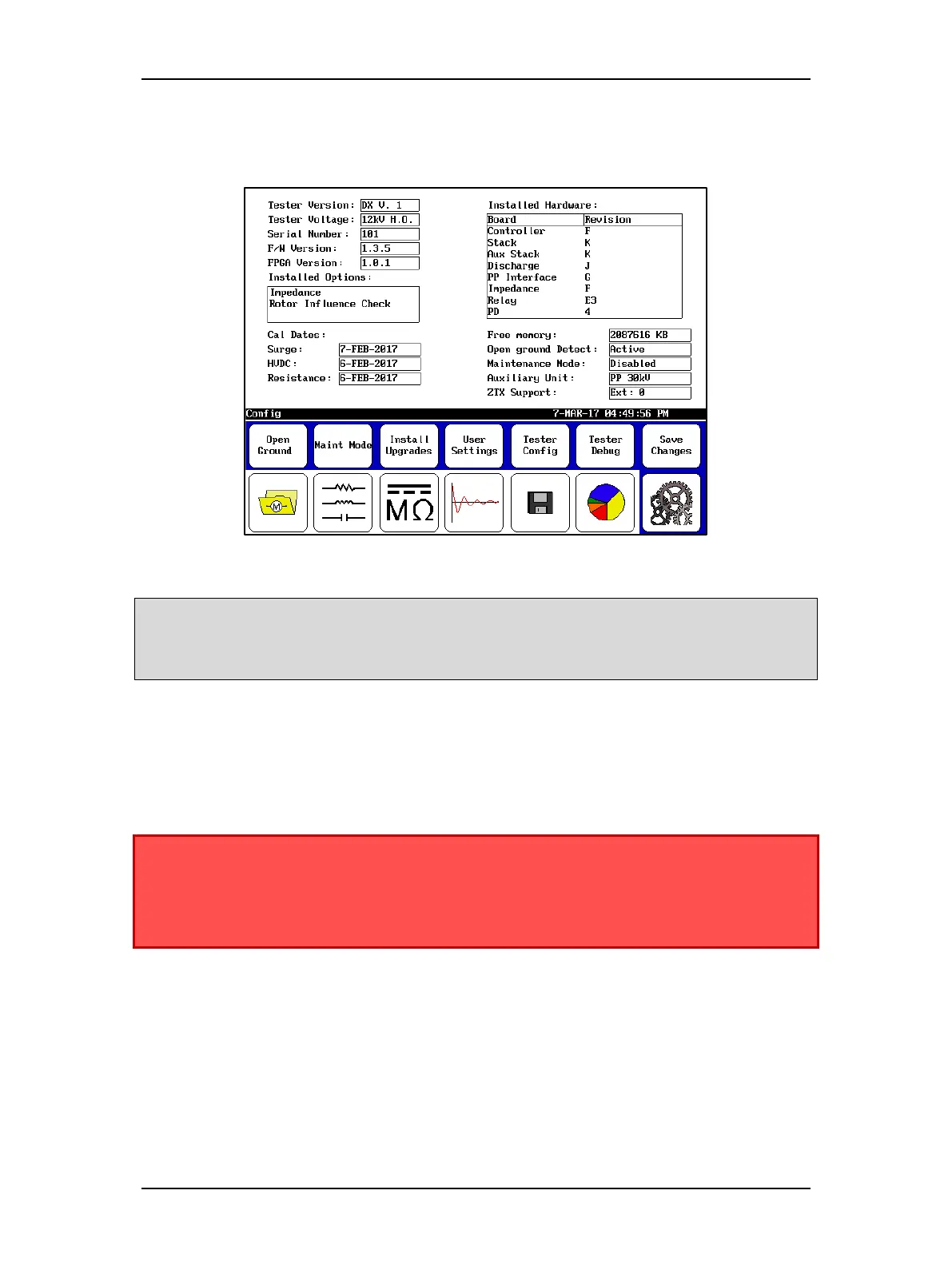
Touching the System Settings icon in the Mode Menu opens the screen shown below.
Figure 44. System settings opening screen.
NOTICE: The System Settings functions are reserved for personnel with Maintenance Mode access and
privileges; basic operators will not have access to this area. The Tester Config and Tester Debug icons are for
use by Megger personnel only and provide access for hardware configuration functions used only during
product assembly and updating.
Some of the information presented here is for reference only such as the tester version, tester
voltage, serial number, and firmware version shown in the upper left corner of the first screen.
Touching the Open Ground icon opens a popup menu that you would use to enable or disable
open ground detect. This is typically used in situations such as testing on a ship where there is
no earth ground. Generally, this should be enabled. When enabled and an open ground is
detected, the unit will stop performing tests until the problem is resolved.
WARNING: When this setting is disabled, testing can continue even if an open
ground situation is present. Therefore, you must ensure that a proper ground
connection is made under any circumstances. Connect a cable between the
Earth ground connector on the back of the DX to a known good ground source
in the vicinity of the motor being tested.
Touch the Maint Mode (maintenance mode) icon to open the popup menu shown below,
which you use to enable or disable maintenance mode, or change the maintenance mode
password. (BAKER is the default password.) After maintenance mode is enabled and the
maintenance mode password has been entered, you can access the User Settings area to make
needed adjustments.


 To Next Page