megger.com 19
3 — Baker DX User Interface Overview
The touch screen interface of the Baker DX family provides a logical, easy-to-navigate layout to
conduct all tests with minimal user interaction. A light touch on the screen is all that is required
to select an item.
NOTICE: Pressing harder or rubbing on the screen will not make it respond any faster, and may even damage
or place unnecessary wear on the screen.) The function icons are large enough to operate while wearing
electrical gloves.
Main Elements
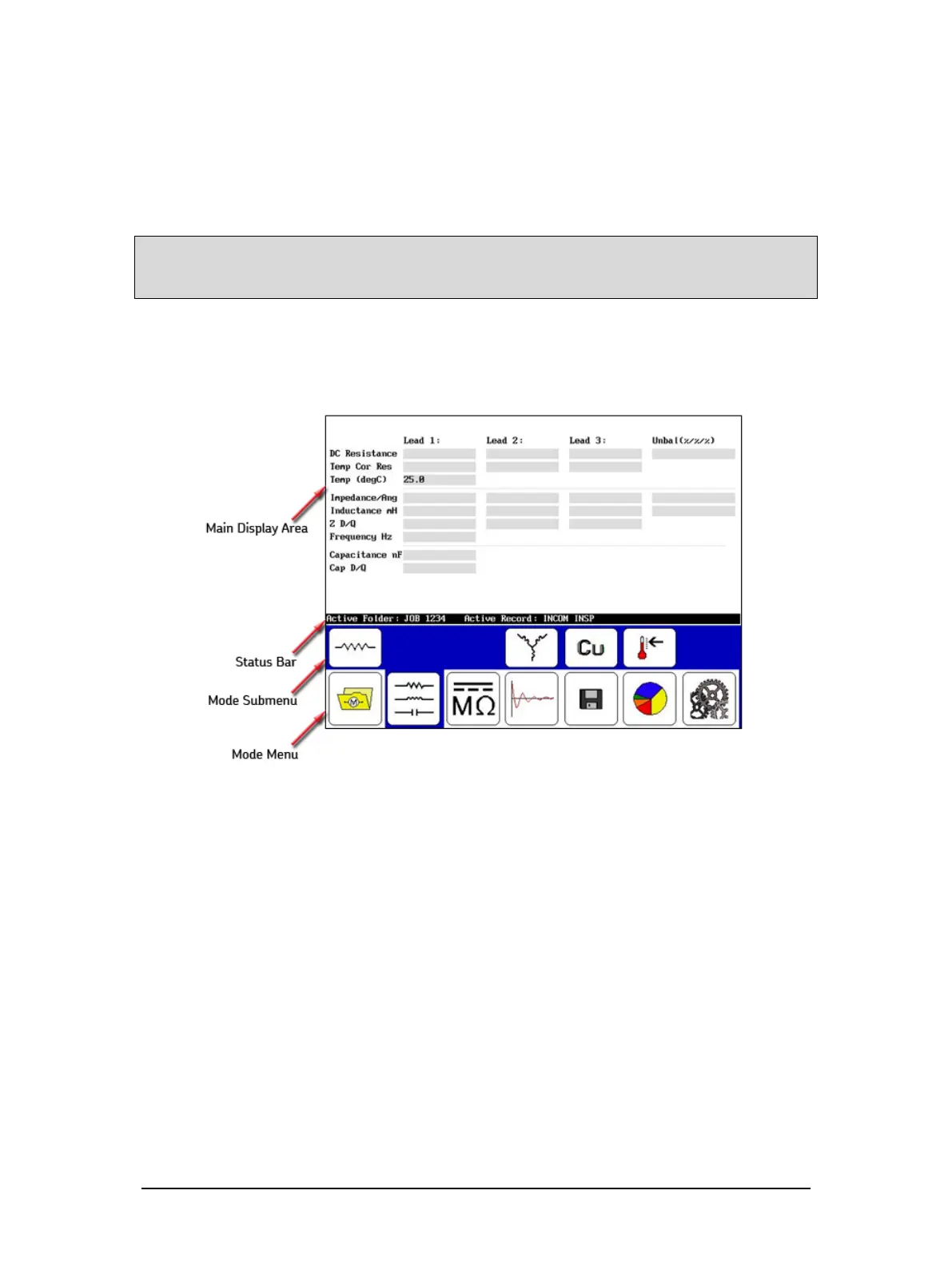
The graphic below shows the basic elements of the Baker DX user interface.
Figure 17. User interface main elements.
The Main Display Area displays all measurements, test results, and more as you execute your
tests.
The Status Bar displays information about the Active Folder and Active Record. The elements
show you where the information will be saved for the motor currently under test. The right third
of the Status Bar is a dynamic display area that will at times provide additional information such
as the date and time, a running clock, notice of active ZS Override mode, PPT Locked indicator,
or a test counter.
Use the Mode Menu to select the main mode of operation. Test and function modes are
described below. The Mode Menu does not change, and is always available.
The Mode Submenu contents changes depending on the mode selected and other items
selected via the Mode Submenu itself or popup menus that appear in the Display Area.


 To Next Page