Procedures for Testing with the DX Host
megger.com 103
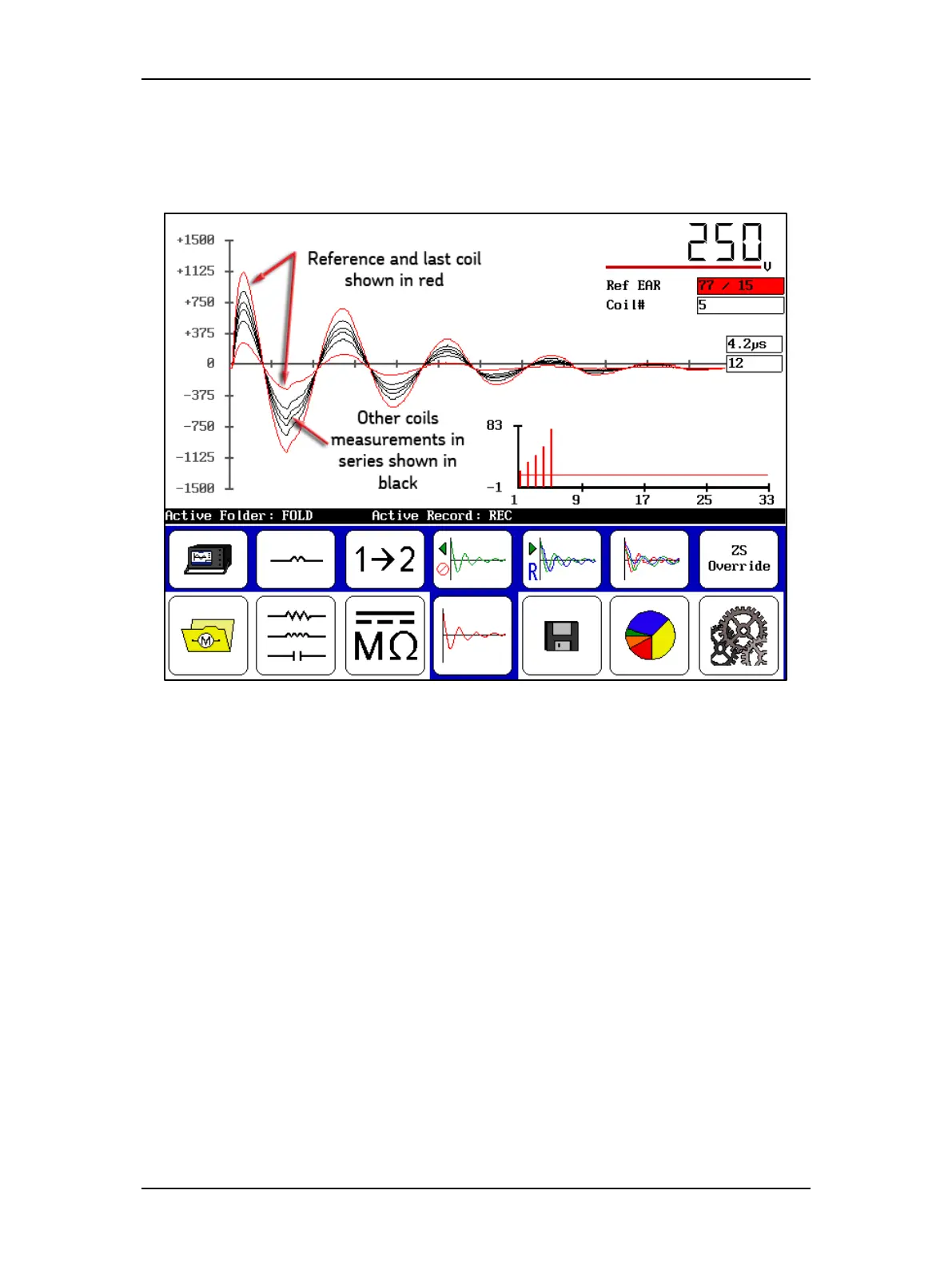
2. If you touch the Waveform Selection icon then the All Waveforms icon, your display
would look more like the one below. The reference measurement and the last (current)
coil measurement are displayed in red.; all other test measurements in the series are
shown in black.
Figure 115. Single-coil test results screen—All Waveforms selected.
3. When you have completed your tests and are ready to save your data, touch the Save
icon then touch Yes in the Confirmation Dialog to confirm that you want to save the
data.
Deleting Data
When you delete data, you have a couple of options. You can delete individual coil data during
testing by touching the Backspace icon then retesting the coil as needed.
You can delete multiple tests in this manner, simply by using the Backspace icon to delete the
target test(s) then conducting new tests as needed.
If you want to remove all coil data, touch the Waveform Selection icon the Clear Data icon.
You will see a dialog asking: “Delete All Coil Data?” Touch Yes to delete all test data collected.
You will then see another dialog asking: “Also Clear Reference Waveform?”
Touch No to keep the reference. If you touch Yes to clear the reference, you will need to set a
new reference to continue testing and/or to use in future testing.


 To Next Page