Using Baker DX Non-Test Functions
40 Baker DX 71-030 User Guide EN V10 www.megger.com
Exporting Screen Captures
When viewing results after pressing the Report icon, screen shots of the display can be saved to
a USB drive inserted into the USB port. To do this, view the subject result screen and then:
1. Push the red Equipment Stop button and rotate it to release.
2. Wait for the file to save then touch OK.
3. When you finish collecting desired screen shots, remove the USB drive and insert it into a
computer.
4. Acquire the DX Viewer utility software from the Baker DX product documentation CD or
the Megger website (https://us.megger.com/static-electric-motor-analyzer-baker-dx-
1#software and install it on your computer where you can easily access it.
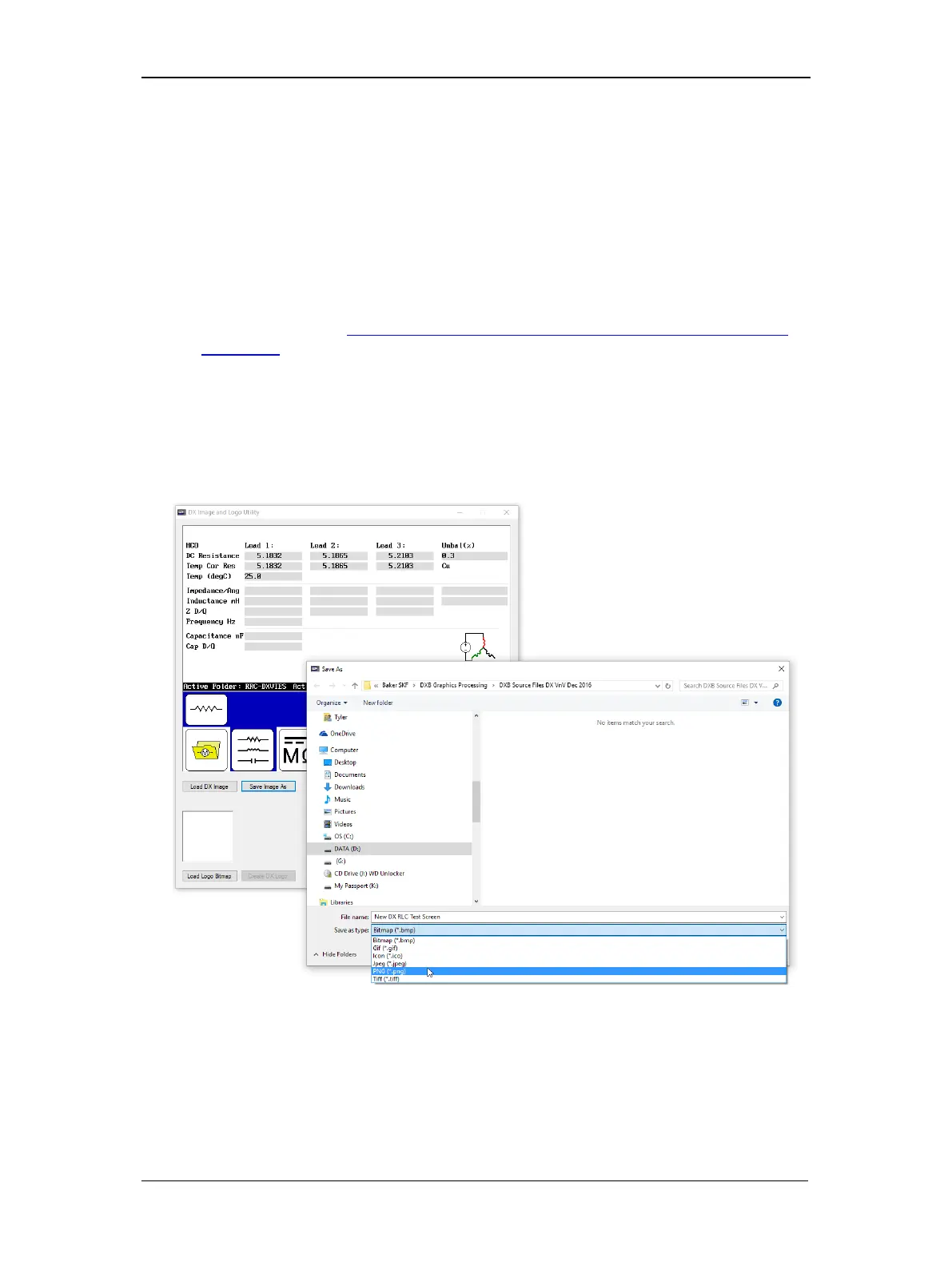
5. Execute the DX Viewer utility (DXUtility.exe) then click on the Load DX Image
button and browse to the USB drive where the screen shots are stored (the files are
assigned a “. dxb” file extension).
6. Select the type of file you want to convert the image into, then click on the Save Image
As button to rename the file (including using the proper extension), and store it where
you want it on your computer.
Figure 43. DX Image Viewer with conversion example.


 To Next Page