Using Baker DX Non-Test Functions
34 Baker DX 71-030 User Guide EN V10 www.megger.com
Deleting Existing Data Records
You can delete existing data, but you cannot delete individual test results within a record. To
delete existing data, you must delete an entire record that contains the data.
1. Start by touching the Data Folder icon in the mode menu.
2. Select the record you want to delete by touching it.
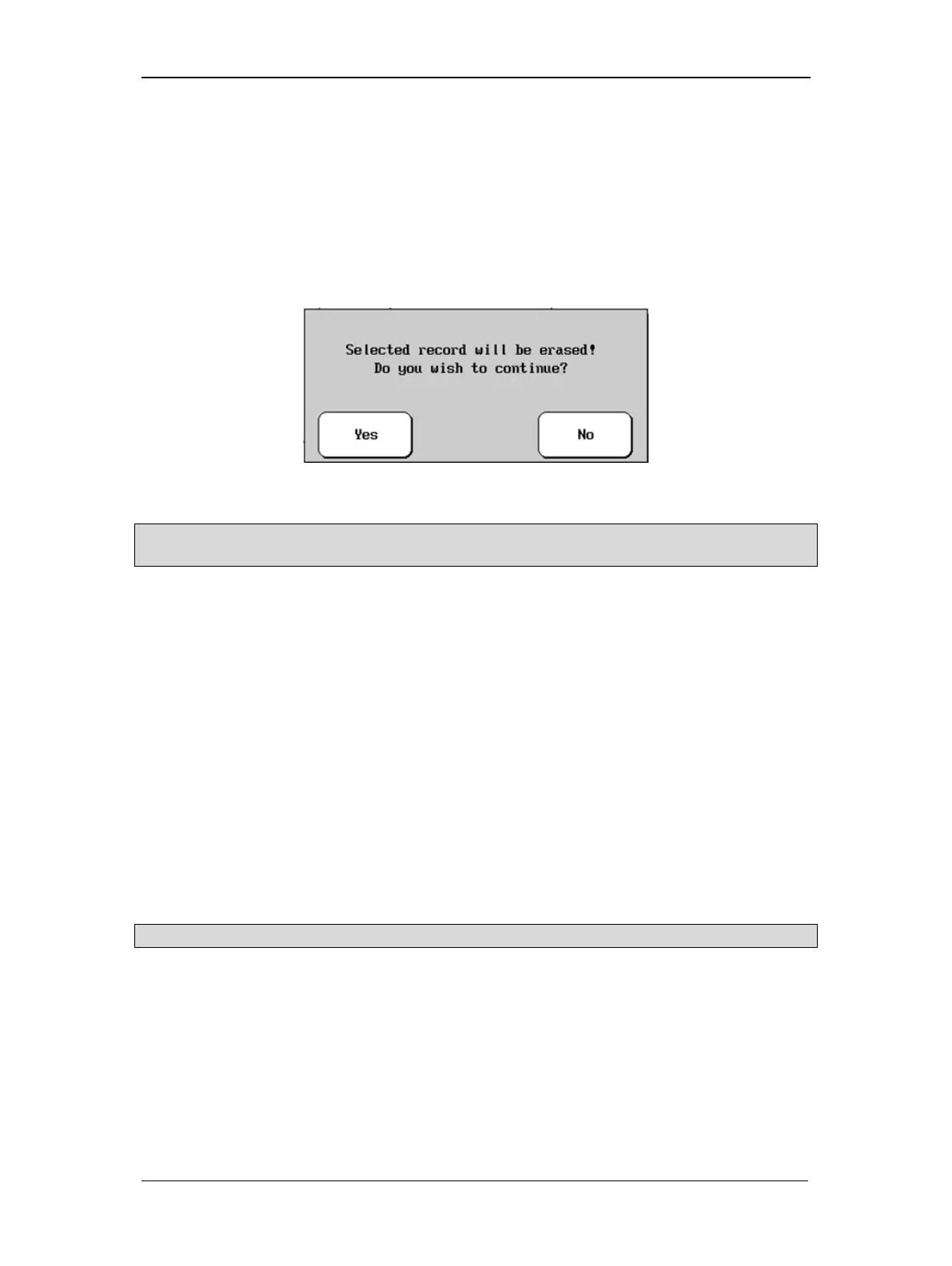
3. Touch the Delete button and then the Record button to delete the record selected. A
popup dialog box will prompt you to confirm that you want to delete the record.
Figure 36. Delete record confirmation dialog.
NOTICE: Deletion is immediate and permanent. Always double-check to make sure you really want to delete
all data within a given record.
Deleting a Folder
Deleting a folder follows a similar procedure.
1. Touch the Data Folder icon in the mode menu.
2. Select the folder you want to delete by touching it.
3. Touch the Delete button and then the Folder button to delete the selected folder.
4. A popup dialog box appears to prompt you to confirm that you want to delete the
record.
Saving Data
1. To save data after a test, touch the Save icon, then respond Yes to the prompt. Data is
saved to the active folder and record (the folder/record combination highlighted when
you save your data).
Test results from the most recent test are protected by a prompt to save the test data, including
any time a completed test is abandoned to run another test.
NOTICE: If you power off the unit before saving data, any unsaved test results will be permanently lost.


 To Next Page