Using Baker DX Non-Test Functions
30 Baker DX 71-030 User Guide EN V10 www.megger.com
Creating New Folder and Records
1. The Baker DX stores test information using a system of folders and records. To create
new folders, and then the records (test results) that are stored in the folders, touch the
Data Folders icon. A set of three buttons—New, Delete, and Export to USB—appear
in the submenu.
2. Touch the New button. Two new button icons pop up: Folder and Record. Folders
hold records; you cannot save records without a having a folder to save them in. You
must create a new folder or have an existing folder highlighted to create and store a
new record.
3. Select whether you want to create a new folder (Folder) or a new record (Record). You
can only create a new record within the highlighted (active) folder if multiple folders
exist.
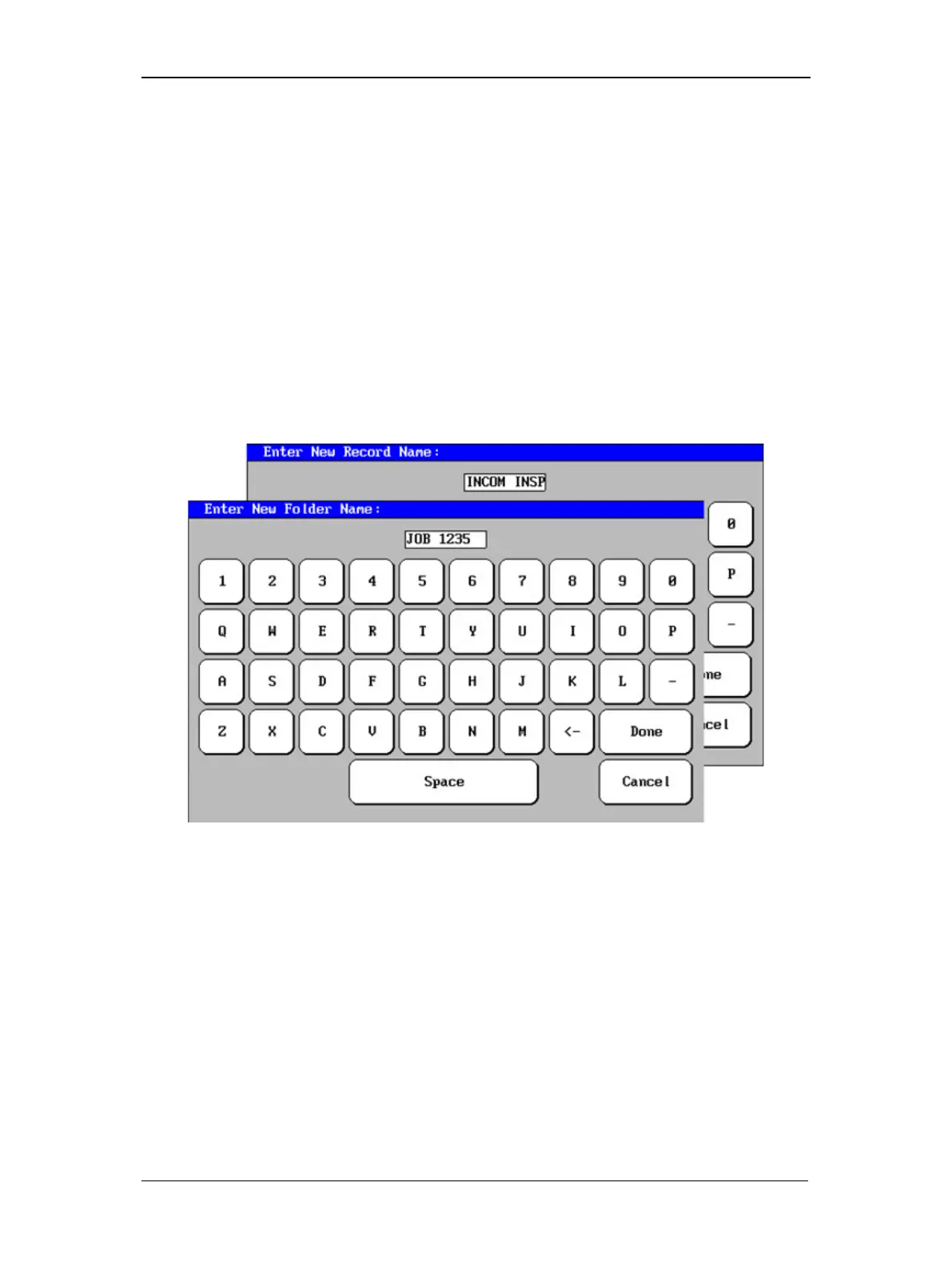
4. In either case, a touch screen keyboard appears to help you type in the folder or record
name you want to create.
Figure 32. Touch screen keyboard.
5. You may name a folder using up to 10 characters. After entering the folder name,
touch Done.
6. Newly-created folders and/or records appear in their respective lists in the Display Area.
All records are time stamped when you save them to provide you with a record of when
a given test was performed.


 To Next Page