Using Baker DX Non-Test Functions
38 Baker DX 71-030 User Guide EN V10 www.megger.com
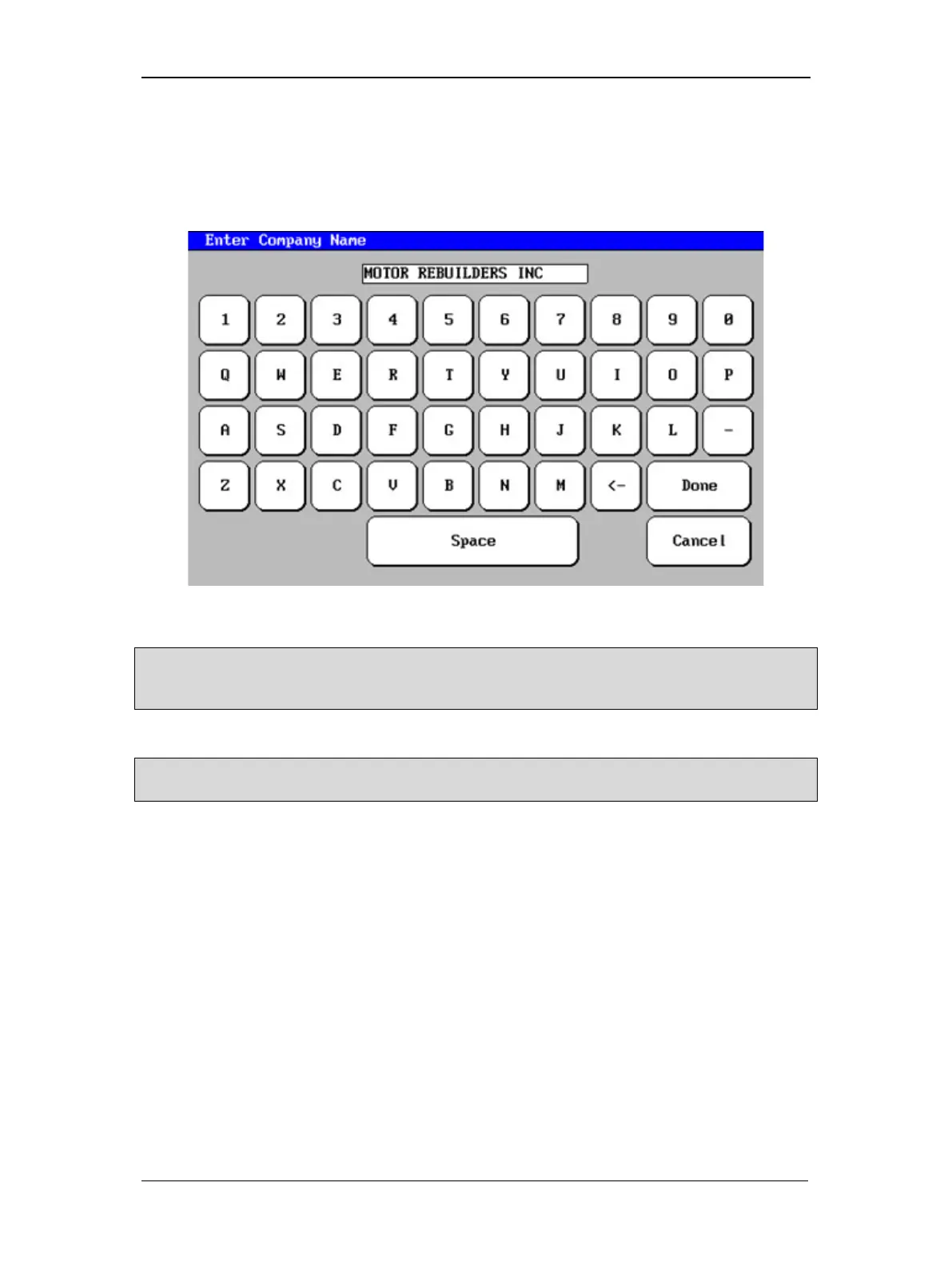
4. Touching any of the highlighted fields produces a touch screen keyboard like the one
shown below that you will use to enter or edit information. In this example “Motor
Rebuilders Inc” is being added to the Company Name field in the form. When you
finish typing the name in the field, touch Done on the keyboard and you will return to
the report header form and the information will be loaded into the field you selected.
Figure 41. Touch screen keyboard.
NOTE: The report header information remains unchanged and will be used for all reports, even if other
folders or records are opened. You will need to change this information when needed (for example, creating
reports for a different customer with their logo, company name, and so on).
5. Touch Done on the submenu bar when you complete the form.
NOTE: When moving to different records or folders, be sure to touch the Clear All button to ensure the
report header field is not populated with old or inaccurate information.


 To Next Page