Mitel 6940 SIP Phone User Guide
4.
Press the desired type of keys you want to edit (e.g. Top Softkeys) and press the
Select
softkey.
5.
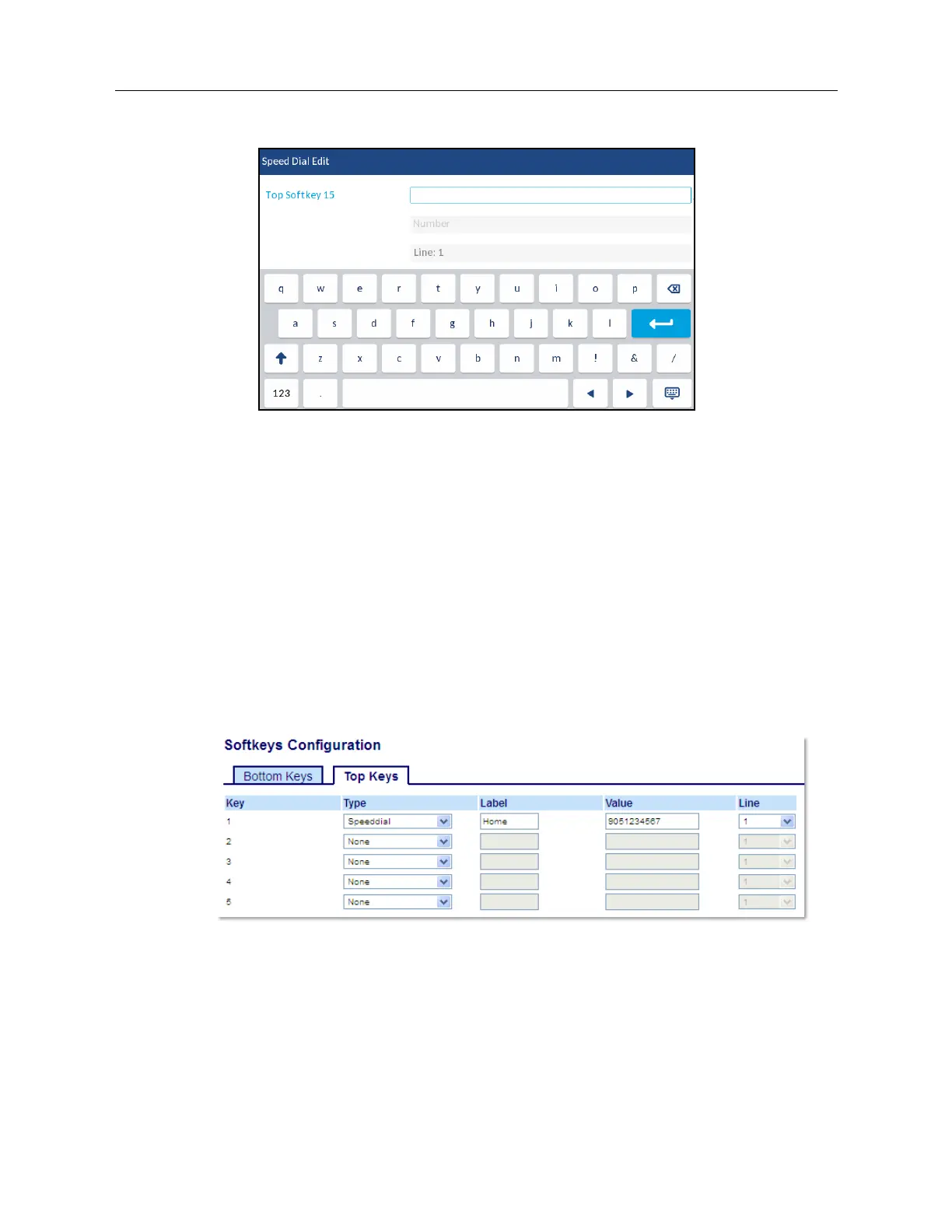
Press the desired key’s
Label
field (if applicable) and enter a label to apply to the key.
6.
Press the
Number
field (if applicable) and enter a number for the key using the on-screen
keyboards.
7.
Press the
Line
field and select a line to apply to the key. This is the line that the phone opens
to dial the number after you press the respective
Speed Dial
key. By default, the phone uses
Line 1 for the
Speed Dial
key. If you want to use a different line, press the left or right arrow
buttons to select another line.
8.
Press the
Save
softkey to save the speed dial information to the key you selected.
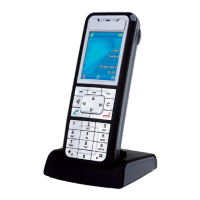
Creating a Speed Dial Softkey Using the Mitel Web UI
1.
Click on
Operation > Softkeys and XML
.
or
Click on
Operation > Expansion Module <N>
.
Softkeys
2.
Select from
Key 1
through
Key 48
on the Top keys.
or
Select from
Key 1
through
Key 30
on the Bottom keys.
3.
In the
Type
field, select
Speed Dial
to apply to the key.
4.
In the
Label
field, enter a label to apply to this key.



 To Next Page