Mitel 6940 SIP Phone User Guide
Expansion Module Keys
7.
Select from
Key 1
through
Key 84
(M695).
8.
In the
Type
field, select
XML
.
9.
In the
Value
field, enter a URI(s) to apply to this key.
10.
Click
Save Settings
.
Accessing the XML Service Using the IP Phone UI
After an XML application(s) has been saved to your IP phone and a key has been configured to
access the XML applications, the customized service is ready for you to use.
1.
Press the
XML
softkey on the 6940 phone. An XML screen displays.
2.
Swipe up and down to scroll through the list of customized features.
3.
For menu and directory services, select a service to display the information for that customized
service. Message services display to the screen after pressing the respective key. For user input
services, follow the on-screen prompts.
4.
To exit from the XML
screen, press the
XML
softkey again or press the button.
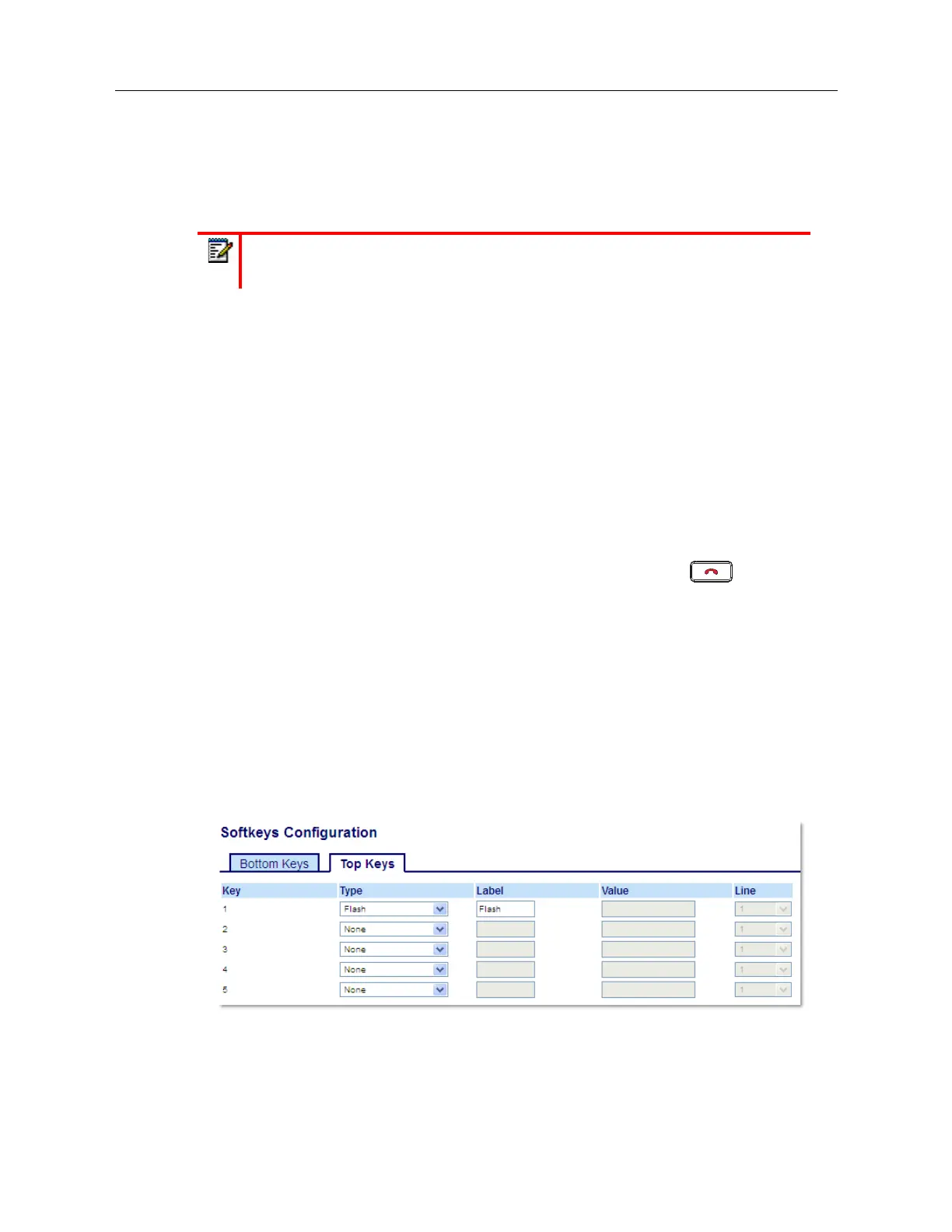
Flash Key
You can set a key to generate a flash event when it is pressed on the 6940. You do this by setting
the key to
Flash
. The IP phone generates flash events only when a call is connected and there is
an active RTP stream (for example, when the call is not on hold).
Configuring a Flash Key Using the Mitel Web UI
1.
Click on
Operation > Softkeys and XML
.
or
Click on
Operation > Expansion Module <N>
.
Note:
Contact your System Administrator for the appropriate value(s) to enter in the
Value
field.



 To Next Page