5.
In the
Value
field, enter the phone number, extension, or speed dial prefix to apply to this key.
If you enter a speed dial prefix, you must enter the + character at the end of the prefix number
(for example, 123456+).
6.
In the
Line
field, select a line to apply to this key. Valid values are
1
through
24
.
7.
In the state fields, check (enable) or uncheck (disable) the states you want to apply to this softkey.
Expansion Module Keys
8.
Select from
Key 1
through
Key 84
(M695).
9.
In the
Type
field, select
Speed Dial
to apply to the key.
10.
In the
Value
field, enter the phone number, extension, or speed dial prefix to apply to this key.
If you enter a speed dial prefix, you must enter the + character at the end of the prefix number
(for example, 123456+).
11.
In the
Line
field, select a line to apply to this key. Valid values are
1 through 24
.
12.
Click
Save Settings
.
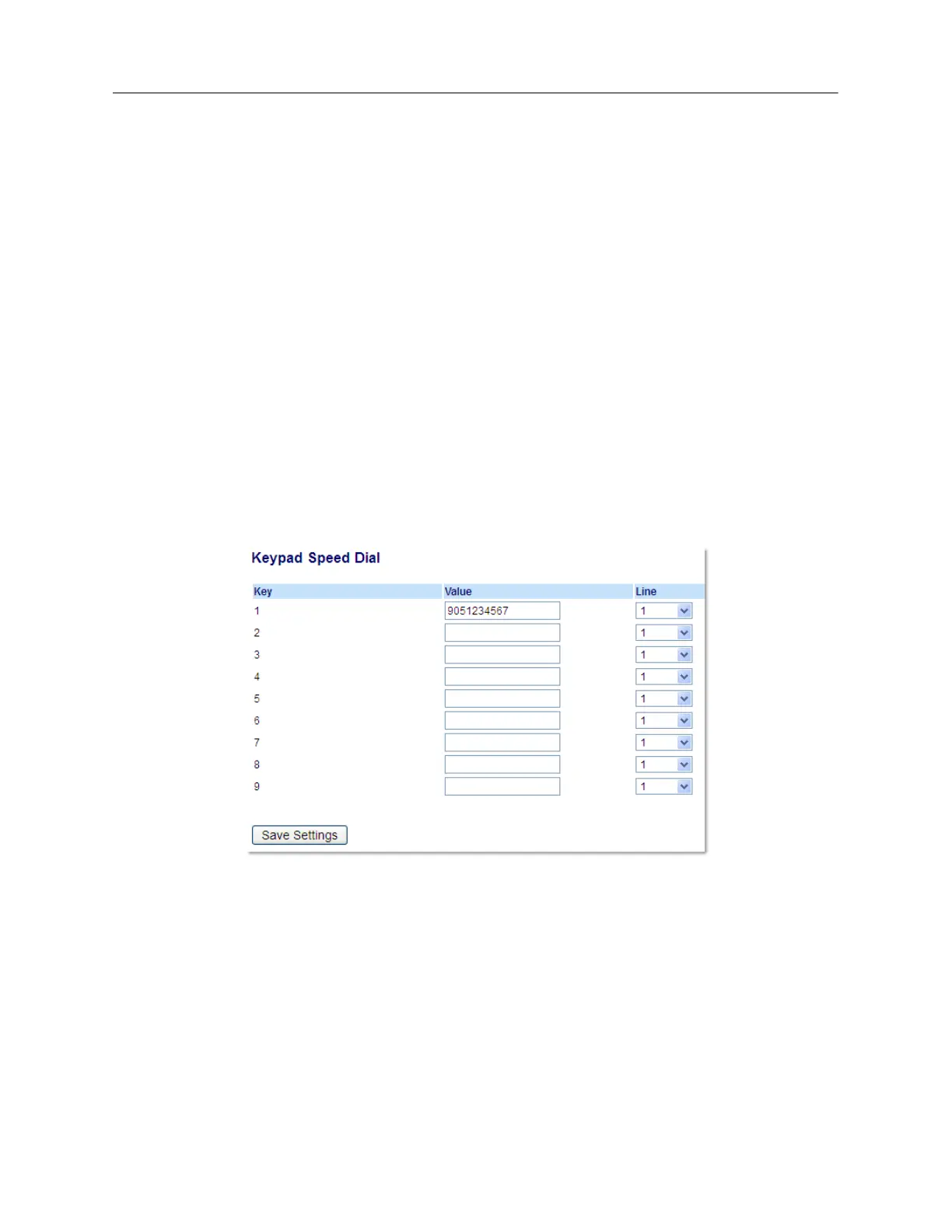
Creating Dialpad Speed Dial Keys Using the Mitel Web UI
1.
Click on
Operation > Keypad Speed Dial
.
2.
Select a key from
1
through
9
.
3.
In the input box, enter the phone number, extension, or speed dial prefix to apply to this digit
key. If you enter a speed dial prefix, you must enter the + character at the end of the prefix
number (for example, 123456+).
4.
In the
Line
field, select a line for which to apply the speed dial to. Valid values are
1
through
24
.
5.
Click
Save Settings
.



 To Next Page