Mitel 6940 SIP Phone User Guide
10.
Press the
Save
softkey to save your changes.
Call Forward
Lock
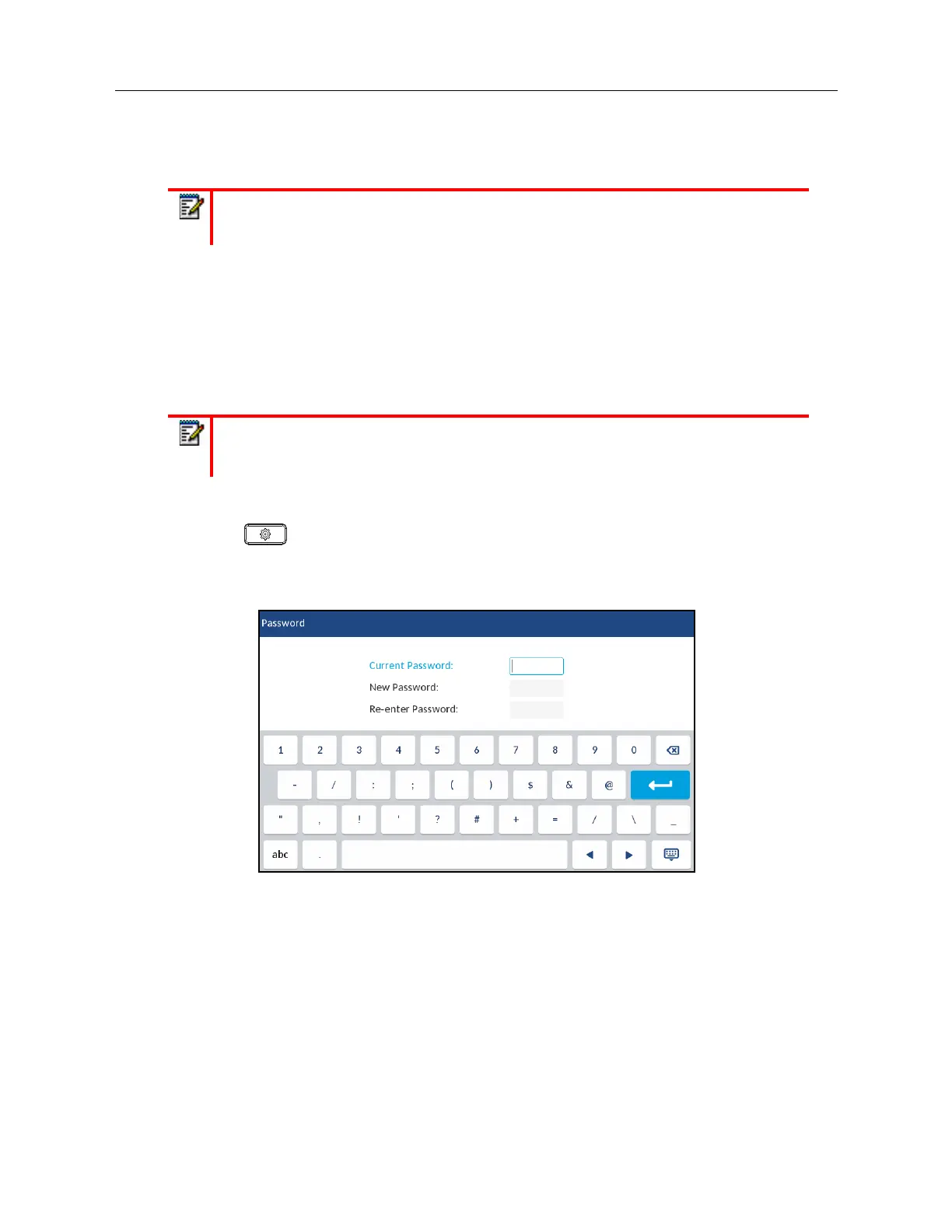
Password
This category allows you to change the user password for your phone. Changing your password
ensures that only you can alter your phone settings and helps keep your system secure. You can
change your user password using the IP phone UI or the Mitel Web UI.
Setting a User Password Using the IP Phone UI
1.
Press on the phone to enter the Options List.
2.
Press the
Lock
icon.
3.
Press the
Password
icon.
4.
In the
Current Password:
field, enter the current user password.
5.
In the
New Password:
field, enter the new user password.
6.
In the
Re-enter Password:
field, re-enter the new user password.
7.
Press the
Save
softkey to save your changes.
A
Password Changed
confirmation message displays on the screen.
Phone Lock
You can lock your phone to prevent the phone from being used or configured. You can lock the
phone using the IP phone UI, Mitel Web UI or by configuring a Lock softkey on your phone. For
Note:
For Call Forward information and configuration details, see “Call Forward
Configuration” on page clxxxvii.
Note:
Valid values when creating or changing a password are 0 to 4294967295 (integers
only; symbols and alpha characters are not allowed). The default password is an empty
string (i.e. leave the field blank).



 To Next Page