DND in Account Mode
1.
From the
Home
screen swipe left to move to the
Line Selection
screen.
2.
Press the desired account.
3.
Swipe right to go back to the
Home
screen
4.
With the account in focus on the
Home
screen, press the
DND
softkey to toggle DND on or off
for the account.
DND in Phone Mode (Default)
1.
From the
Home
screen, press the
DND
softkey to toggle DND on or off for all accounts on the
phone.
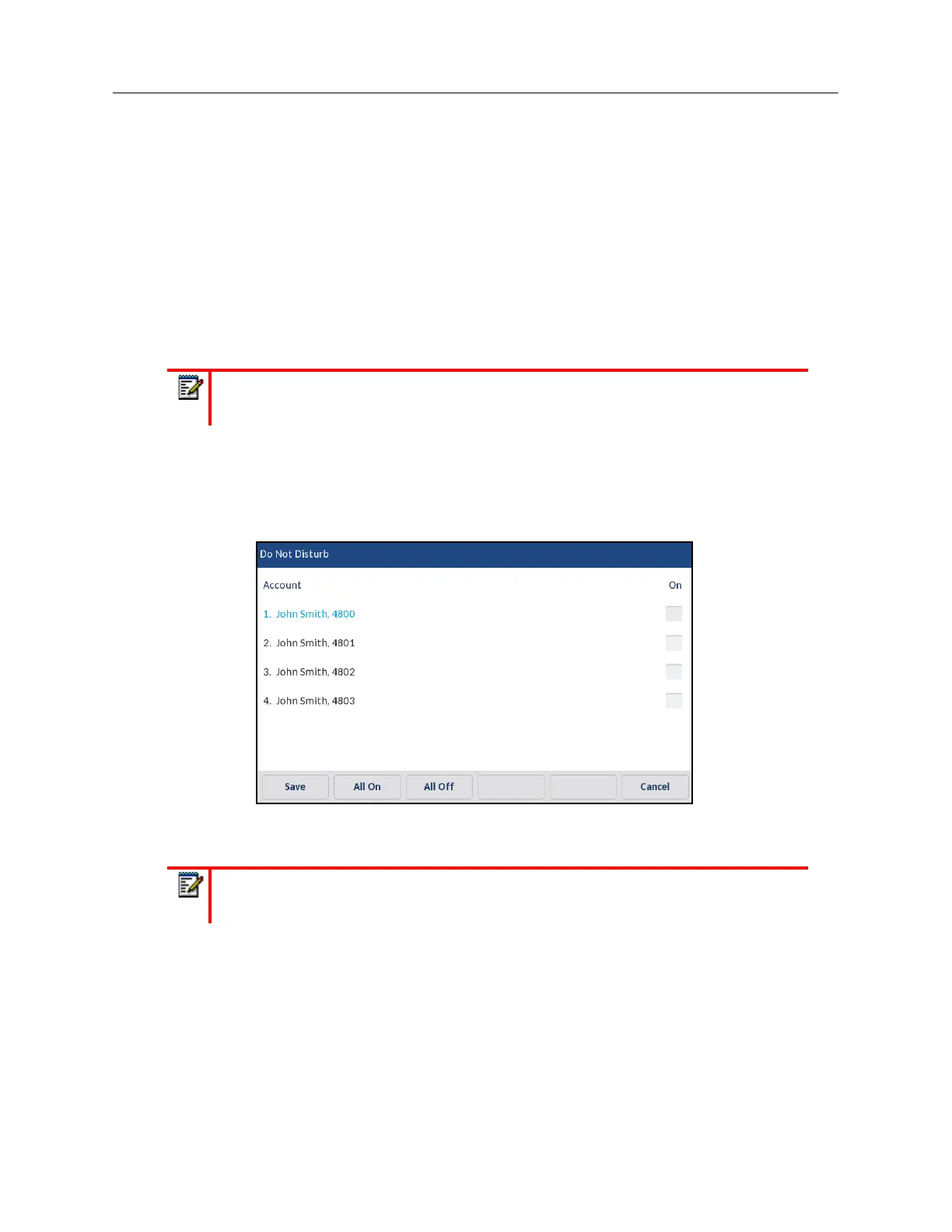
DND in Custom Mode
1.
From the
Home
screen, press the
DND
softkey.
The screen displays a list of the accounts on the phone and allows you to enable/disable a
specific account or all accounts.
2.
Swipe up and down to scroll through the accounts and press respective checkbox to enable
DND for the corresponding account.
3.
Press the
Save
softkey to save your changes.
Call Forward Configuration
Call Forward on the IP phone allows incoming calls to be forwarded to another destination.
On the 6940, you can set Call Forward on the phone-side for a specific account or for all accounts
on the phone. You can set a Call Forward mode using the Mitel Web UI at the path,
Basic Settings
Note:
Enabling DND in Phone mode toggles all accounts on the phone to DND on.
Note:
Press the
All On
or
All Off
softkeys to quickly enable or disable DND for all
accounts.



 To Next Page